 near their status.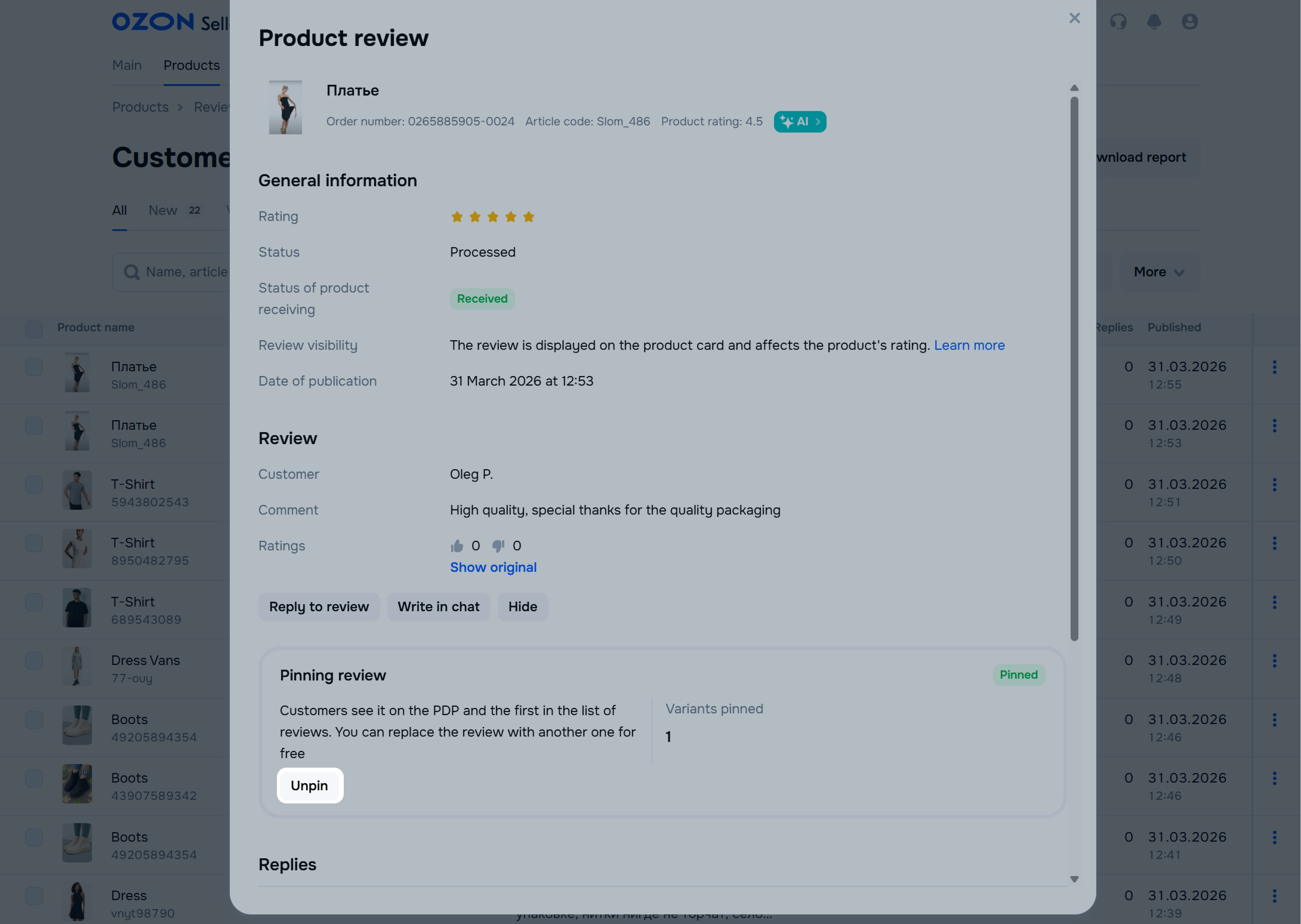
Определили ваш договор
Он заключён с ООО «Интернет Решения». Если есть другой договор, сможете переключиться на него в боковом меню
Available with the “Review management” or “Premium Pro” subscriptions.
The “Pinned review” tool finds and pins a suitable review for products without a pinned one.
If you think the review is useful, pin it manually.
How to pin a review
The tool works while your subscription is active. After the subscription ends, we unpin the reviews. If it resumes, we pin the old reviews or new and suitable ones.
The system finds a review useful if it has 5 stars and is at least 50 characters long. Such a review is displayed:
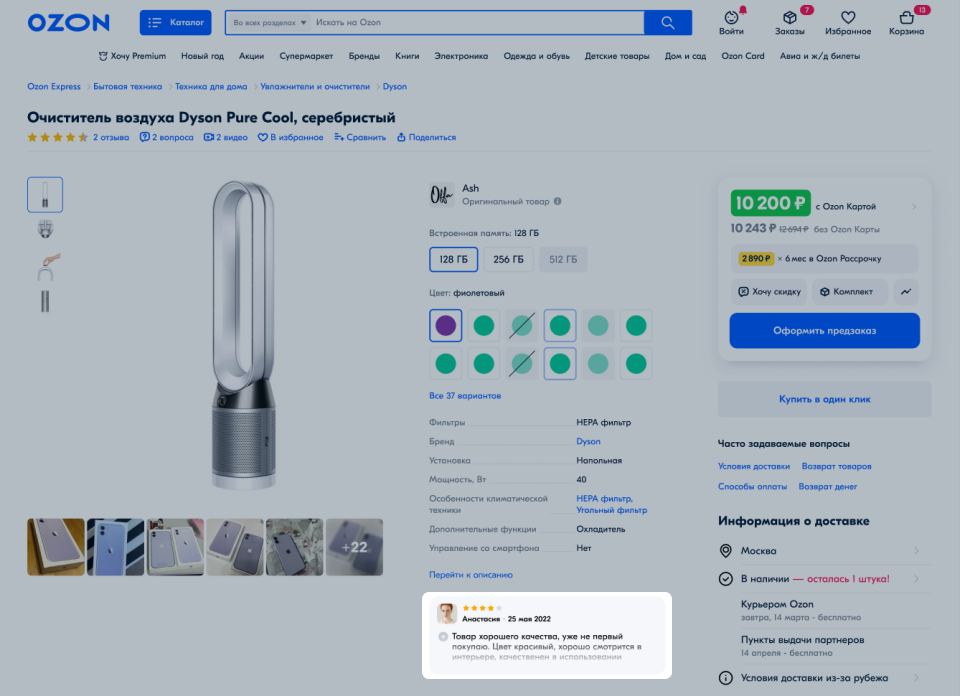
As a separate block on the PDP. Customers can read it without going to the section with all reviews.
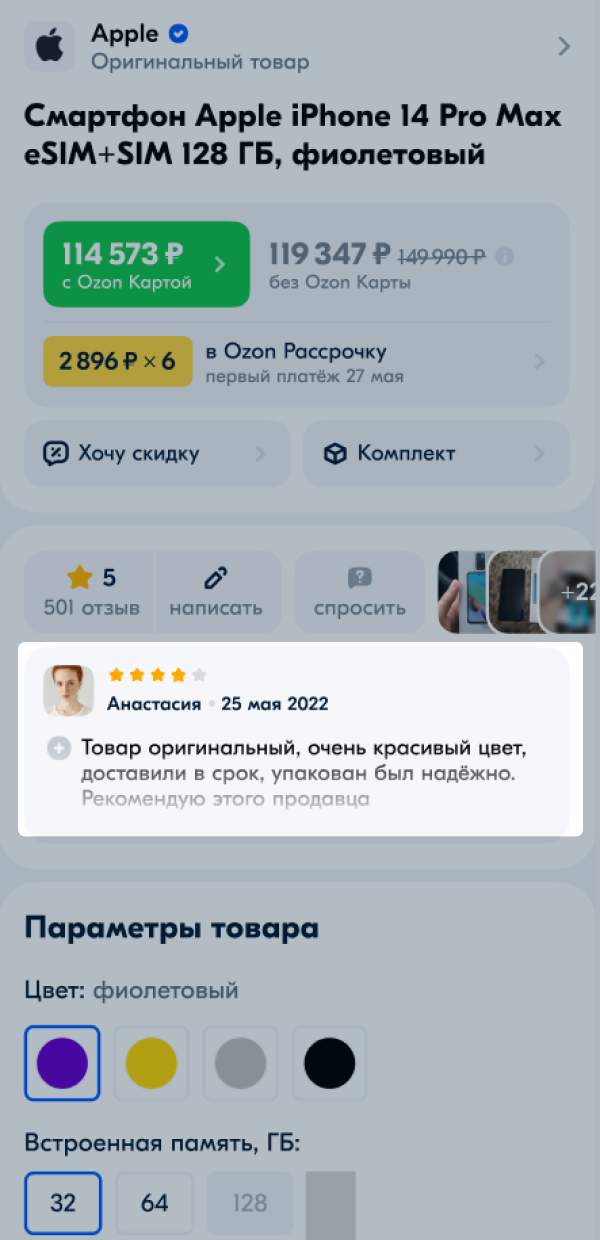
In the first place in the review list for all product variants.
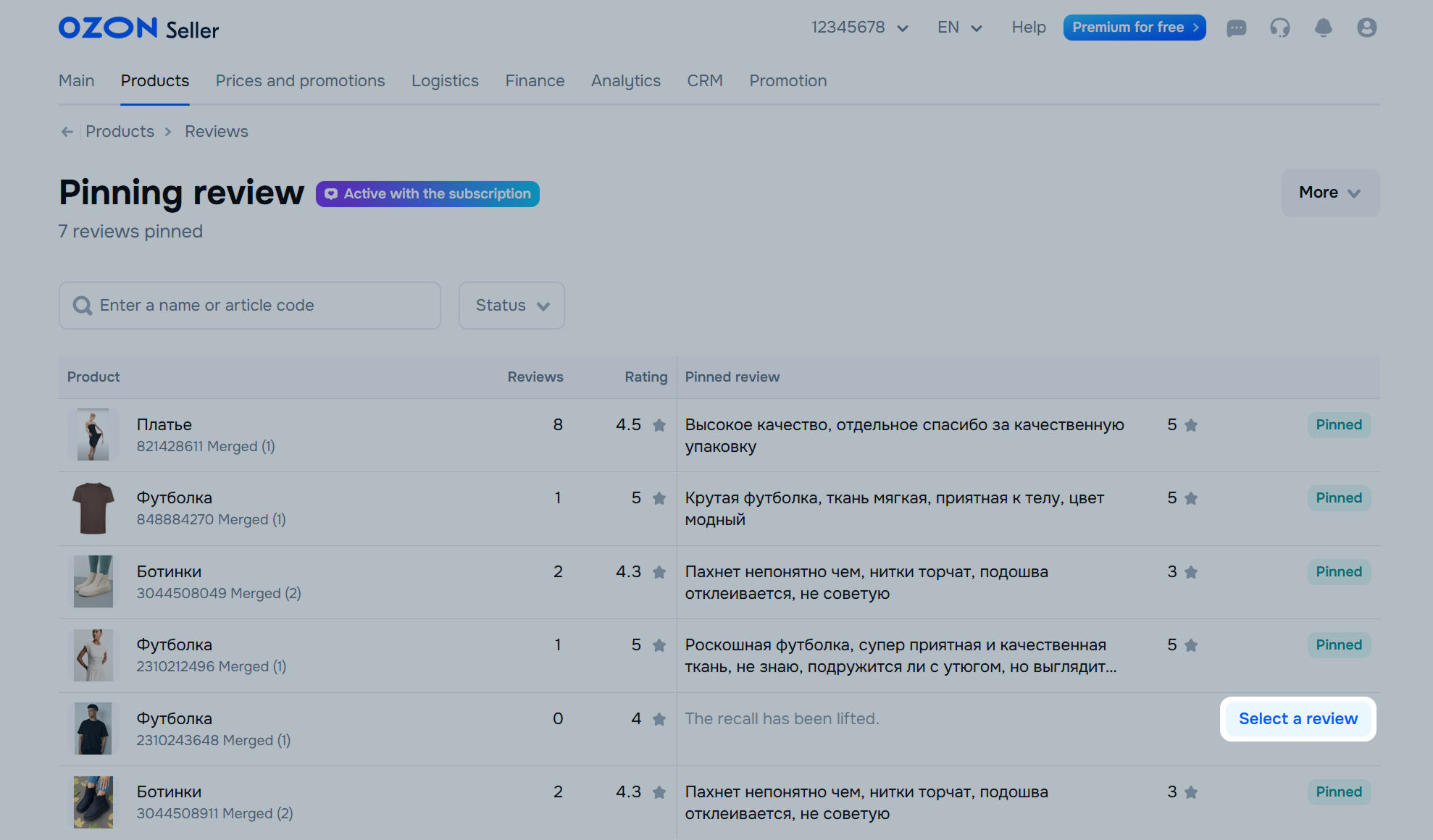
Go to the Products → Pinning review section and find a product. You can find it by name or SKU.
Click Select a review next to the product for which you want to pin a review. We show a page with all reviews for this product, except those that contain only a rating without text.
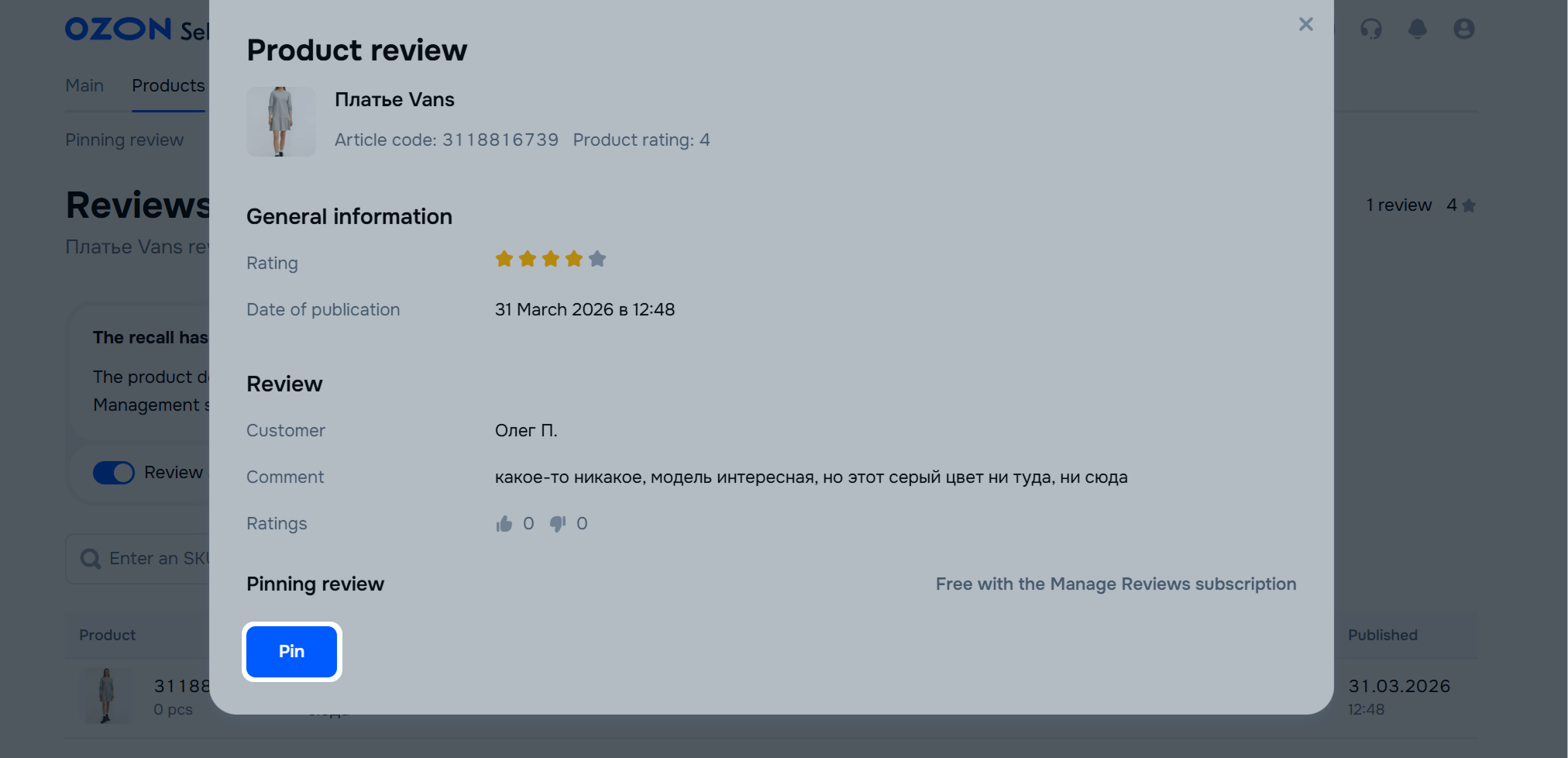
You can select only one review per product.
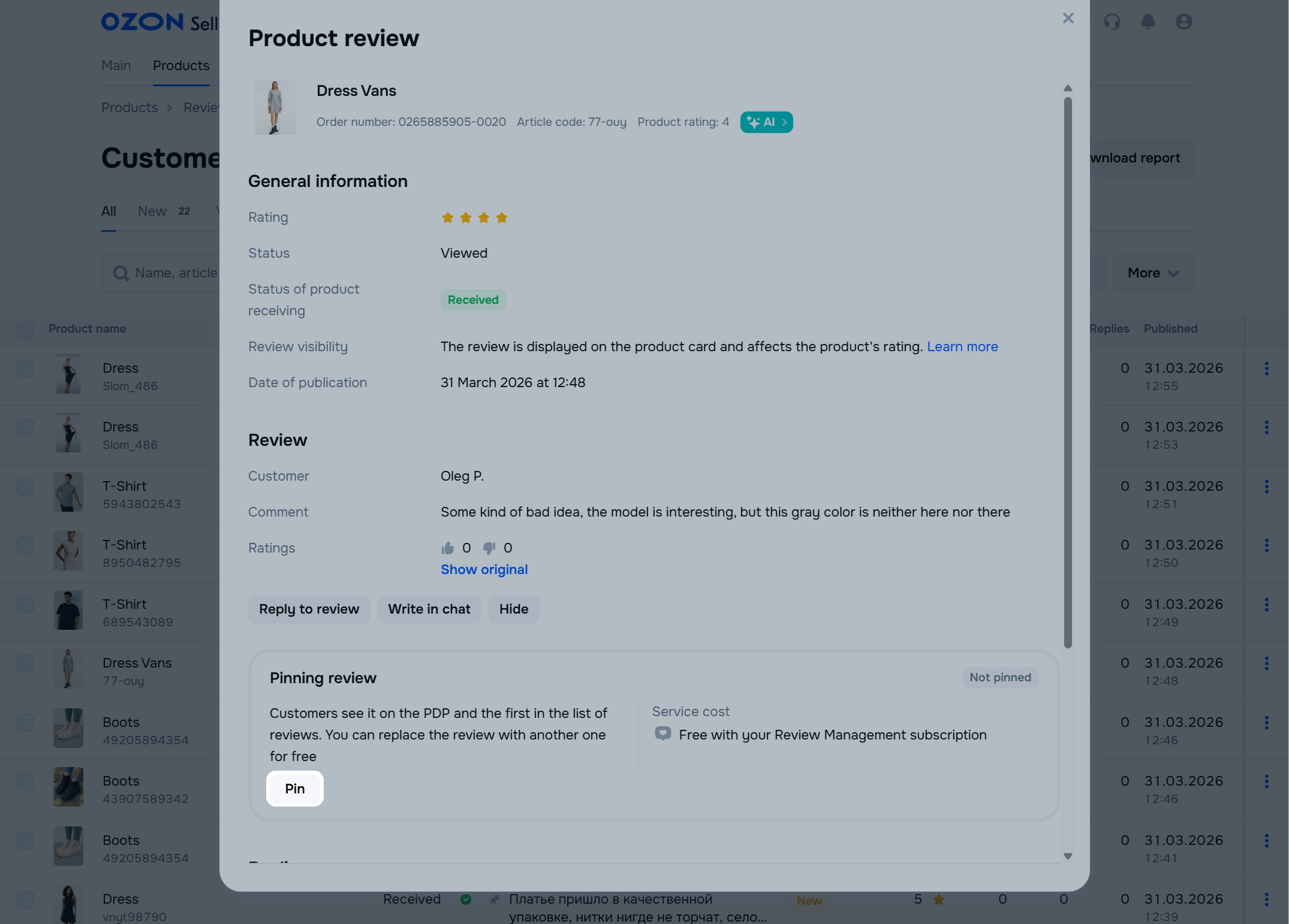
Select the review you consider most helpful for customers. To view full review text, click the line with it, then click Pin.
Make sure that the review applies to all products that are merged into one PDP. We pin it for all product variants.
How to pin a review in the Ozon Seller app
Go to the Products → Pinning review section.
Find the product with the “Pinned” status. To search for it, use the status filter.
Click the pinned review.
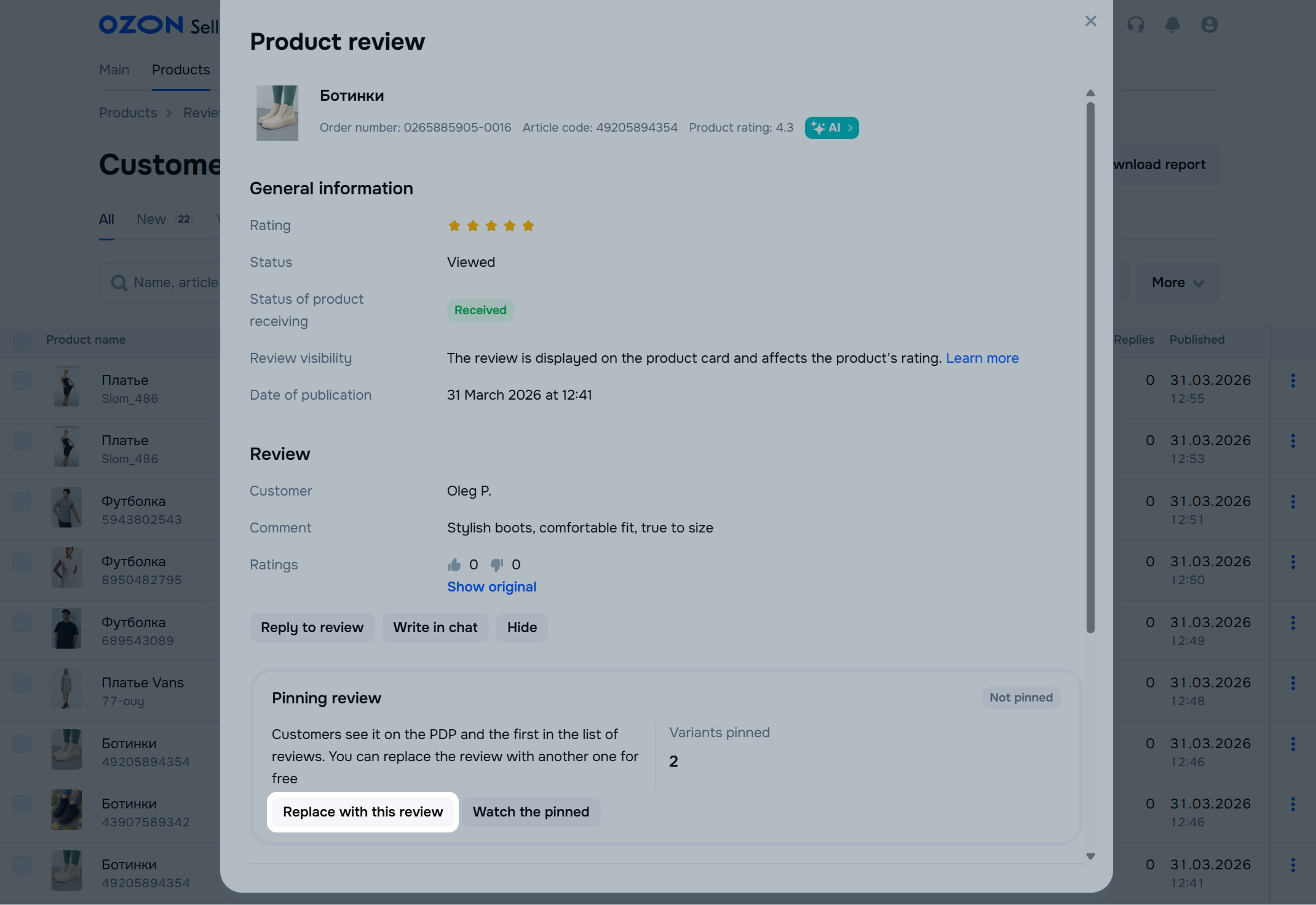
Select a different review from the list: click on the line with the review, review the details, and click Replace with this.
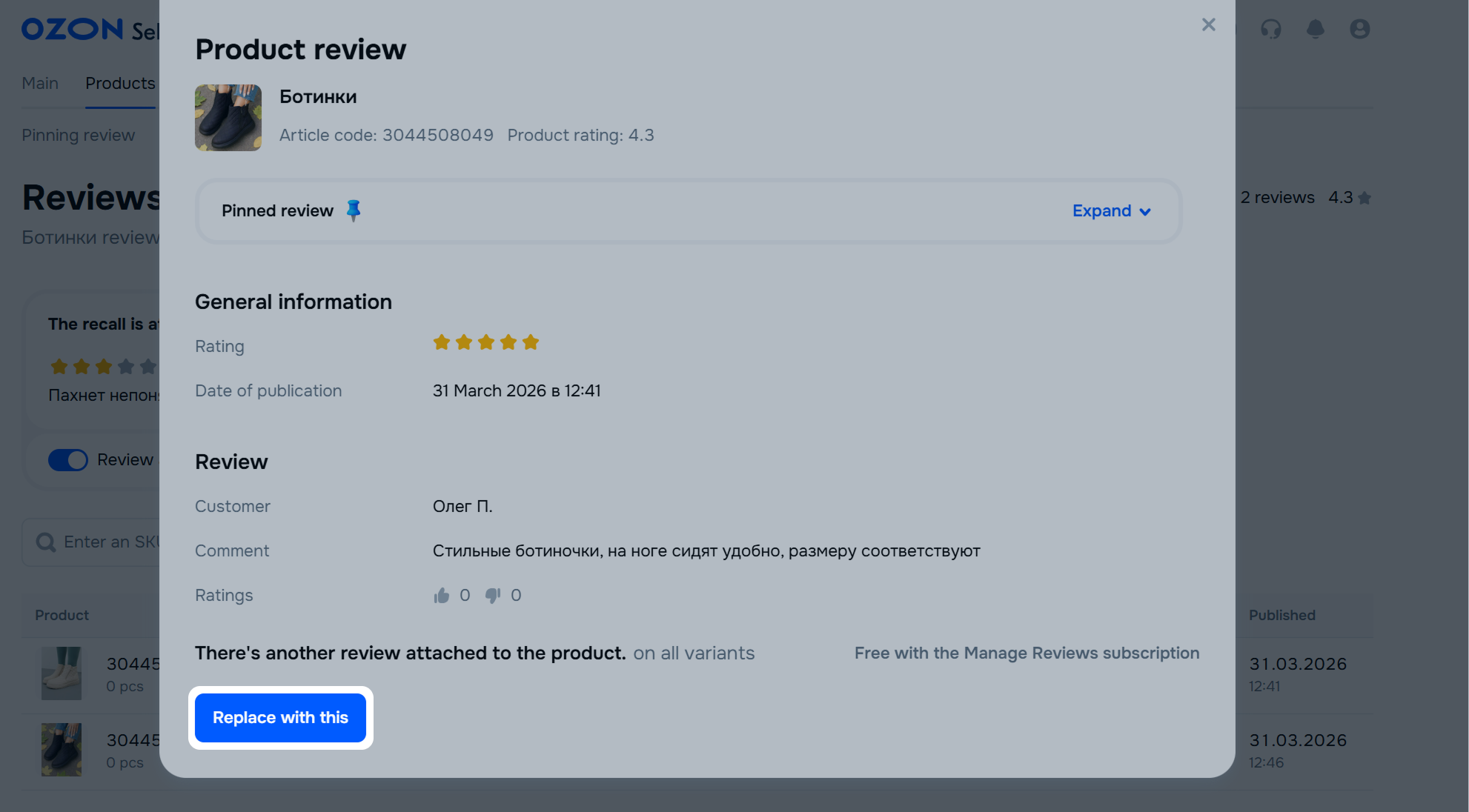
The new pinned review starts displaying for the selected product and all its variations.
Go to the Products → Pinning review section.
Click a product with the “Pinned” status.
Click the first review in the table or the block under the product name. We open the pinned review.
Click Unpin.
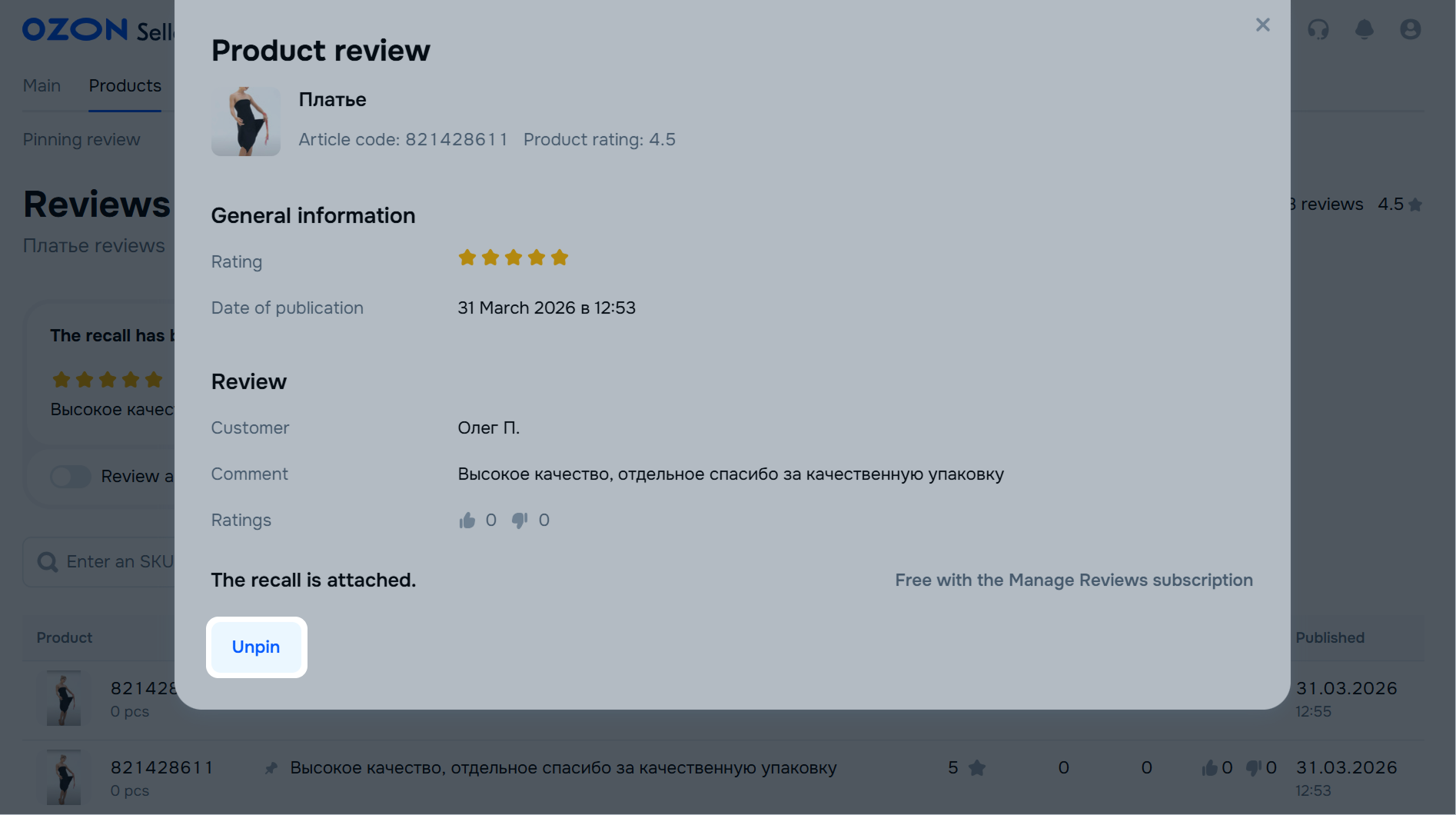
We stop showing the review at the top of the list and as a separate block on the PDP and its variants.
| Service status | Description |
|---|---|
| Review pinned | The review is pinned on the PDP. |
| Pinned until (date) | The review is pinned on the PDP until the subscription ends. |
| No pinned review | There is no pinned review on the PDP. |
| Review unpinned | You unpinned the review. |
| Pinning error | The customer changed or deleted the review. Choose a different review or view the changed review and pin it. |
If you archive a product, the status changes to “Pinning error”.
Go to the Products → Pinning review section.
Click More → Download analytics in Excel.
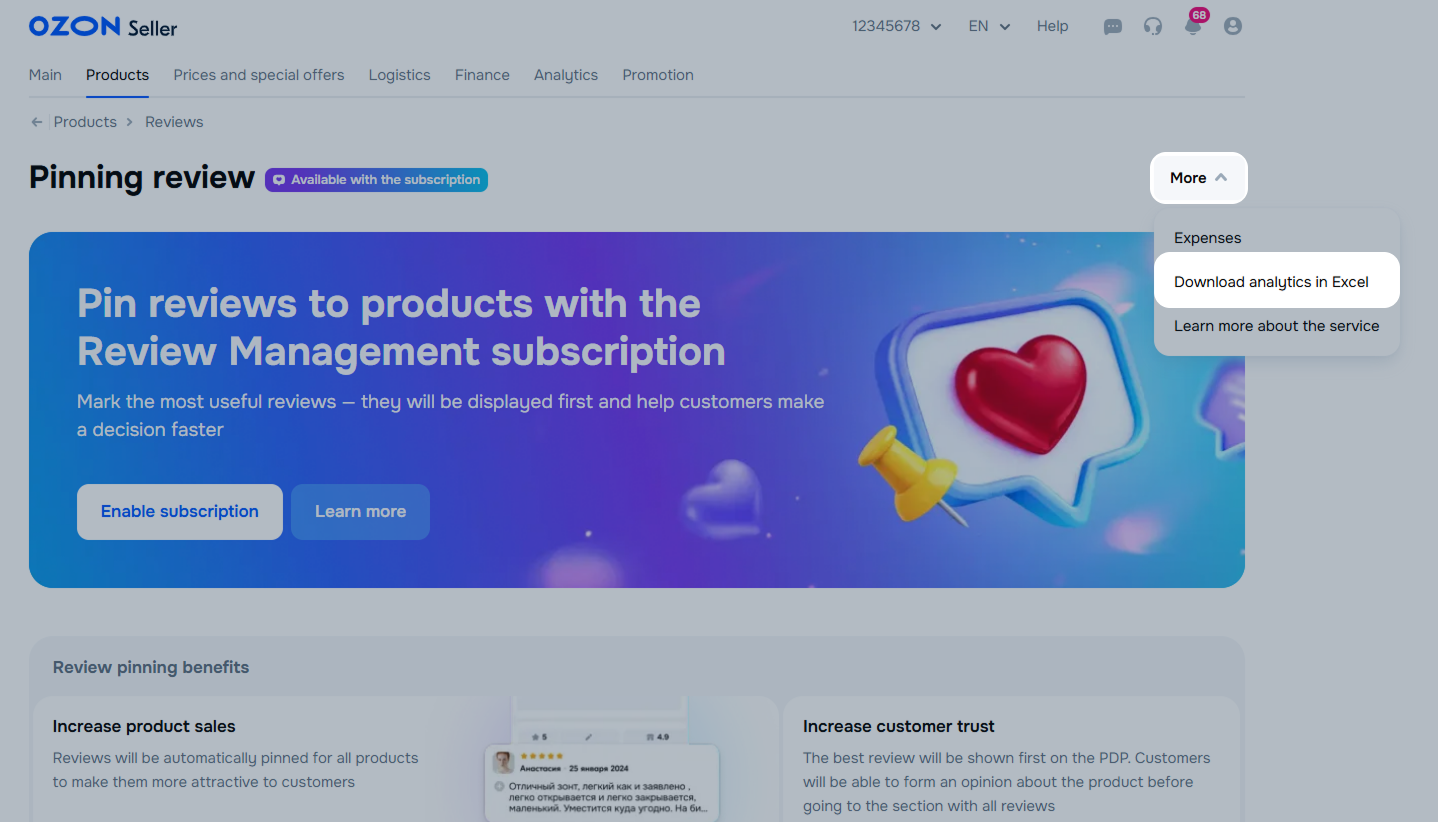
The XLS report will display data for the entire period of using the service:
Hide menu
Show menu
Выберите договор

Это база знаний для продавцов из стран СНГ и дальнего зарубежья.
Если ваша компания зарегистрирована в России, перейдите в базу знаний для продавцов из России.
Когда вы зарегистрировались на Ozon?
Условия работы и инструкции зависят от даты заключения договора — её можно посмотреть в разделе Договоры
Определили ваш договор
Он заключён с ООО «Интернет Решения». Если есть другой договор, сможете переключиться на него в боковом меню