
Определили ваш договор
Он заключён с ООО «Интернет Решения». Если есть другой договор, сможете переключиться на него в боковом меню
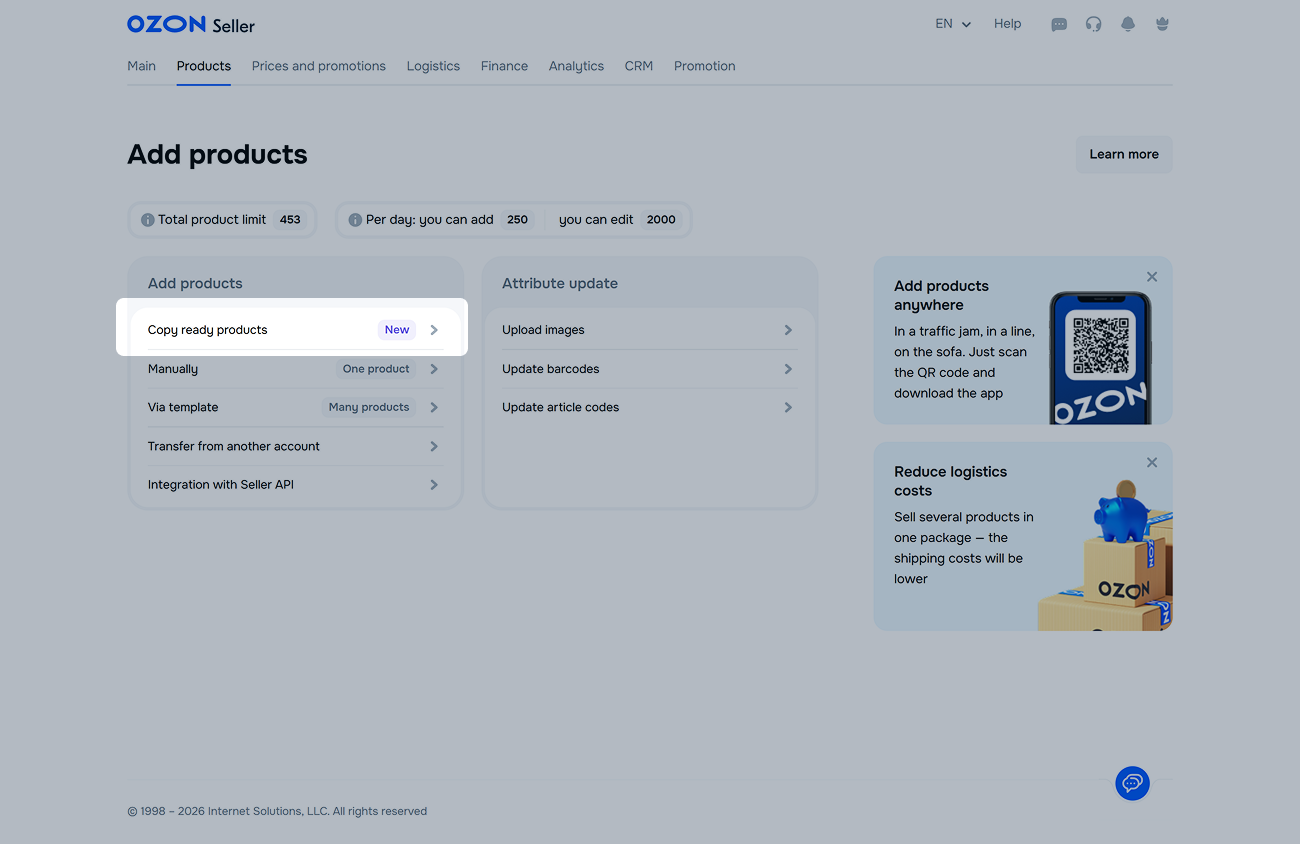
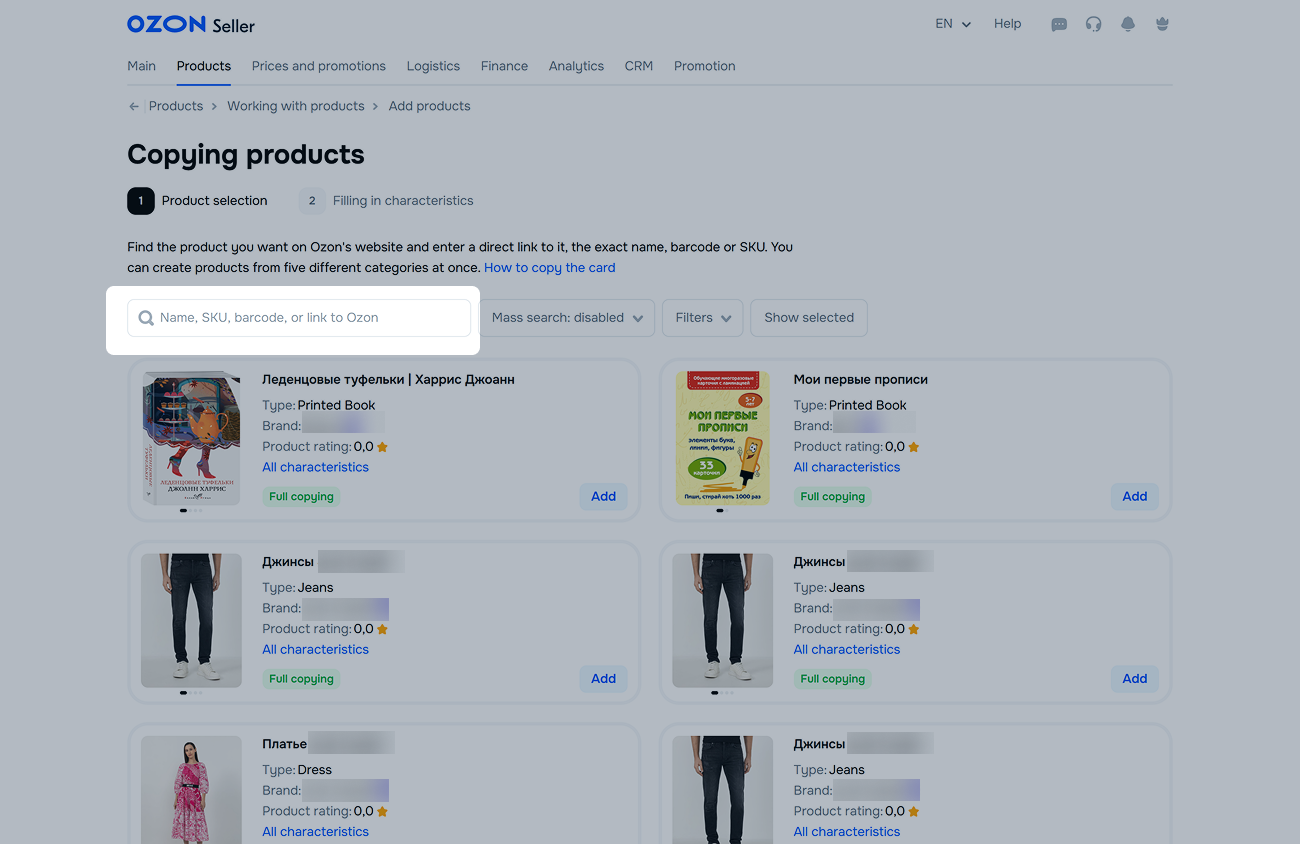
Before adding a new product to the marketplace, check if the same product is already on sale on Ozon.
Find the required products and click Add. The products will get to the list to be copied to your range.
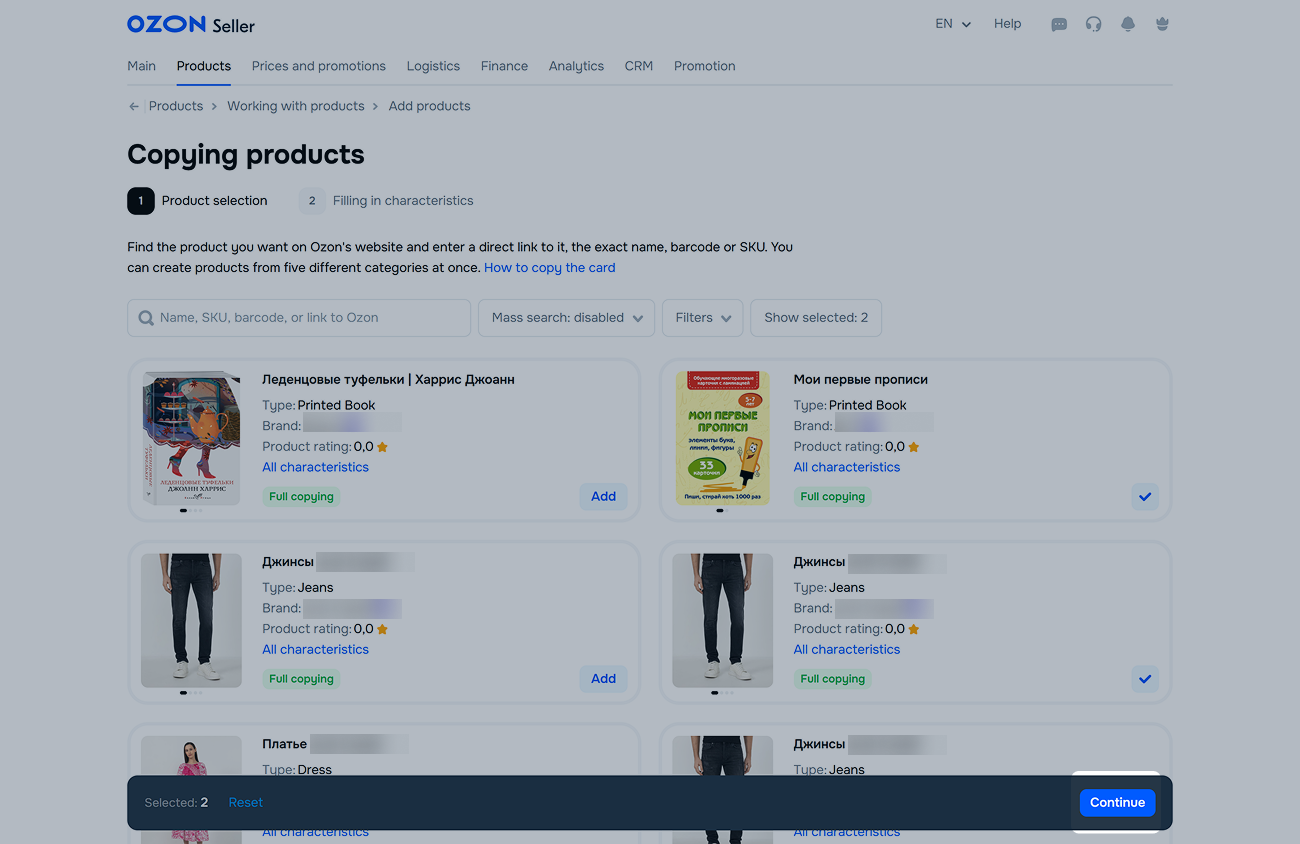
To view the products on the list, click Show Selected.
Click Continue. If you select multiple products, an online spreadsheet opens; if a single product is selected, a window with its characteristics appears.
You cannot copy the PDP if the seller is from another country. Select another product.
You can copy no more than 3,000 products at a time. The number of products for copying is limited by general and daily limits.
To copy a product via API, use the /v1/product/import-by-sku method. The method only copies another seller’s PDP; you cannot copy your own product. We recommend using the API for sellers with a large product range.
Learn more about working with the API
To prevent other sellers from copying part of your PDP content using Ozon internal tools, go to Products → Manage PDPs and click the right-side toggle so that it turns blue in the Block PDP Copying field.
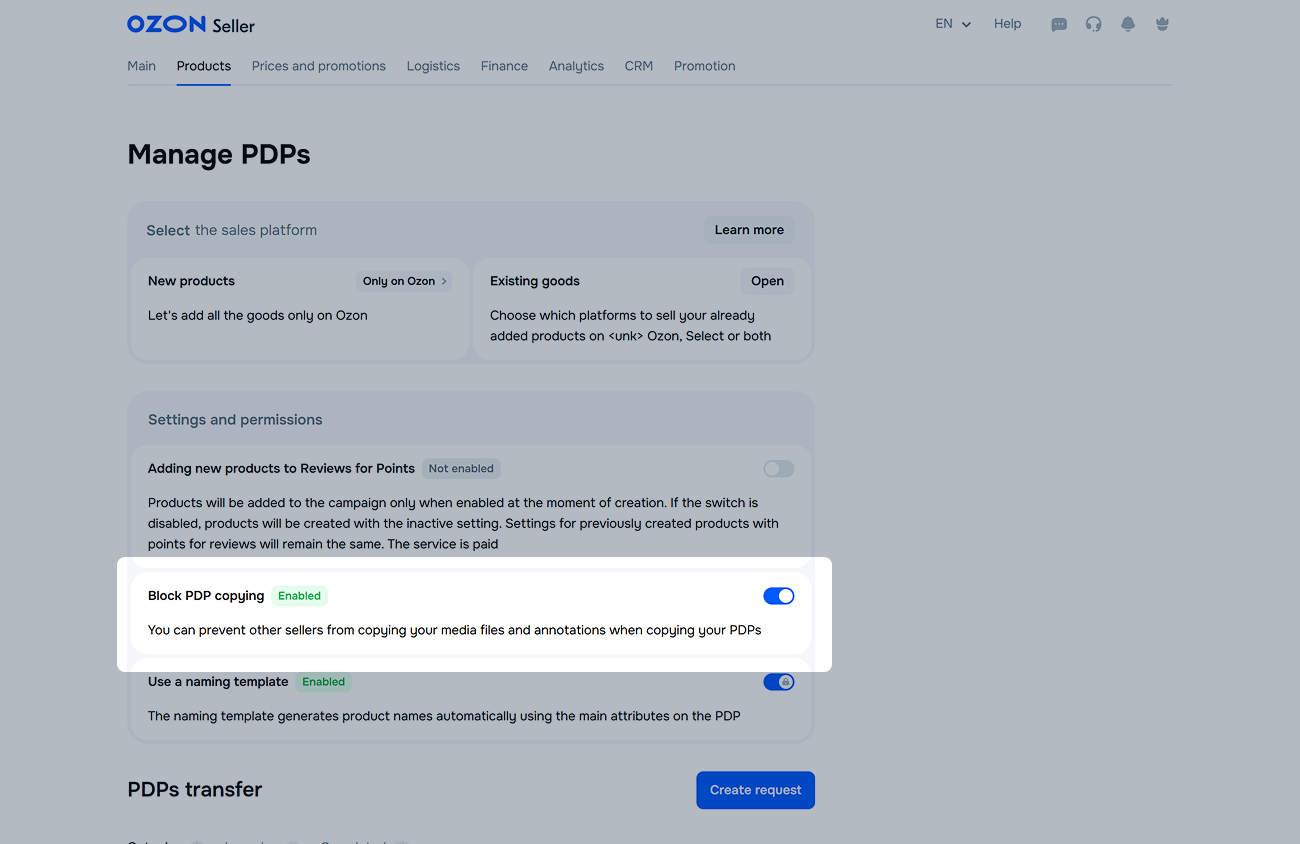
If the copy block is active, other sellers won’t be able to borrow media content, descriptions, or brand of your products.
If you have multiple similar items, copy your PDP and correct the required fields to avoid creating an entire product. You cannot simply copy your PDP and leave it as is; it won’t pass moderation this way.
 in the row with the desired item and select Create Copy.
In your account, open the Products → Product list section.
Select products and click Actions → Download XLS template by category.
To download generated XLS template, click Open templates or Download templates →  . The report will be saved on your computer.
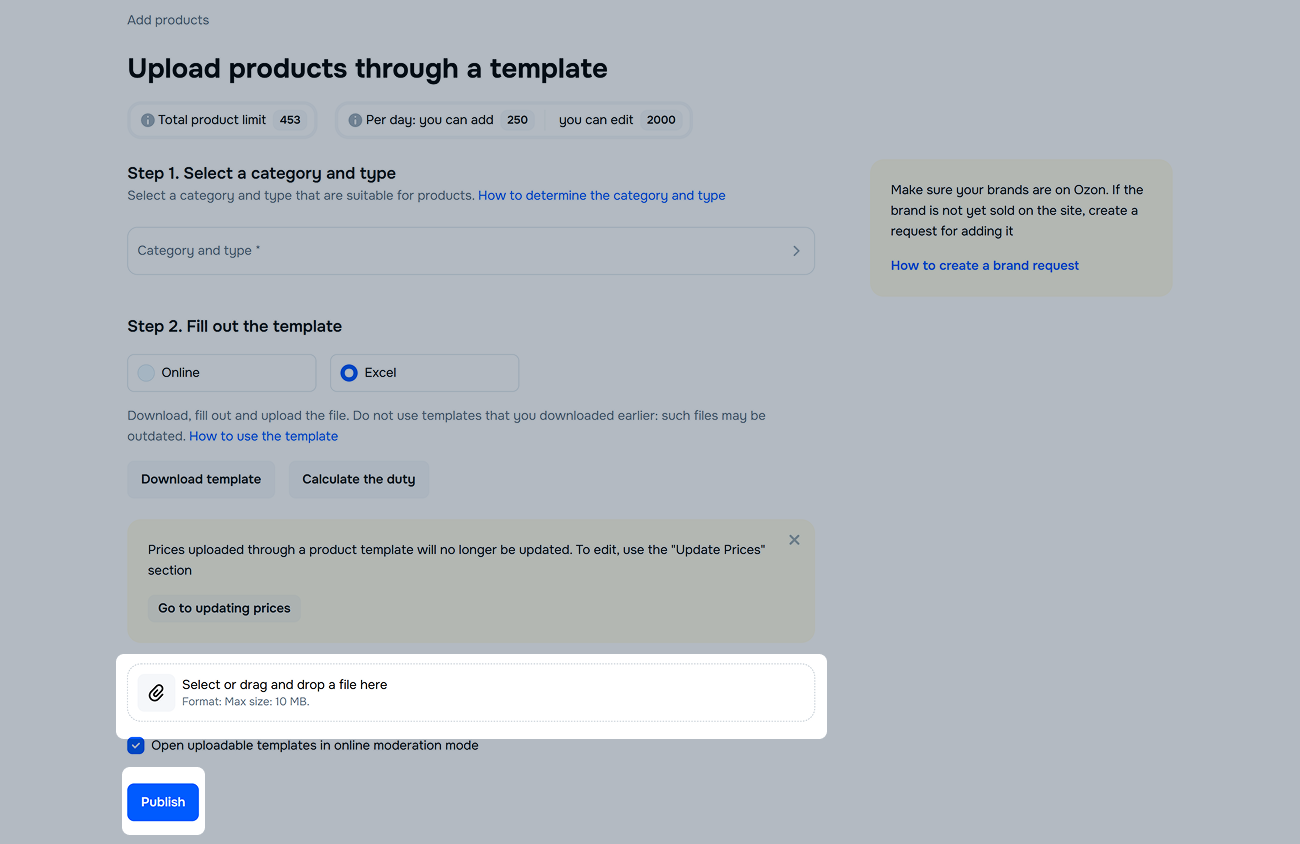
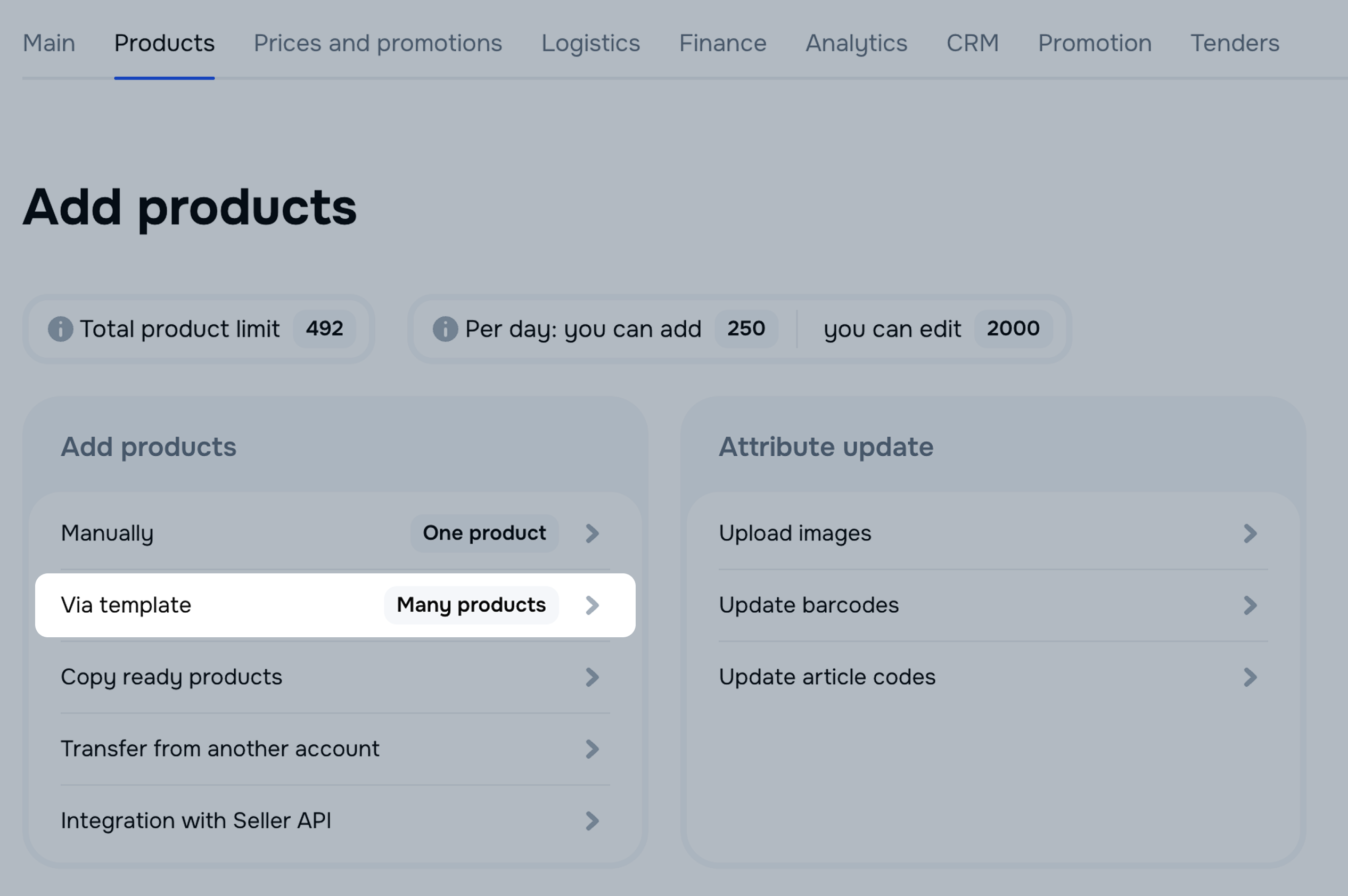
In another account, open the Products → Add products → Via template section.
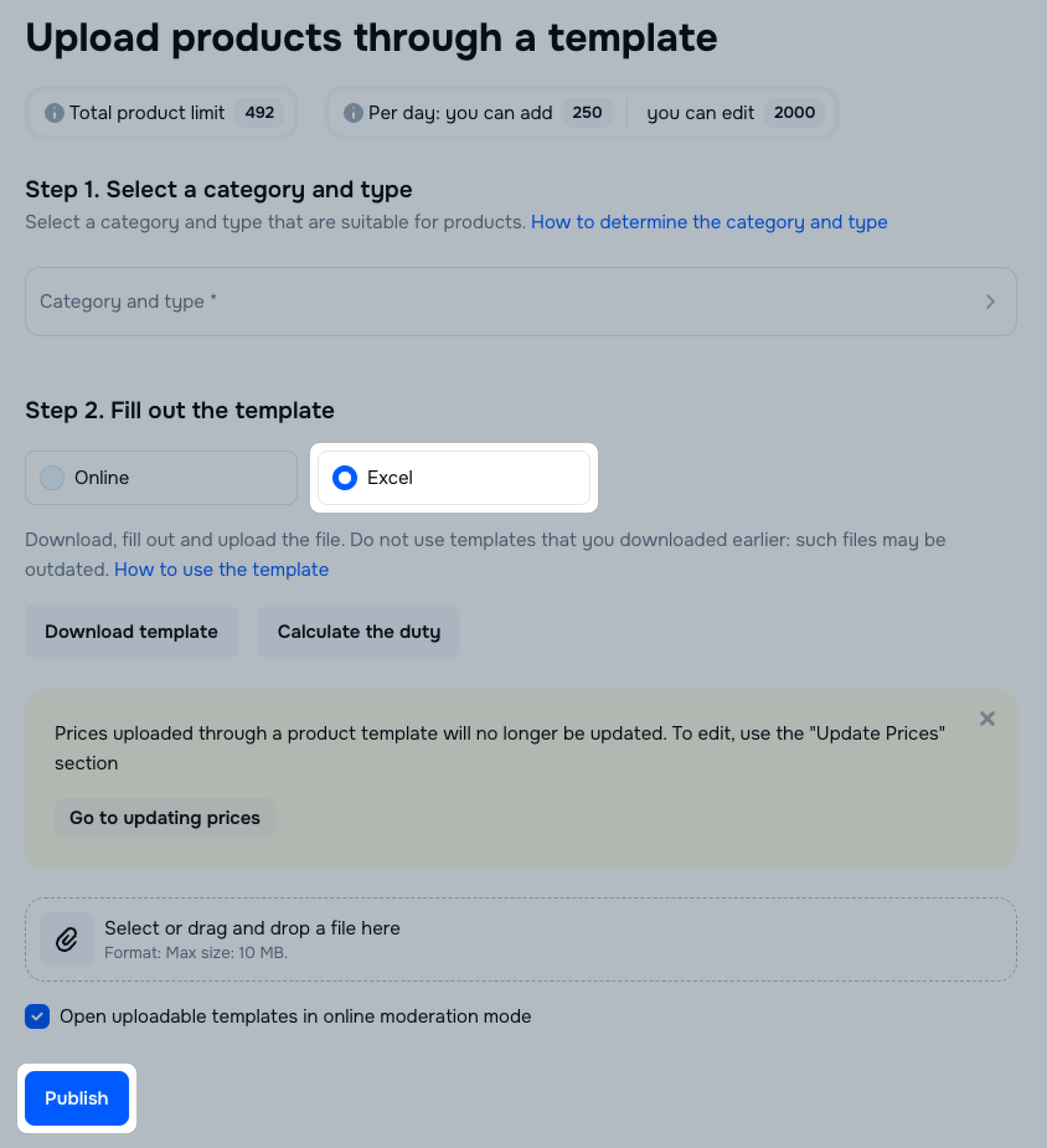
On the Upload products through a template page, select Excel. Choose a previously downloaded template file and click Publish. Repeat this step for all downloaded templates.
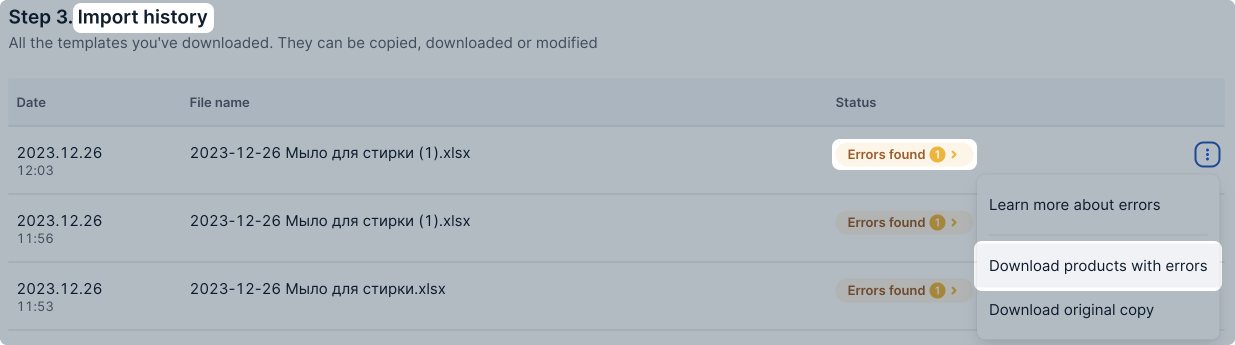
You can find the uploaded templates in the Import history section.
If there is something wrong with the file, the Status column will display «Errors found» and the number of errors.
To view the errors, click
 → Download products with errors.
Correct them and re-upload the file.
→ Download products with errors.
Correct them and re-upload the file.
Once created, the products are automatically added to the campaign Expedited Review Collection for Your Products. To disable auto-adding of new products to the special offer, go to Products → Manage PDPs and disable Adding New Products to Expedited Review Collection for Your Products.
Hide menu
Show menu
Выберите договор

Это база знаний для продавцов из стран СНГ и дальнего зарубежья.
Если ваша компания зарегистрирована в России, перейдите в базу знаний для продавцов из России.
Когда вы зарегистрировались на Ozon?
Условия работы и инструкции зависят от даты заключения договора — её можно посмотреть в разделе Договоры
Определили ваш договор
Он заключён с ООО «Интернет Решения». Если есть другой договор, сможете переключиться на него в боковом меню