Определили ваш договор
Он заключён с ООО «Интернет Решения». Если есть другой договор, сможете переключиться на него в боковом меню
We’ve adapted the interface, so that you can view the necessary information for creating a PDP on a single page without switching between steps.
Go to the Products → Add products section and click Manually.
Select type in “Clothing” and “Accessories” category.
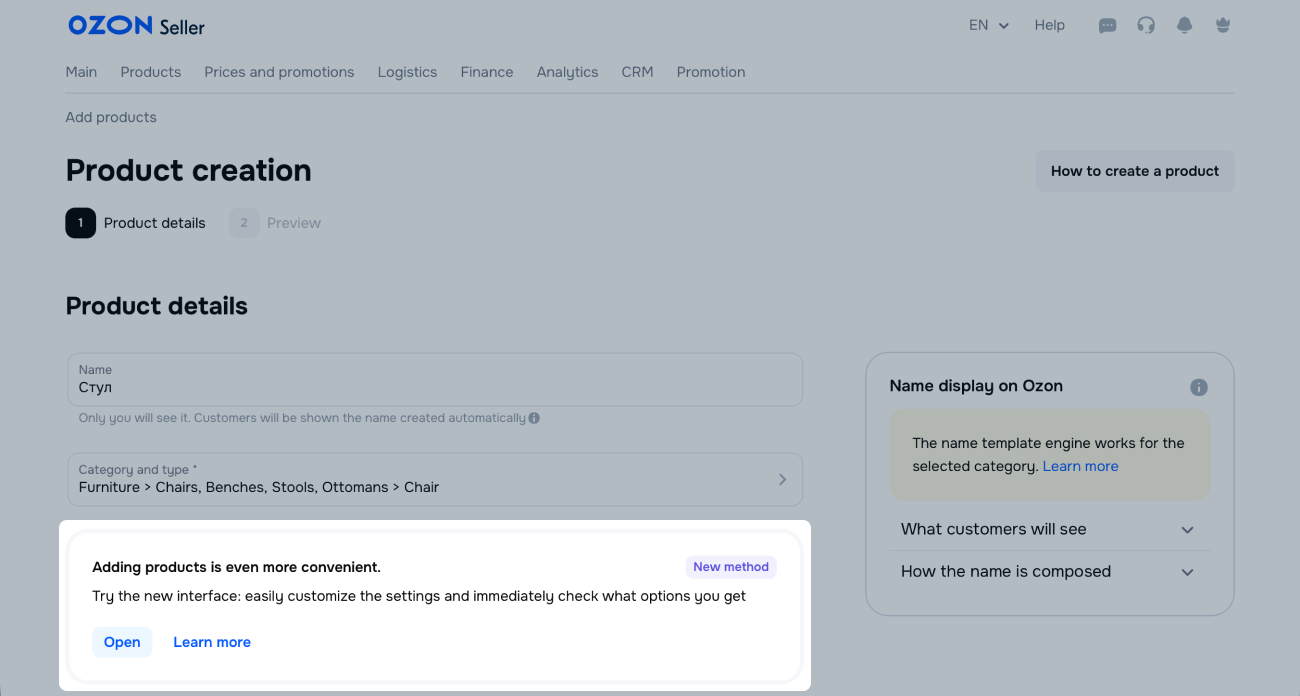
In the Adding products is even more convenient block, click Open.
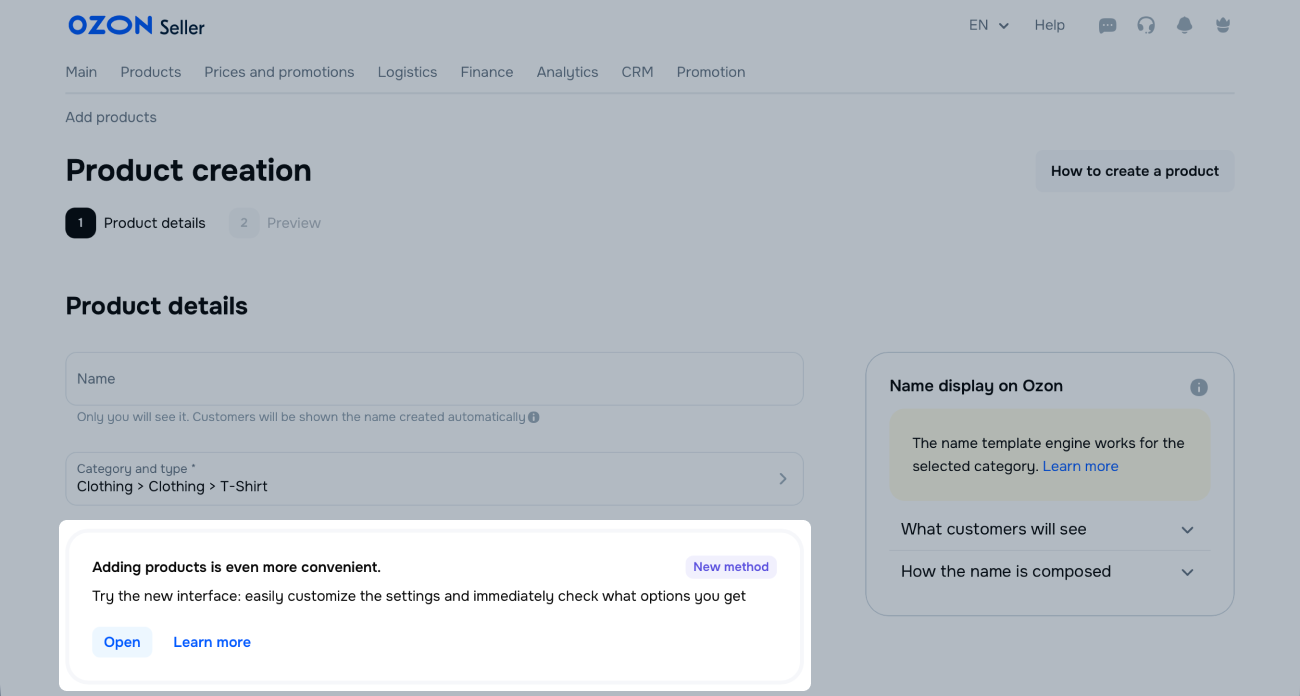
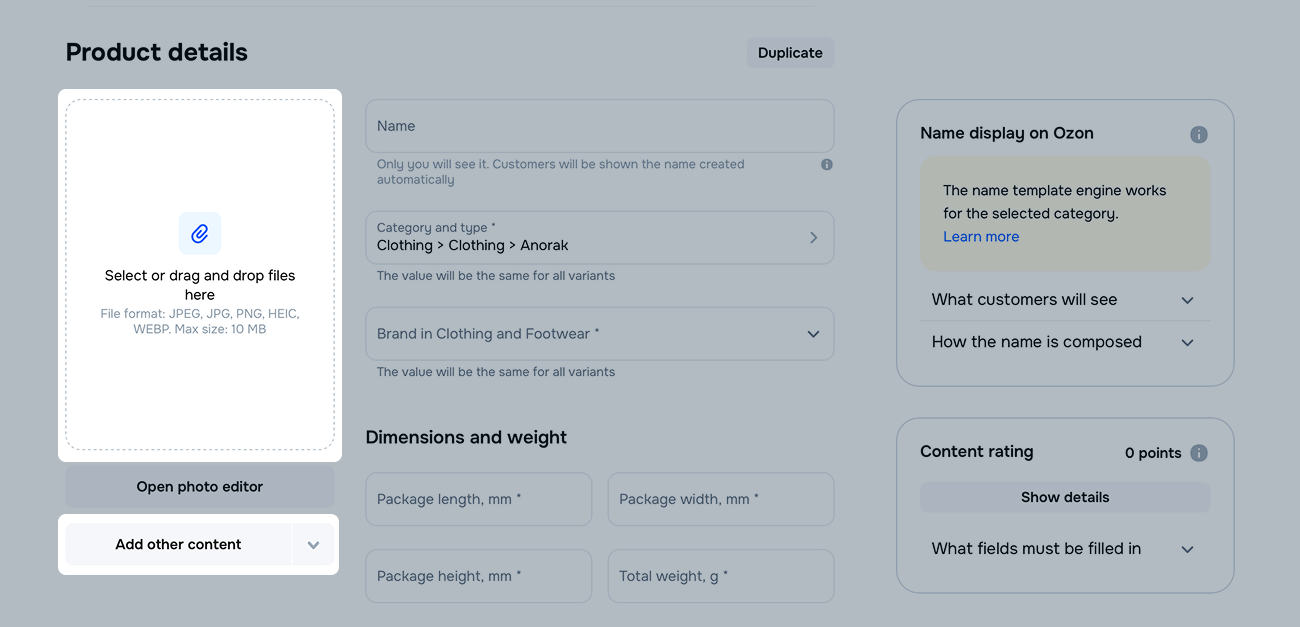
Specify the name and brand, check the category and type. These fields remain the same for all product variants.
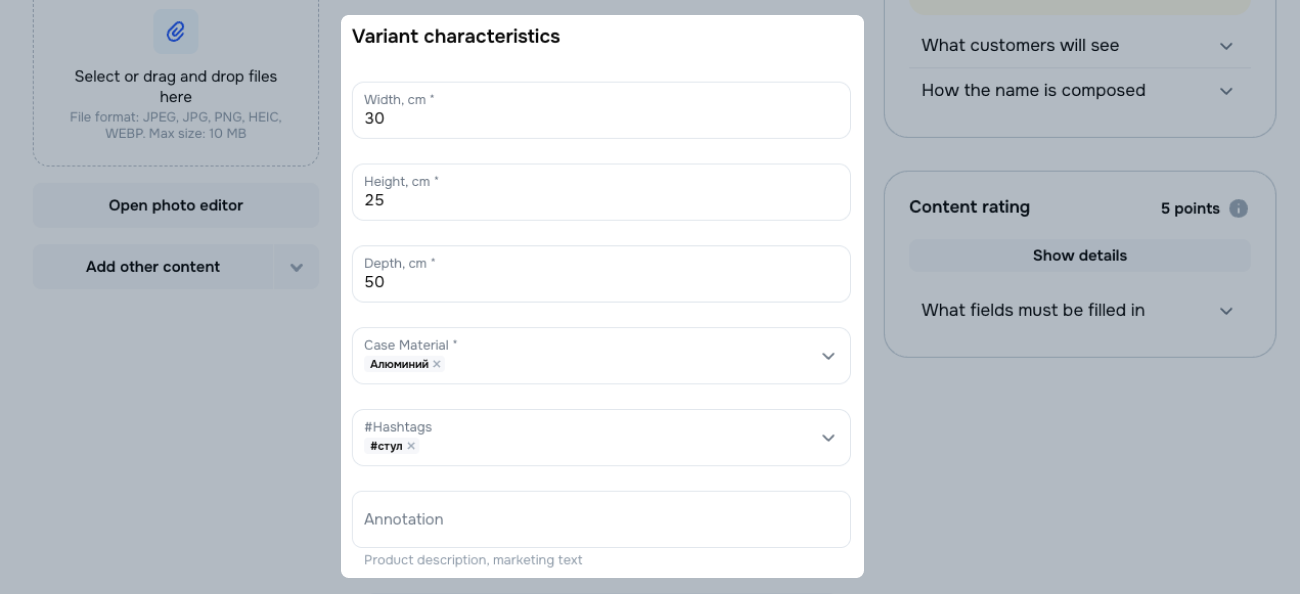
Specify dimensions and weight.
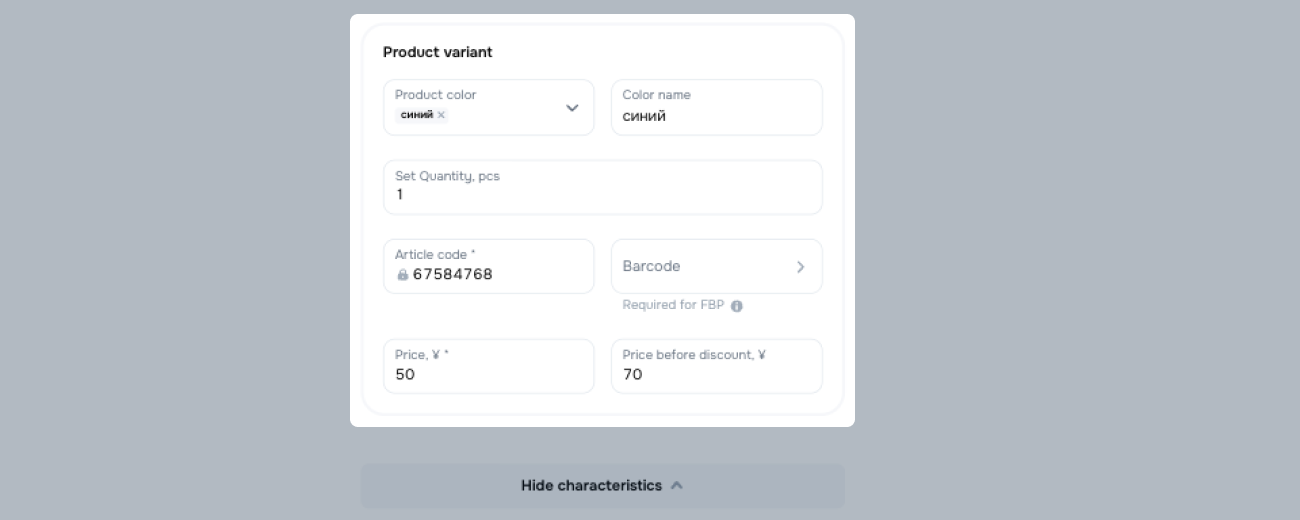
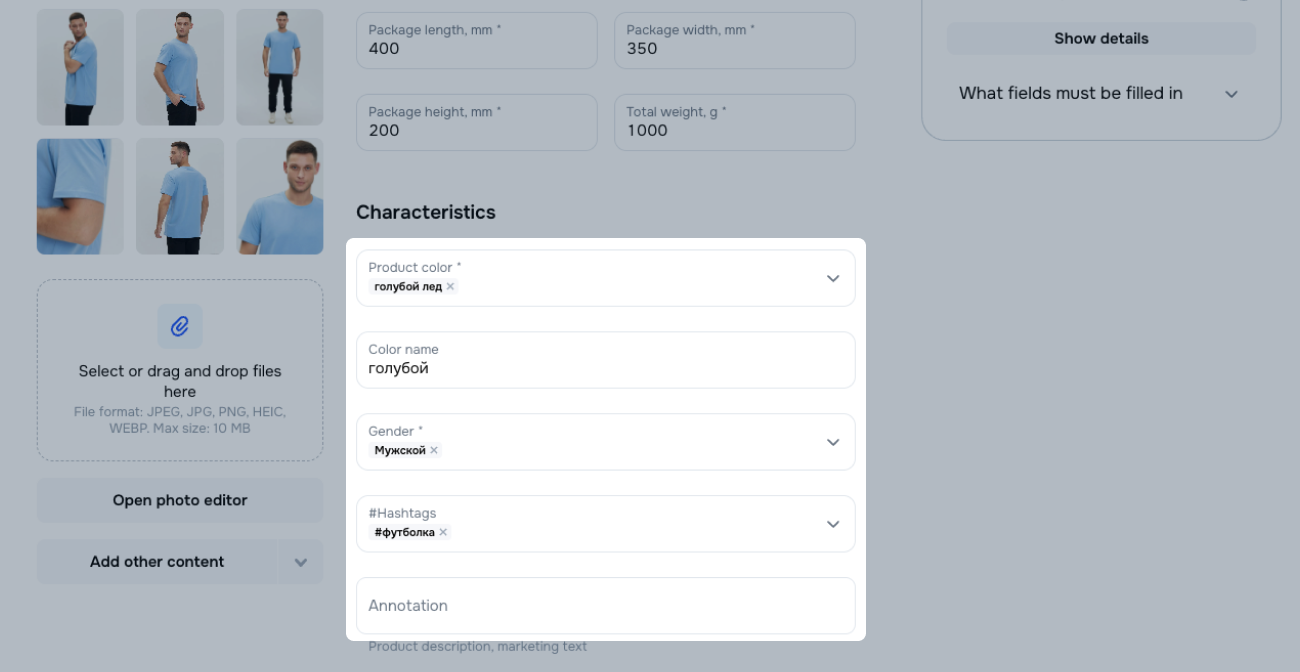
Specify characteristics:
In the Product dimensions block, specify:
Learn more about working with barcodes
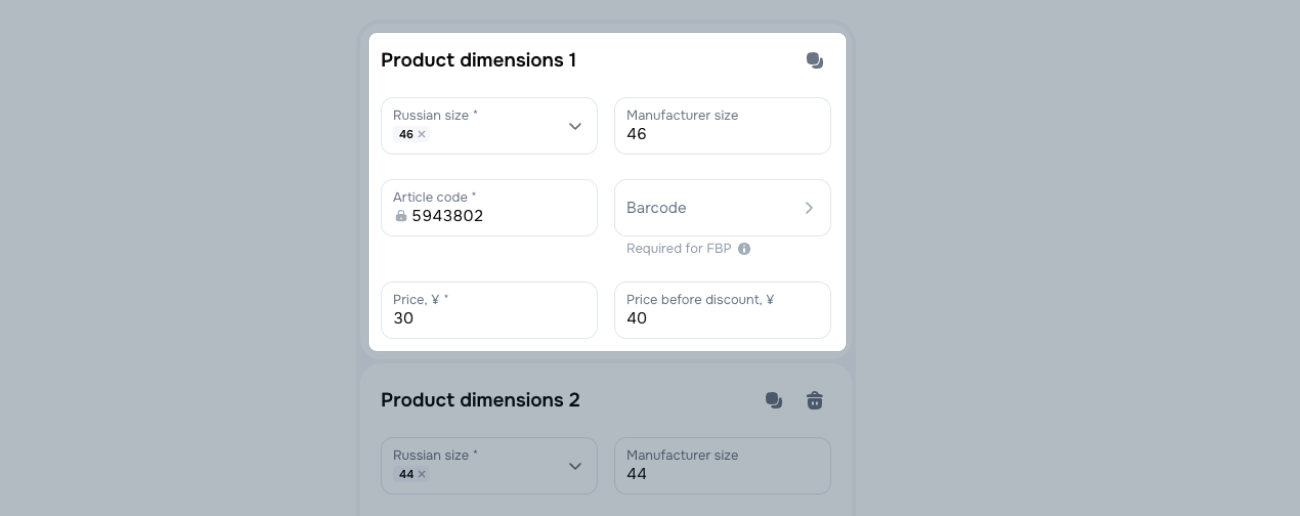
Click Show more characteristics to fill out more fields.
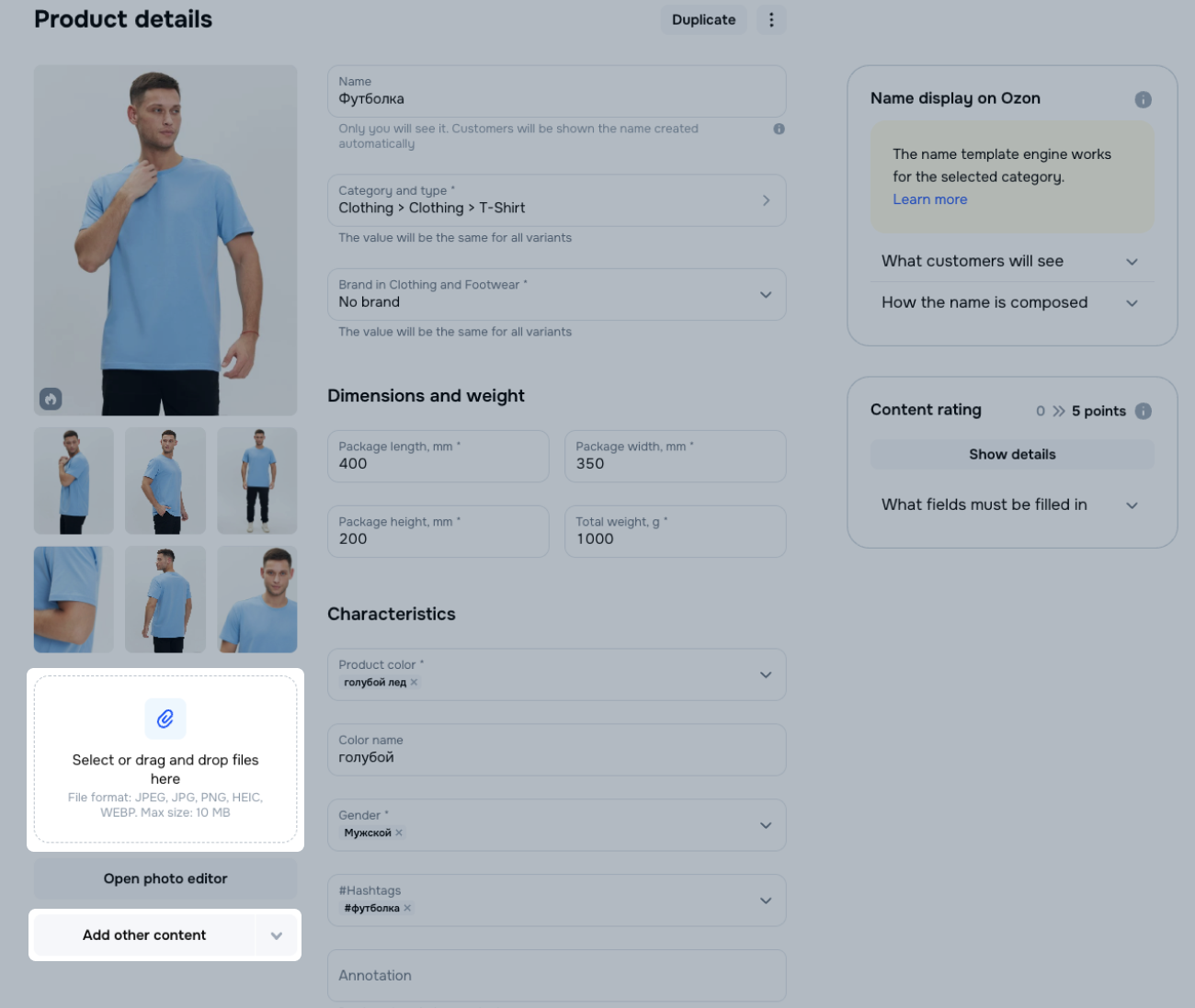
Add photos. To add a video cover, video, rich content, or a size table, click Add other content or  .
.
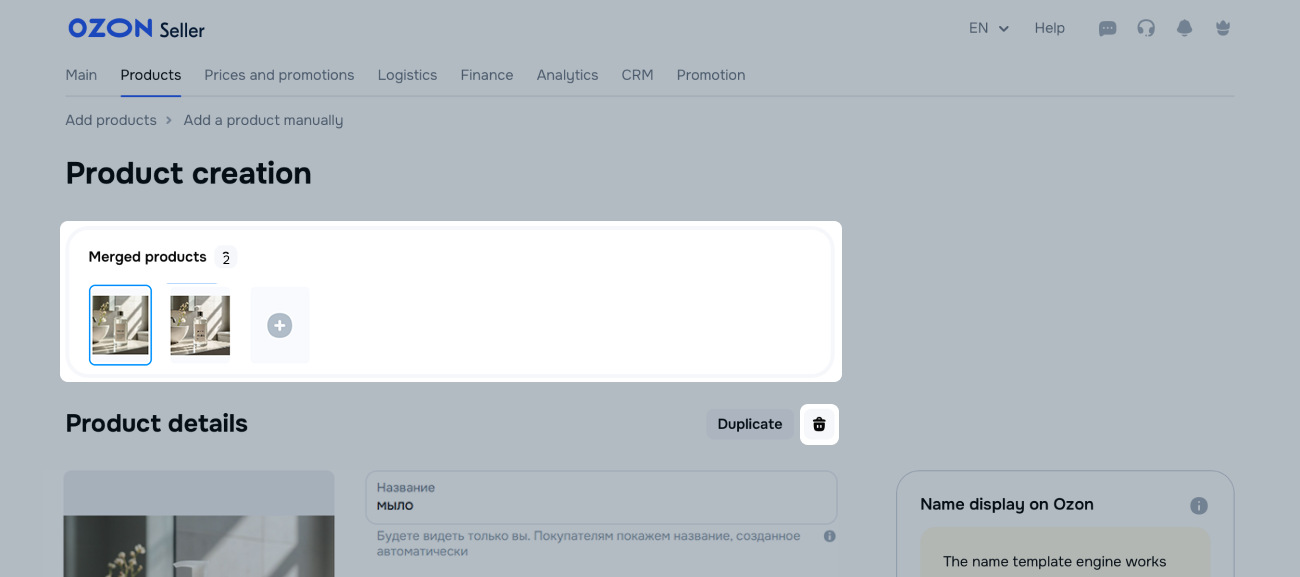
Add other product variants.
 to create an empty PDP and fill out all the parameters manually.
You can:
 icon near the Duplicate button or in the variant miniature.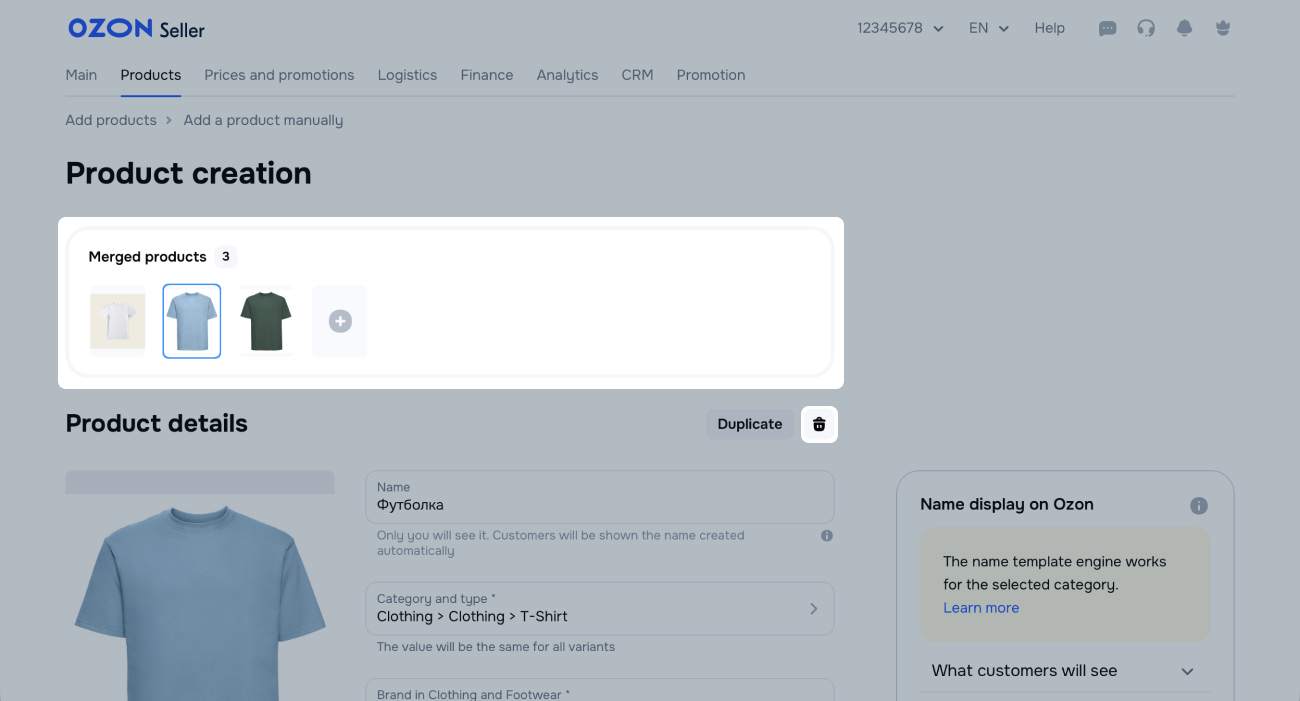
The PDPs are merged automatically for all product variants in one group. You can view the Merge on one PDP field if you use another method to create or edit PDPs.
Click Finish creating.
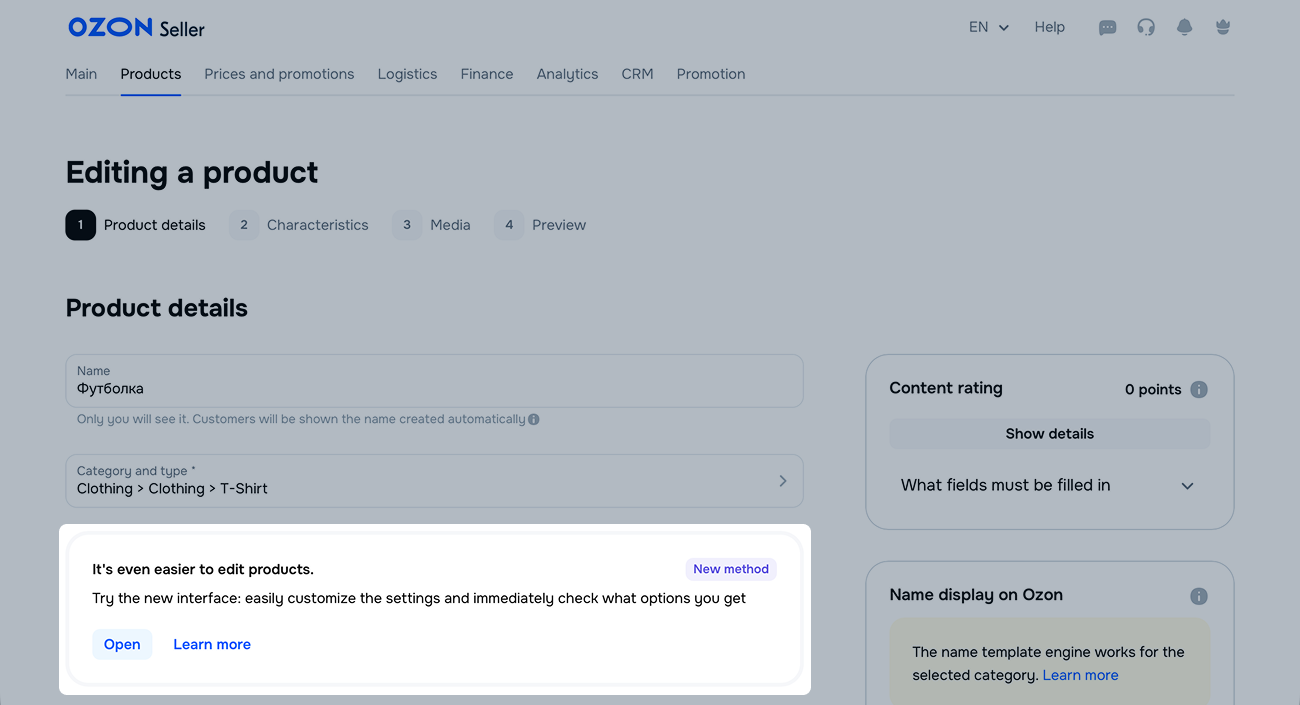
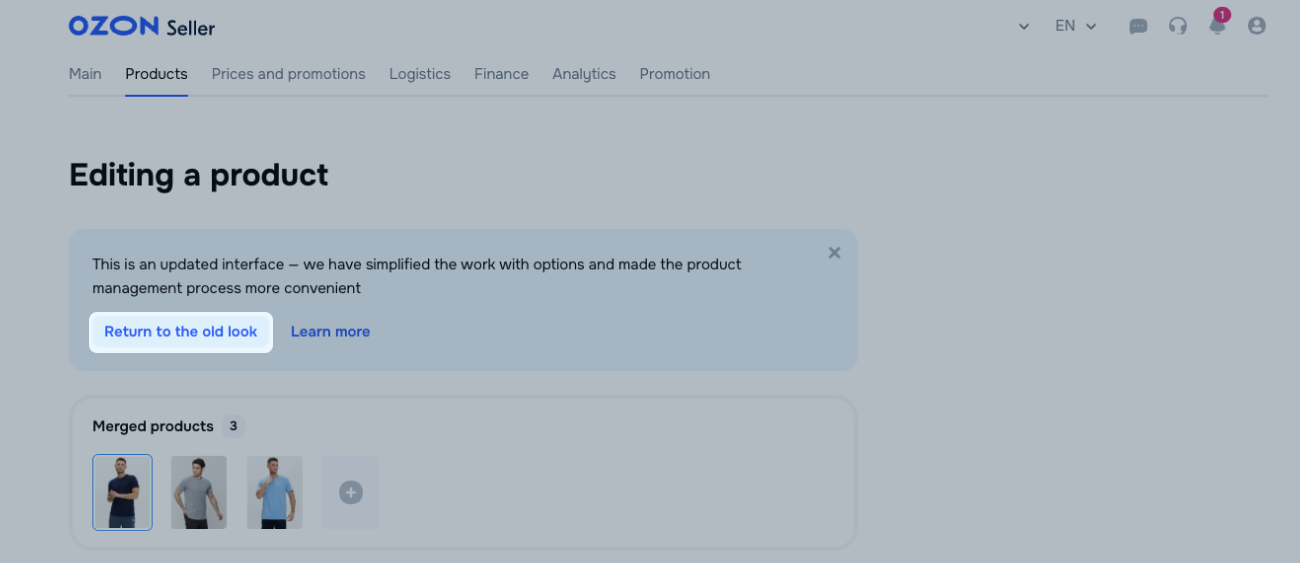
In the updated interface, you can edit a PDP created in the regular one. Click the link on the bar.
Once created, products are automatically added to the Expedited Review Collection campaign. To disable auto-adding for new products, go to Products → Manage PDPs and disable Adding new products to Expedited Review Collection.
Learn more about Expedited Review Collection
Open the Products → Product list section.
Find a PDP and click  . If you’ve created the product:
Make the necessary changes.
Edit the product variants. You can:
next to the variant miniatures. .
. and select Disconnect.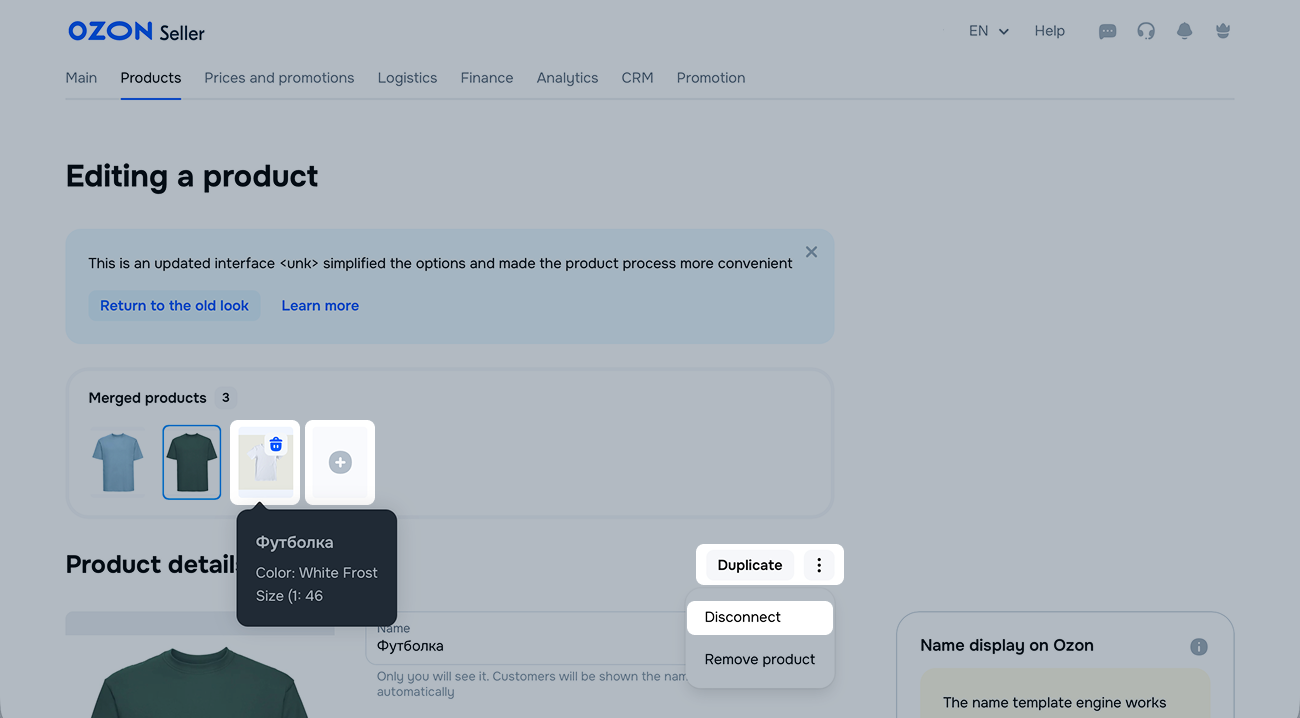
Click Finish creating.
To edit a PDP in the regular interface, click Return to the old look. When editing a PDP, it opens in the interface where you’ve created it. You can switch between interfaces before you start making changes.
Hide menu
Show menu
Выберите договор

Это база знаний для продавцов из стран СНГ и дальнего зарубежья.
Если ваша компания зарегистрирована в России, перейдите в базу знаний для продавцов из России.
Когда вы зарегистрировались на Ozon?
Условия работы и инструкции зависят от даты заключения договора — её можно посмотреть в разделе Договоры
Определили ваш договор
Он заключён с ООО «Интернет Решения». Если есть другой договор, сможете переключиться на него в боковом меню