
Определили ваш договор
Он заключён с ООО «Интернет Решения». Если есть другой договор, сможете переключиться на него в боковом меню
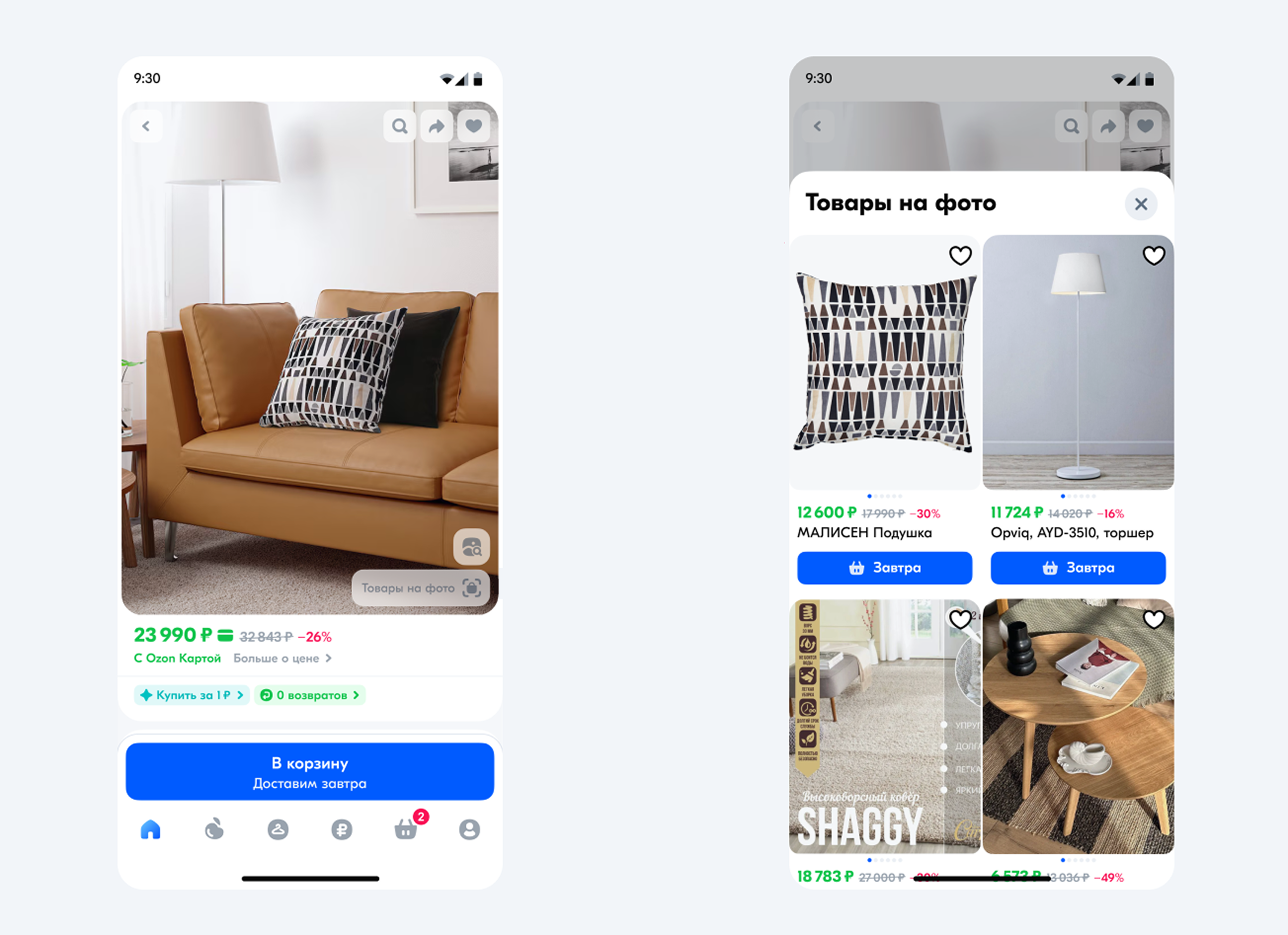
You can group together products that are displayed in the same product image on the PDP. We add the Products in the image badge to that image. When customers click the badge, they see all the products in the group. This way, it is easier for customers to pick products that go well together.
You can’t group products without an SKU or image.
You can specify 1 main product and up to 10 products in the image.
Example
The image in a sofa PDP shows a pillow, floor lamp, and carpet. Your store also has these products, so you can group them. The Products in the image badge appears on the image of the sofa. Clicking on it shows PDPs of the pillow, floor lamp, and carpet from your store.
Open the Products → Merge products section.
Select the Products in the image tab.
Click Create a group.
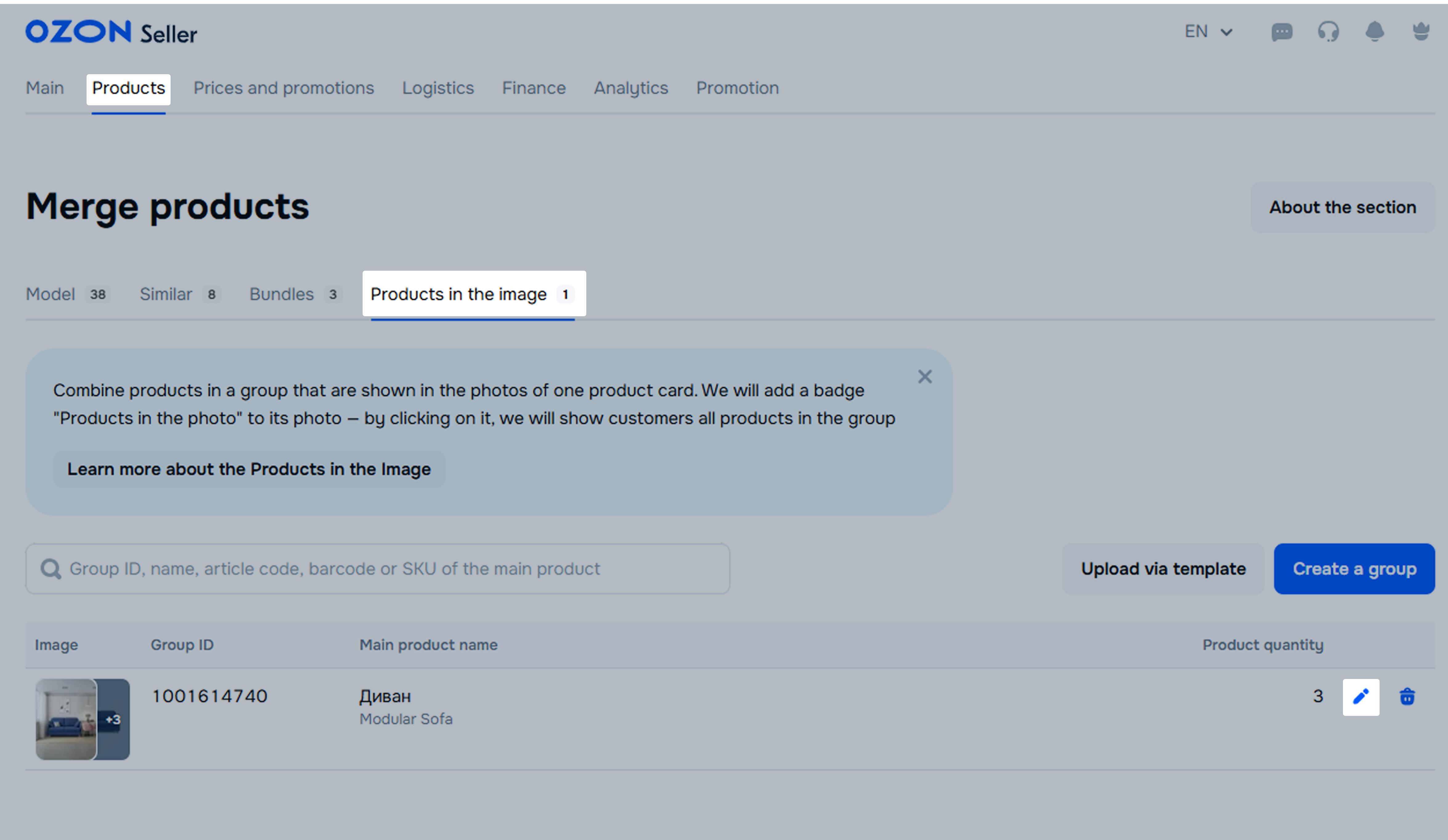
Select the main product. On its PDP we show the products in the image. To do this, in the Main product section, click Select and select the product. You can search it:
by name, article code, or SKU;
with filters by brand and category.
Confirm the selection. Once you save the group, you can’t change the main product.
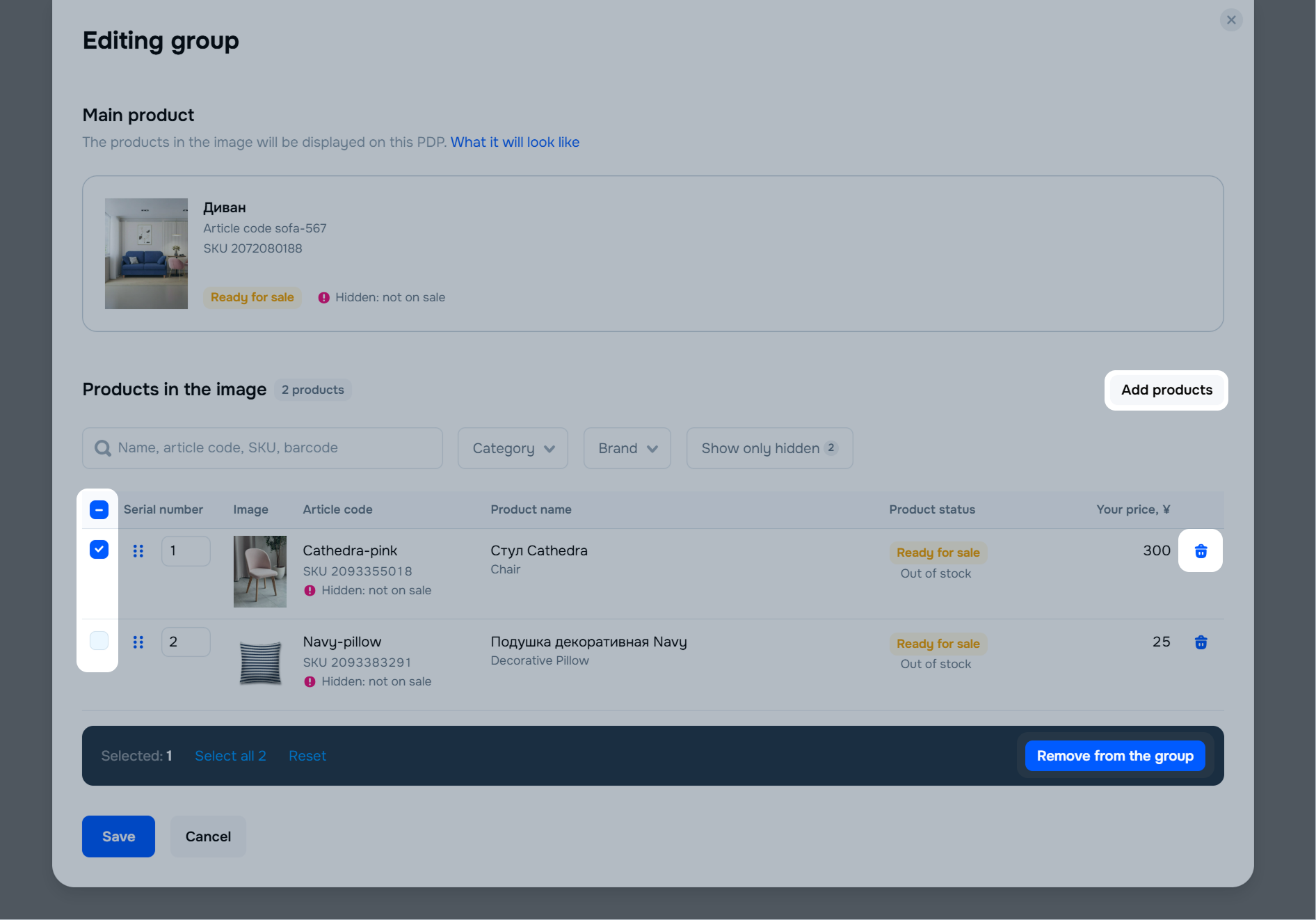
Select the products displayed in the image: click Add products and mark the items. To the left of the product list, we show which images are on the main PDP. Confirm the selection.
Check the product list. To remove products, click
 . Before you save the group, you can replace the main product by clicking Select in the main product block. After that you can select another product.
Click Save.
Open the Products → Merge products section.
Select the Products in the image tab.
In a group row, click
 .
.
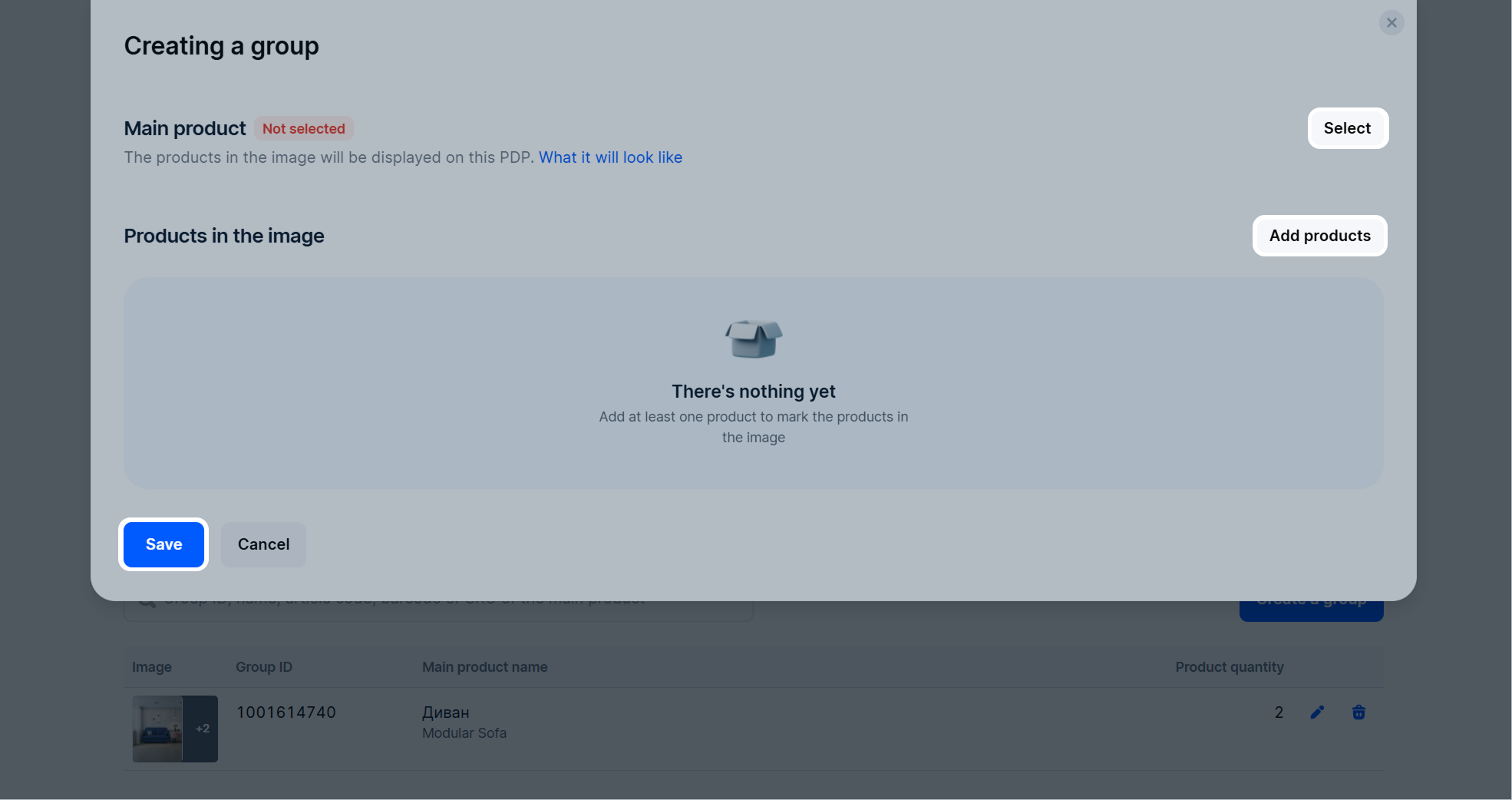
You’ll see the main product, the number of products tagged in the image, and their list.
We show the status next to each product.
If the PDP isn’t displayed in the group, the
 tag and the reason appear next to it. Hover over them to see the details.
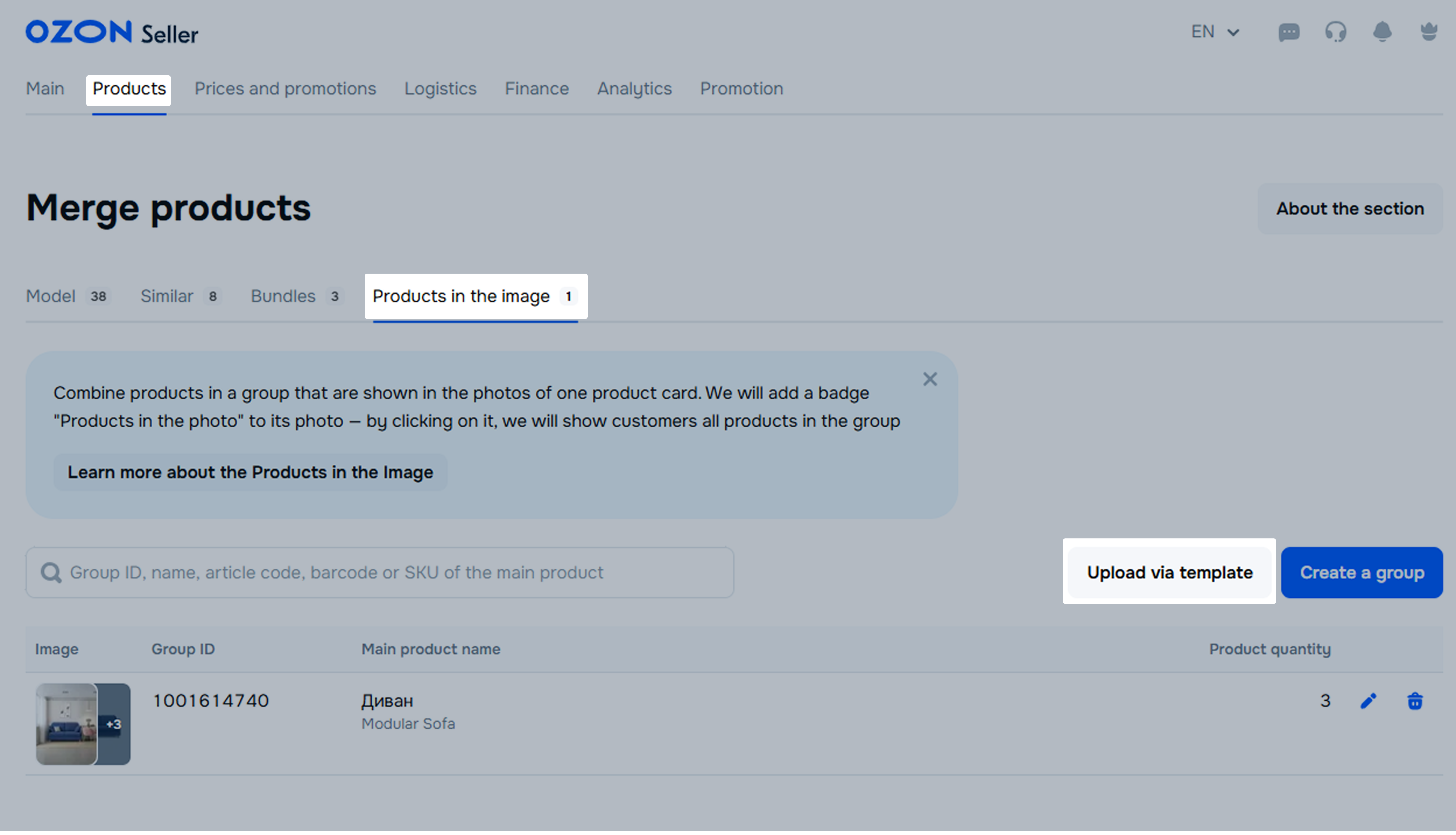
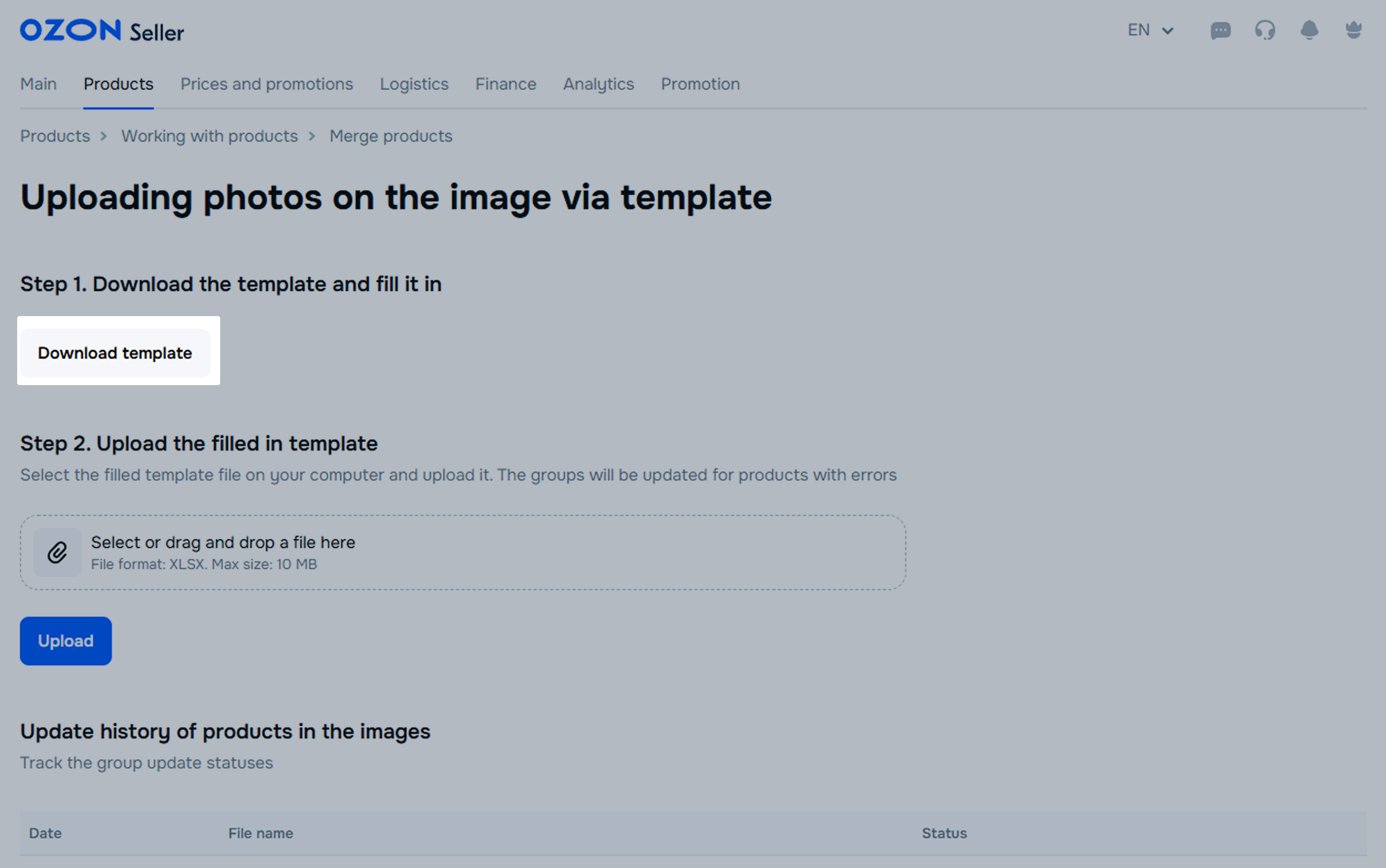
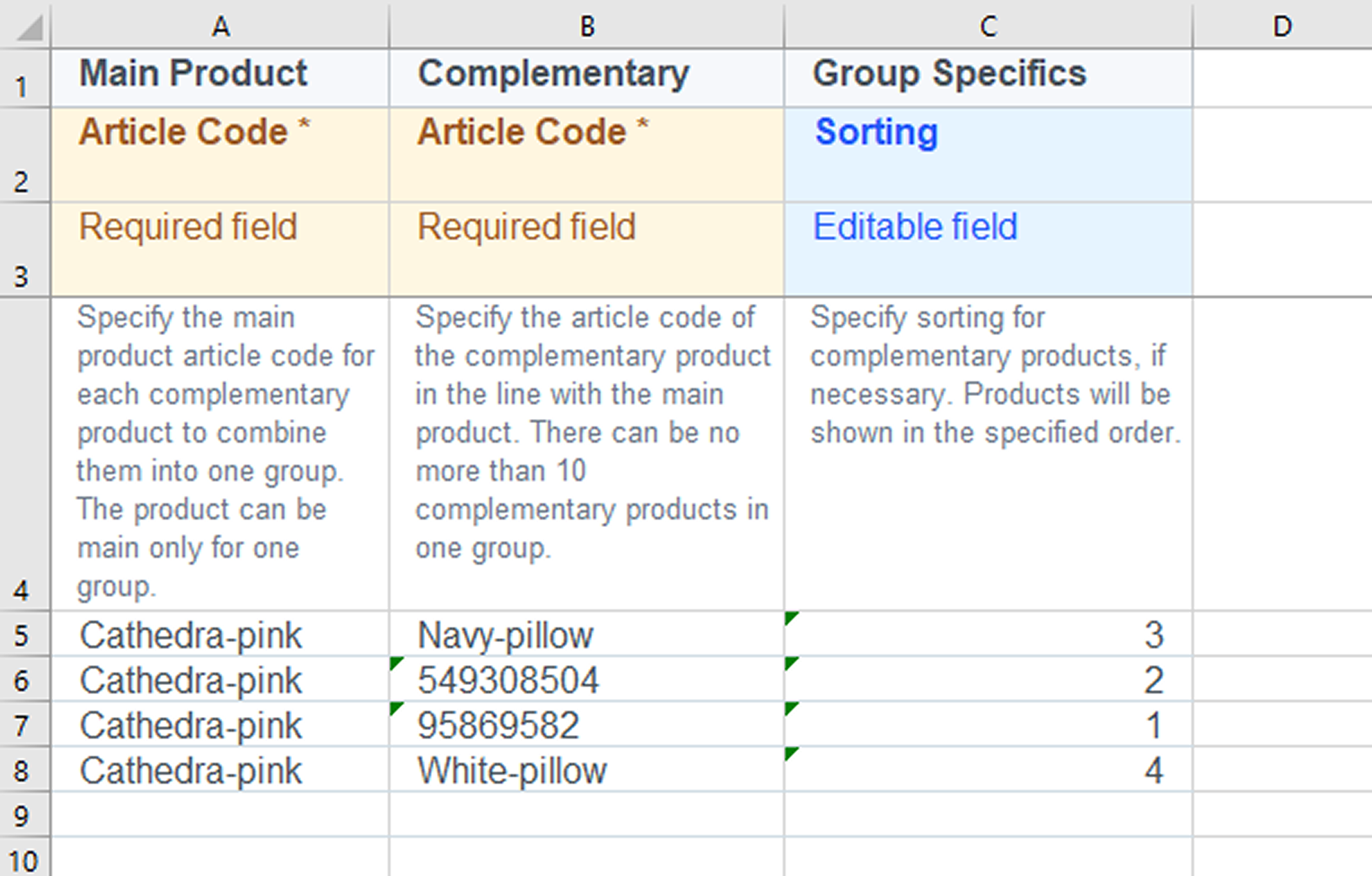
Fill out the template. Enter:
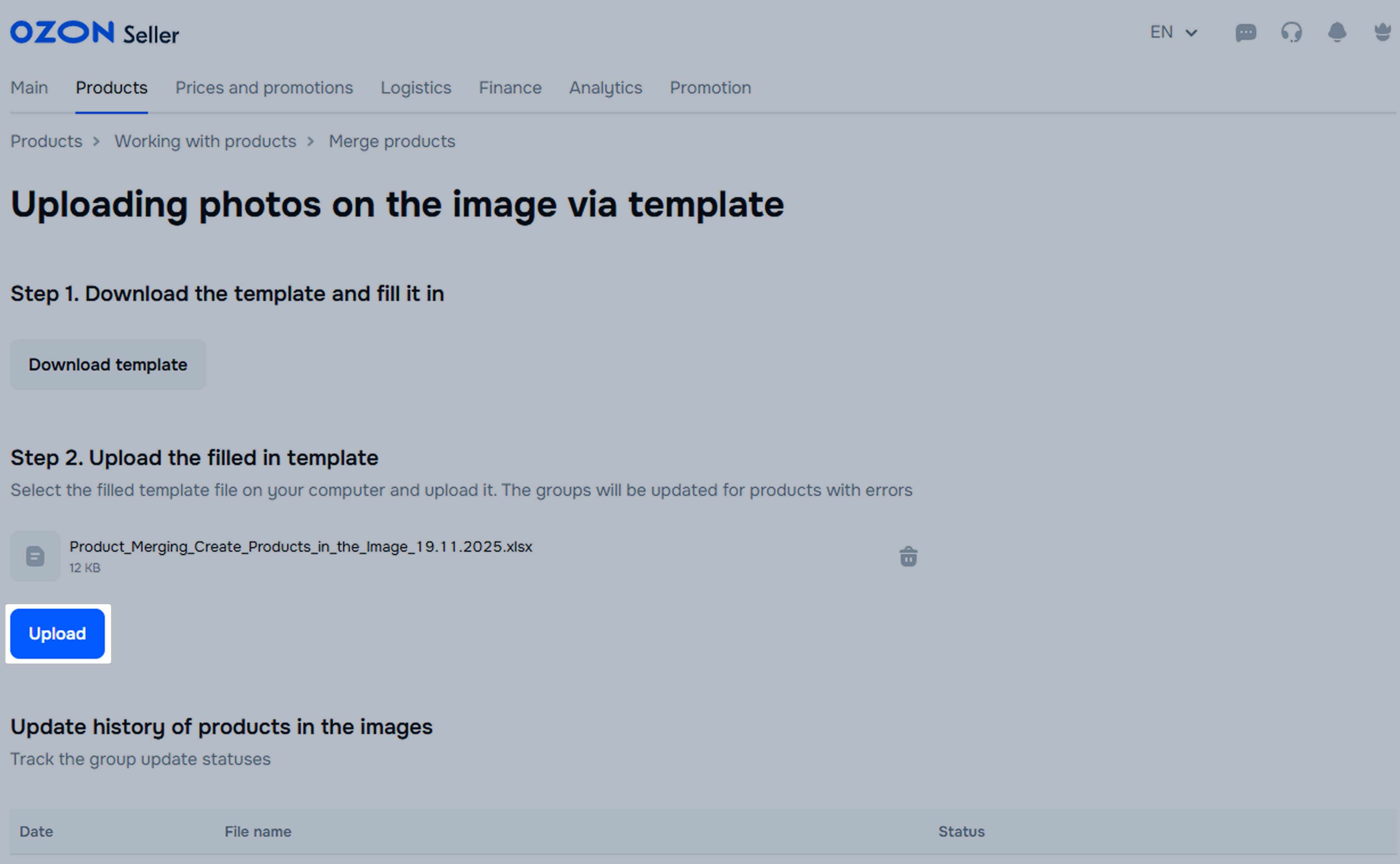
 and select Learn more about flaws or Learn more about errors.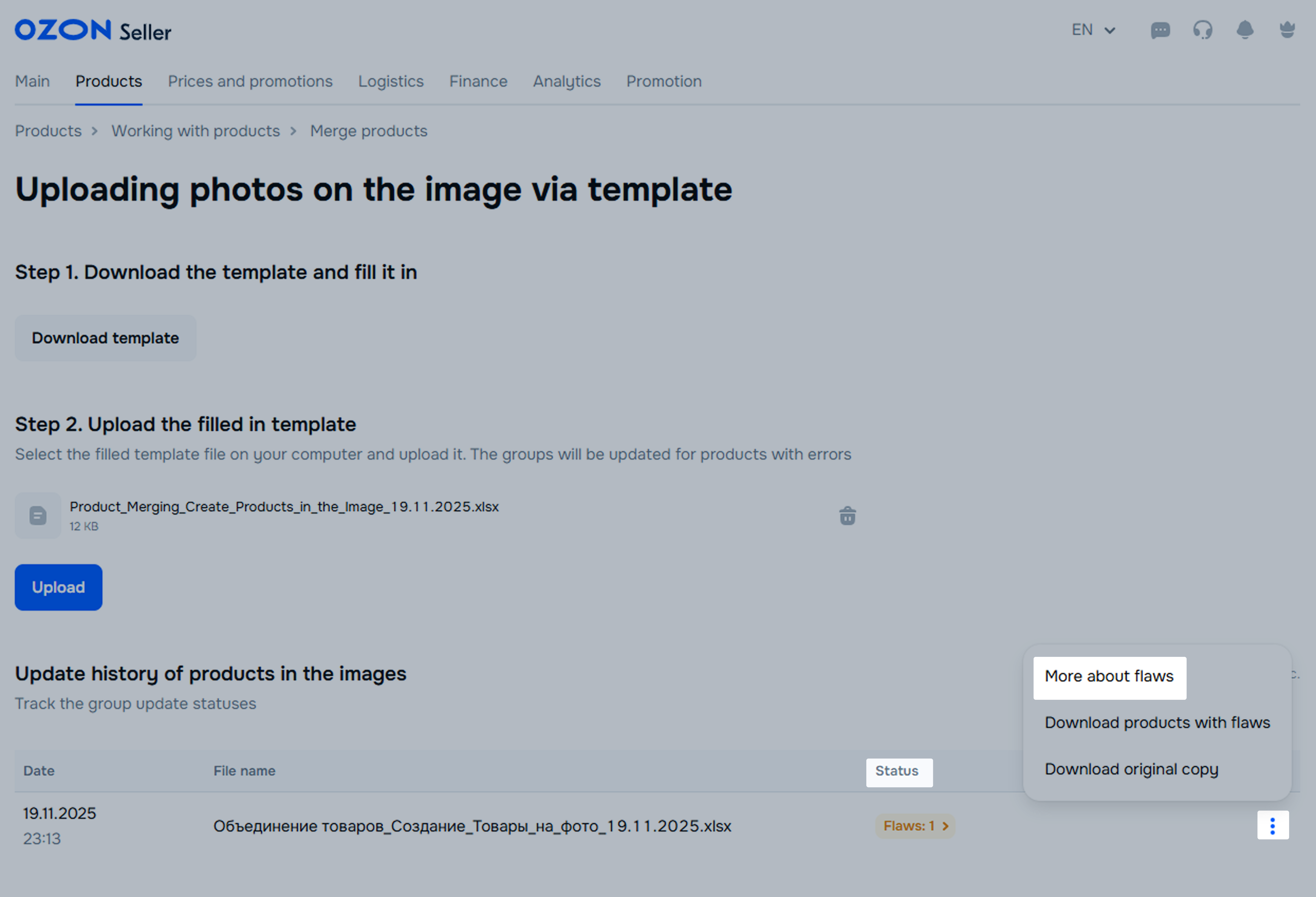
The files in the Update history of products in the images are stored for 14 days.
Open the Products → Merge products section.
Select the Products in the image tab.
In a group row, click
.
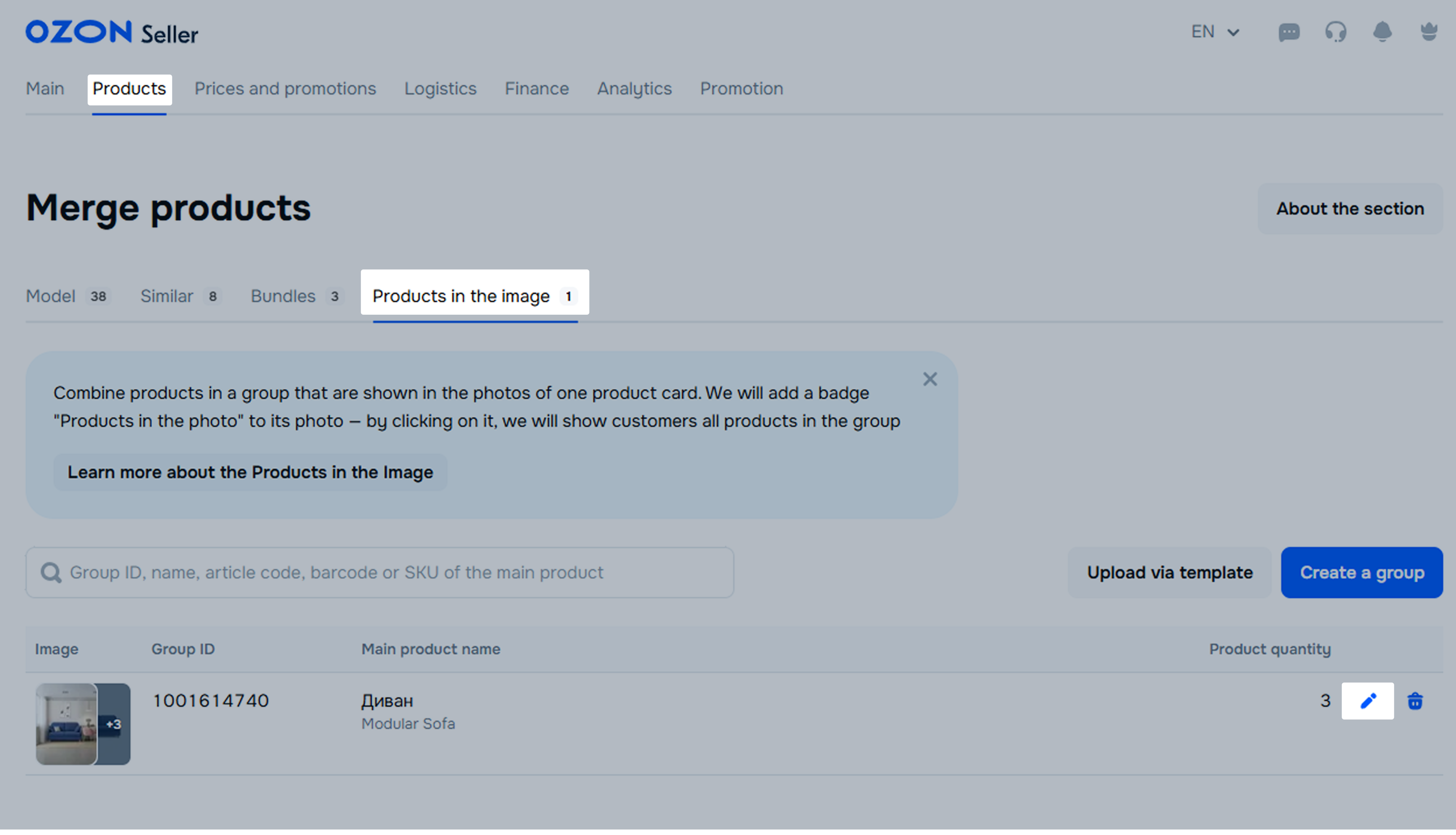
You can:
Add complementary products by clicking Add products.
Delete complementary products:
click
in the product row;
select products and click Remove from the group.
You can’t replace the main product.
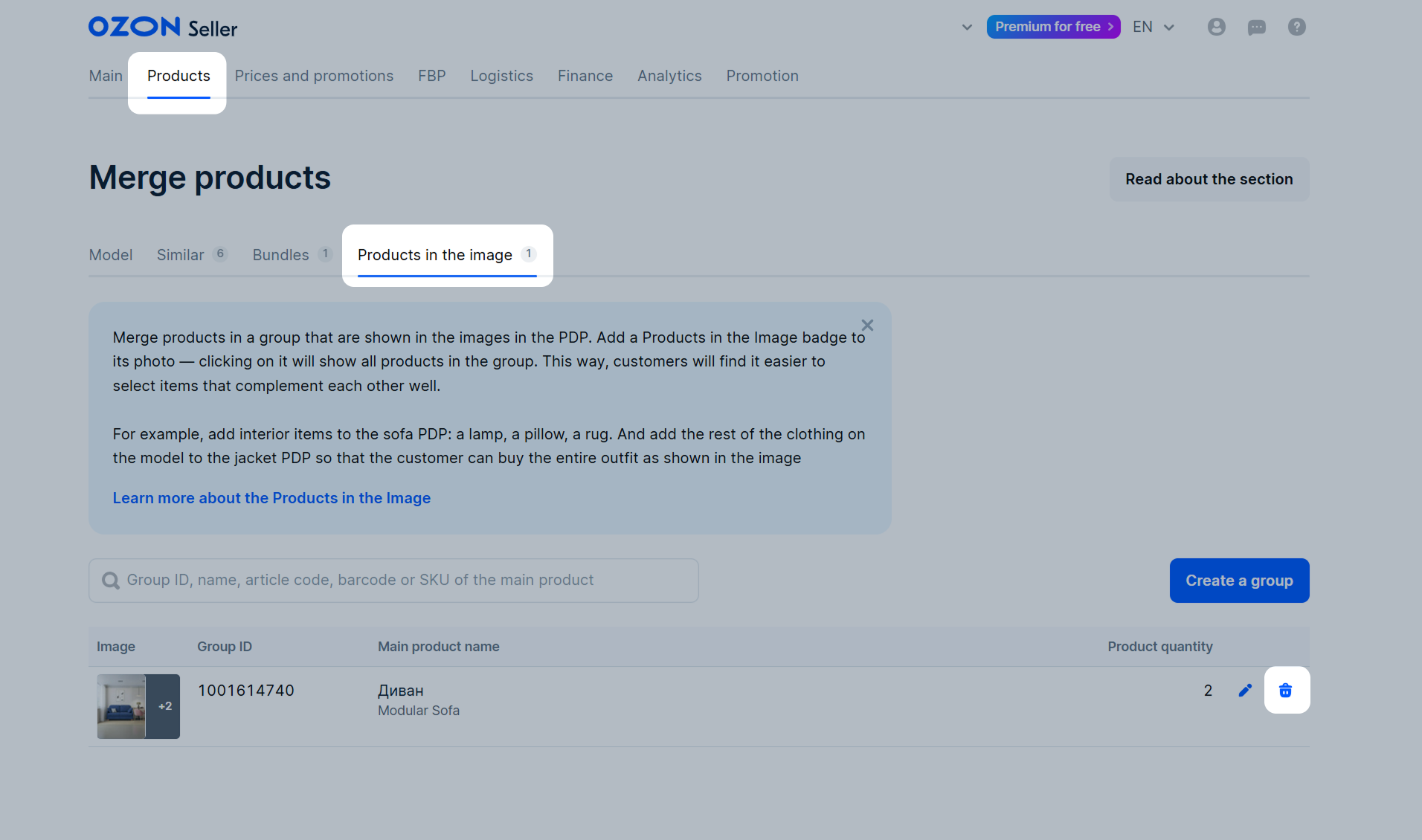
Open the Products → Merge products section.
Select the Products in the image tab.
Click
in the group row.
Confirm the deletion.
We hide the group from customers within 24 hours and remove the Products in the image badge from the main PDP. Statuses of products in the group don’t change.
If customers see the Products in photo badge on the main PDP, but find some products missing when they click on it, check the group settings. We can hide the product if its status has changed. For example, if the product failed moderation after editing or is inactive.
Hide menu
Show menu
Выберите договор

Это база знаний для продавцов из стран СНГ и дальнего зарубежья.
Если ваша компания зарегистрирована в России, перейдите в базу знаний для продавцов из России.
Когда вы зарегистрировались на Ozon?
Условия работы и инструкции зависят от даты заключения договора — её можно посмотреть в разделе Договоры
Определили ваш договор
Он заключён с ООО «Интернет Решения». Если есть другой договор, сможете переключиться на него в боковом меню