Определили ваш договор
Он заключён с ООО «Интернет Решения». Если есть другой договор, сможете переключиться на него в боковом меню
An official brand storefront is a page on Ozon that presents your brand and helps customers find brand products from selected sellers. You can design it if your brand participates in an active promotion.
Learn more about product promotion
Only employees with the “Manager”, “Administrator”, “Product Manager”, “Promotion Manager”, or “Technology Partner” roles can manage the storefront.
Open the Brand storefront section. If you represent several brands, we show a list of them. If you represent only one brand, the storefront setup page opens. Сlick Design storefronts in the row with the brand.

Select the Storefront for smartphones or Storefront for desktop tab, depending on the storefront you want to set up.
Add sellers whose products you want to display in the storefront. They should have an active promotion of your brand products. If Ozon sells your brand products, you can add it to the list as well. Open the Sellers in the storefront block and select sellers from the list.
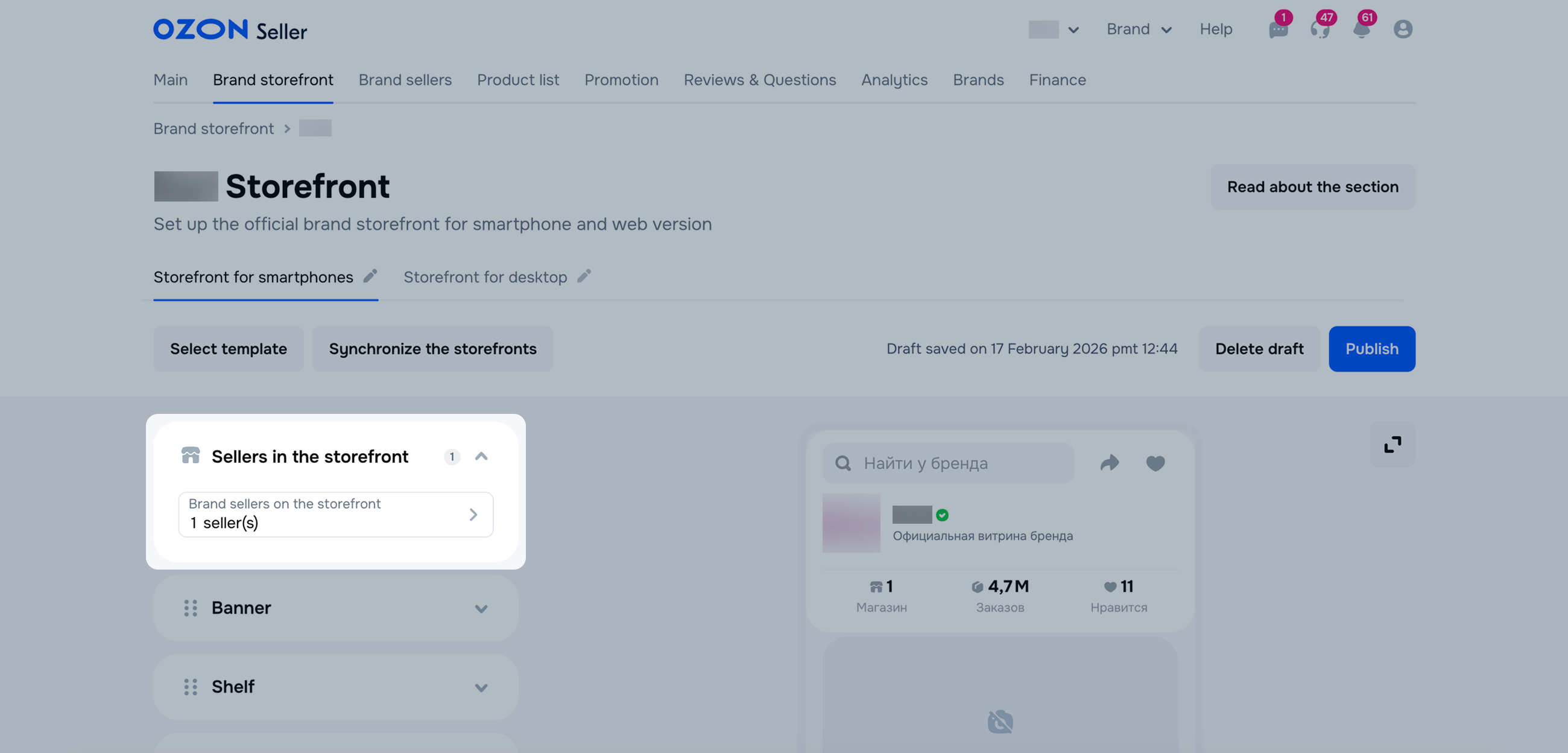
After adding sellers, the storefront status changes to “Official brand storefront”. If all sellers stop promoting the brand, we:
Design the storefront. You can use a template for a quick setup. To do this, click Select template.

There are 3 templates with different tags, descriptions, and previews:
After selecting the template, upload images and add the landing pages. You can change the order of blocks, delete, and add them.
Set up the blocks. We save the draft as you fill out the fields.
Select the block type:
Customers can see a banner in the storefront if the landing page contains at least one product for sale. Otherwise, we hide the block.
Click Add a section and select Banner.
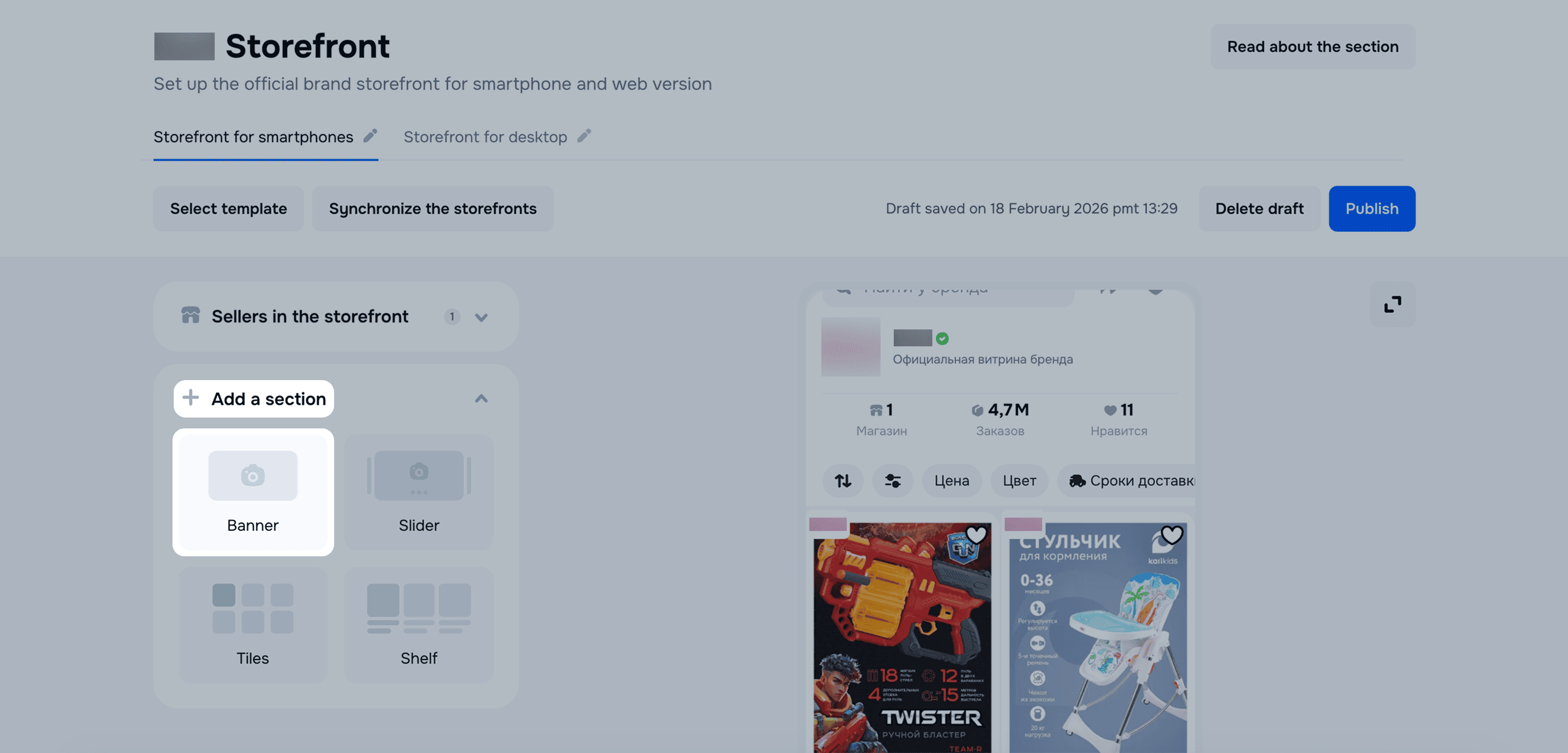
Specify the banner size:
Add an image. Smartphone image requirements:
Size:
File format: JPG or PNG.
Weight: up to 500 KB.
Desktop image requirements:
Select the landing page that customers see when they click the banner:
Click Update the preview. On the right, we show how customers see the block. To open a full-screen preview, click  .
To delete the block, click
.
To delete the block, click  .
.
A slider is a block with several banners. It’s available only for mobile storefronts. Customers can see a slider in the storefront if the landing page contains at least one product for sale. Otherwise, we hide the block.
Click Add a section and select Slider.
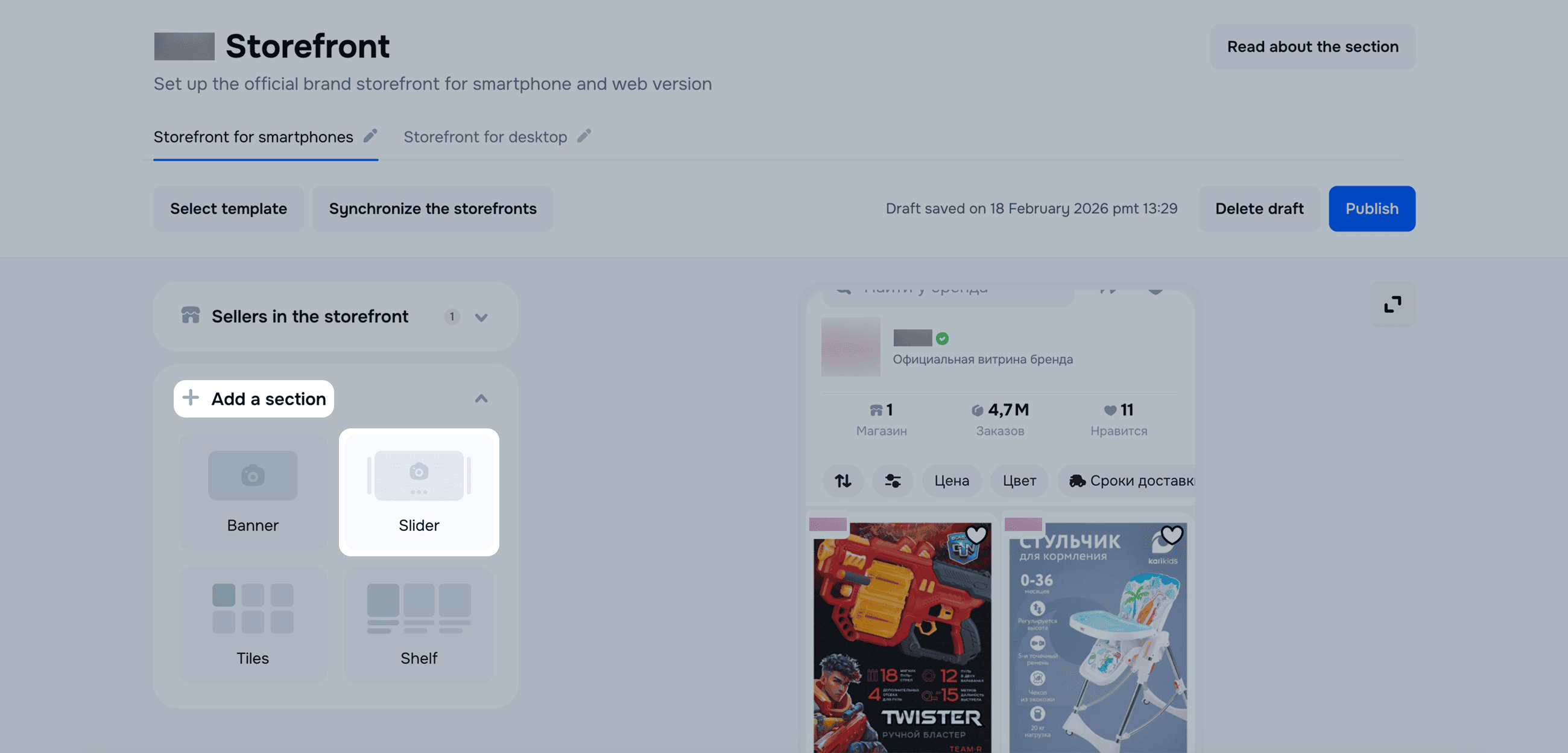
Specify:
Slider size:
Number of banners in the slider: from 2 to 5.
For each banner:
Add an image. Requirements:
Size:
File format: JPG or PNG.
Weight: up to 500 KB.
Select the landing page that customers see when they click the banner:
Click Update the preview. On the right, we show how customers see the block. To open a full-screen preview, click .
To delete the block, click .
Tiles display categories, brands, selections, or specific products. Customers can see tiles in the storefront if all the landing pages contain at least one product for sale. If any tile has no products, we hide the entire row of tiles.
Click Add a section and select Tiles.
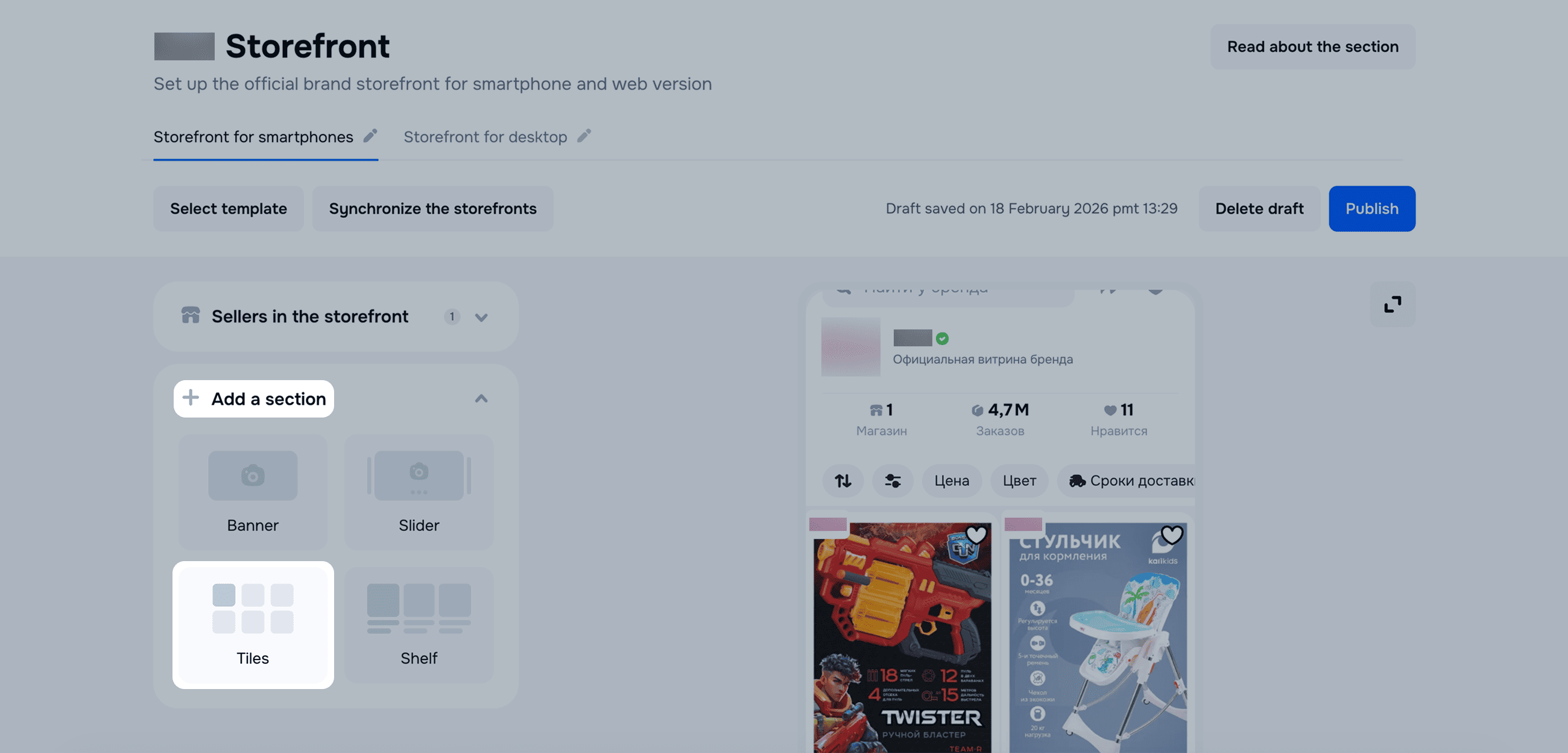
Specify the number of tiles: 2, 4, or 6.
For each tile:
Add an image. Smartphone image requirements:
Size:
File format: JPG or PNG.
Weight: up to 500 KB.
Desktop image requirements:
Size:
File format: JPG or PNG.
Weight: up to 500 KB.
Select the landing page that customers see when they click the banner:
Click Update the preview. On the right, we show how customers see the block. To open a full-screen preview, click .
To delete the block, click .
A shelf displays products from product selections. Customers can see a shelf in the storefront if the selection contains at least one product for sale. Otherwise, we hide the block.
Click Add a section and select Shelf.
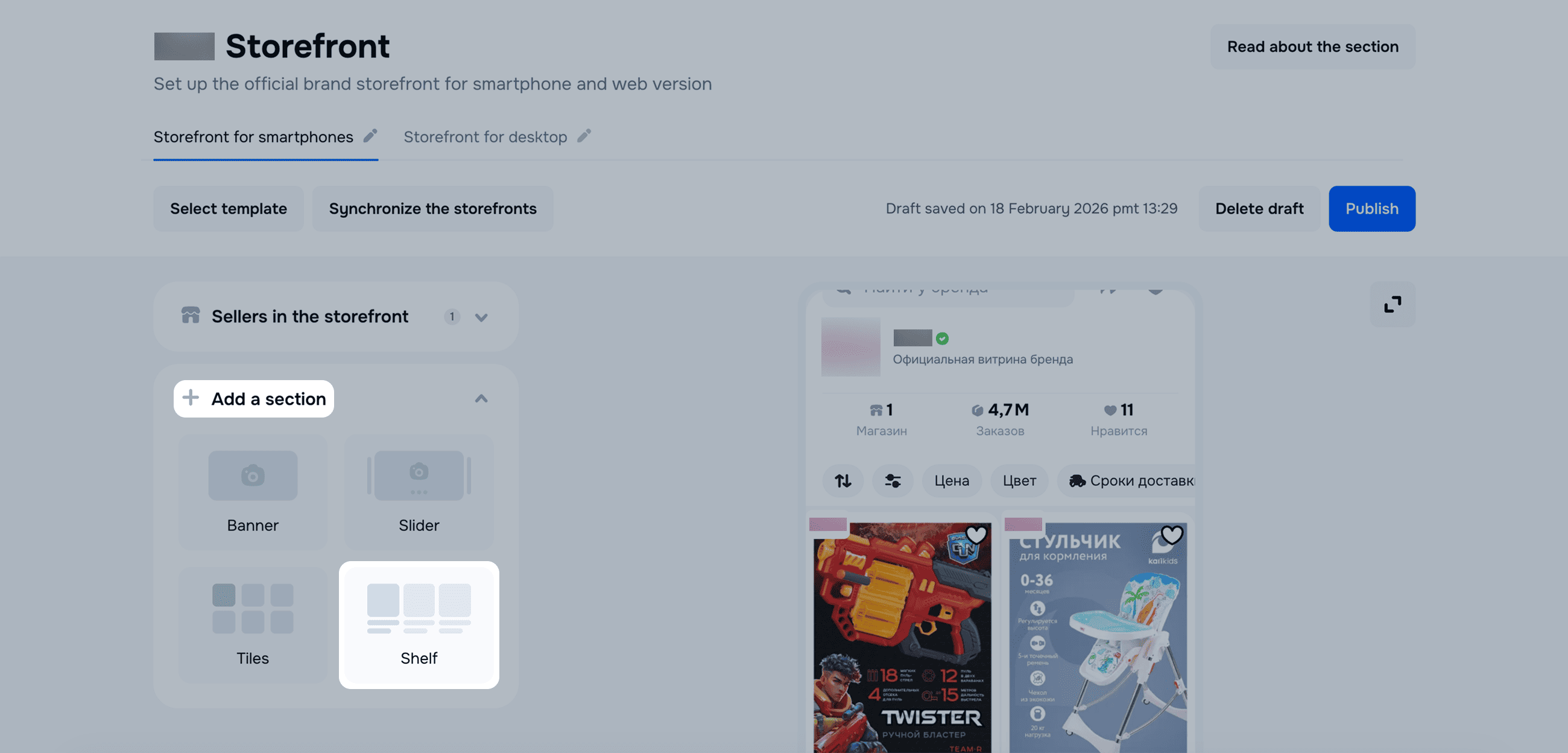
Specify the shelf name to quickly navigate the storefront.
Select or create a product selection of your brand. For example, a special brand collection or new products.
Learn more about selections
Click Update the preview. On the right, we show how customers see the block. To open a full-screen preview, click .
To delete the block, click .
To change the order of blocks, drag and drop them using
.
To view how customers see your storefront, click Update the preview. If there are blank fields, we highlight them.
Click Publish. We send the storefront for moderation and publish it within an hour. If there are errors, we highlight them and change the status to “Failed moderation”. Customers can’t see the storefront.
If you don’t want to create a second storefront from scratch, synchronize your storefronts. To do this, open the tab:
Click Synchronize the storefronts. The button is inactive if the source storefront has the “Not designed” status. We transfer the blocks in the same order and with the same settings. The exception is the slider block.

Upload images that meet our requirements. Change the order of blocks or their settings if necessary.
Hide menu
Show menu
Выберите договор

Это база знаний для продавцов из стран СНГ и дальнего зарубежья.
Если ваша компания зарегистрирована в России, перейдите в базу знаний для продавцов из России.
Когда вы зарегистрировались на Ozon?
Условия работы и инструкции зависят от даты заключения договора — её можно посмотреть в разделе Договоры
Определили ваш договор
Он заключён с ООО «Интернет Решения». Если есть другой договор, сможете переключиться на него в боковом меню