Определили ваш договор
Он заключён с ООО «Интернет Решения». Если есть другой договор, сможете переключиться на него в боковом меню
 .
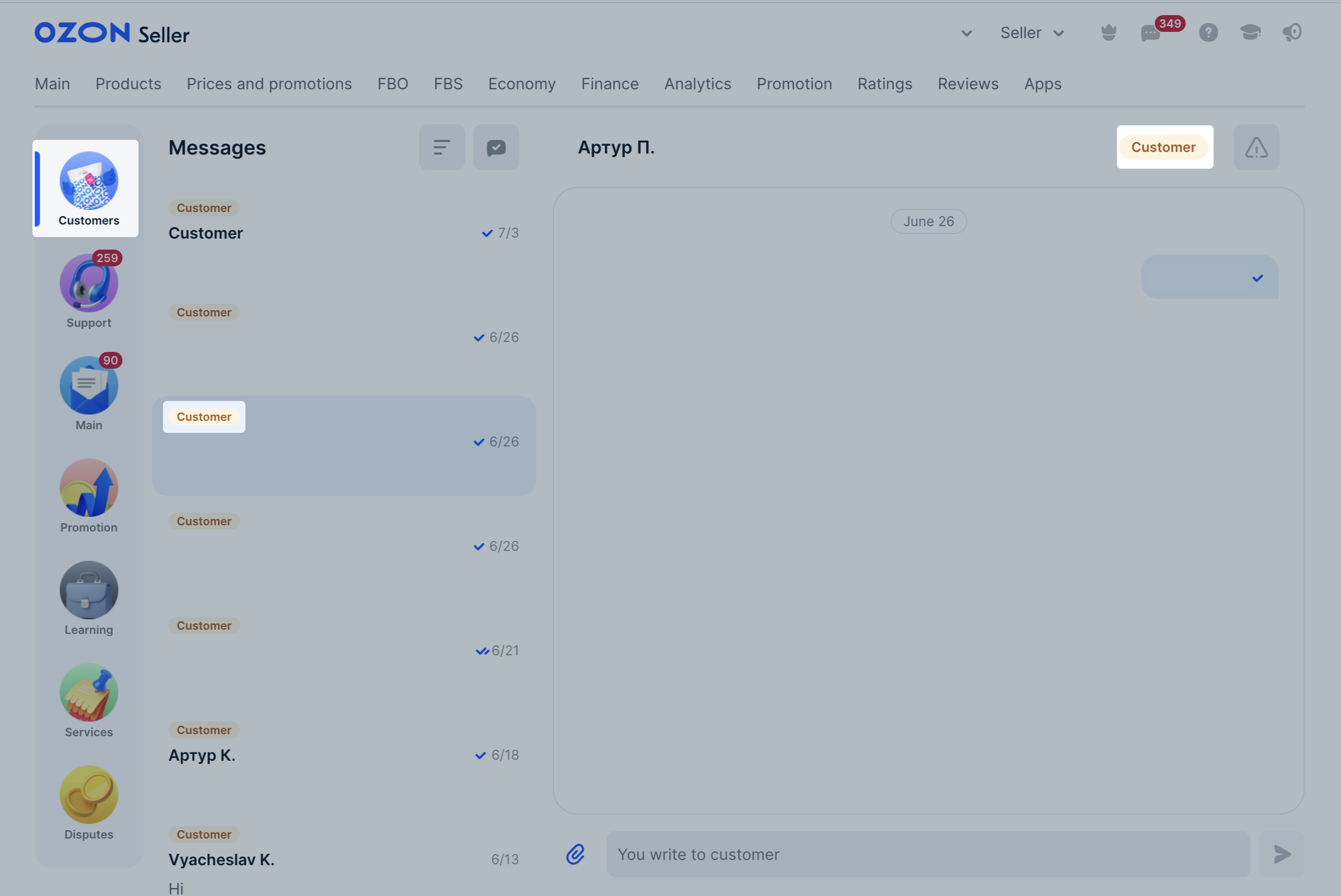
.In correspondence, the Customer tag is always displayed:
The tag will help distinguish Ozon support from scammers.
Chat safety and security guidelines
For convenience, you can also filter chats with customers.
Available only for realFBS orders.
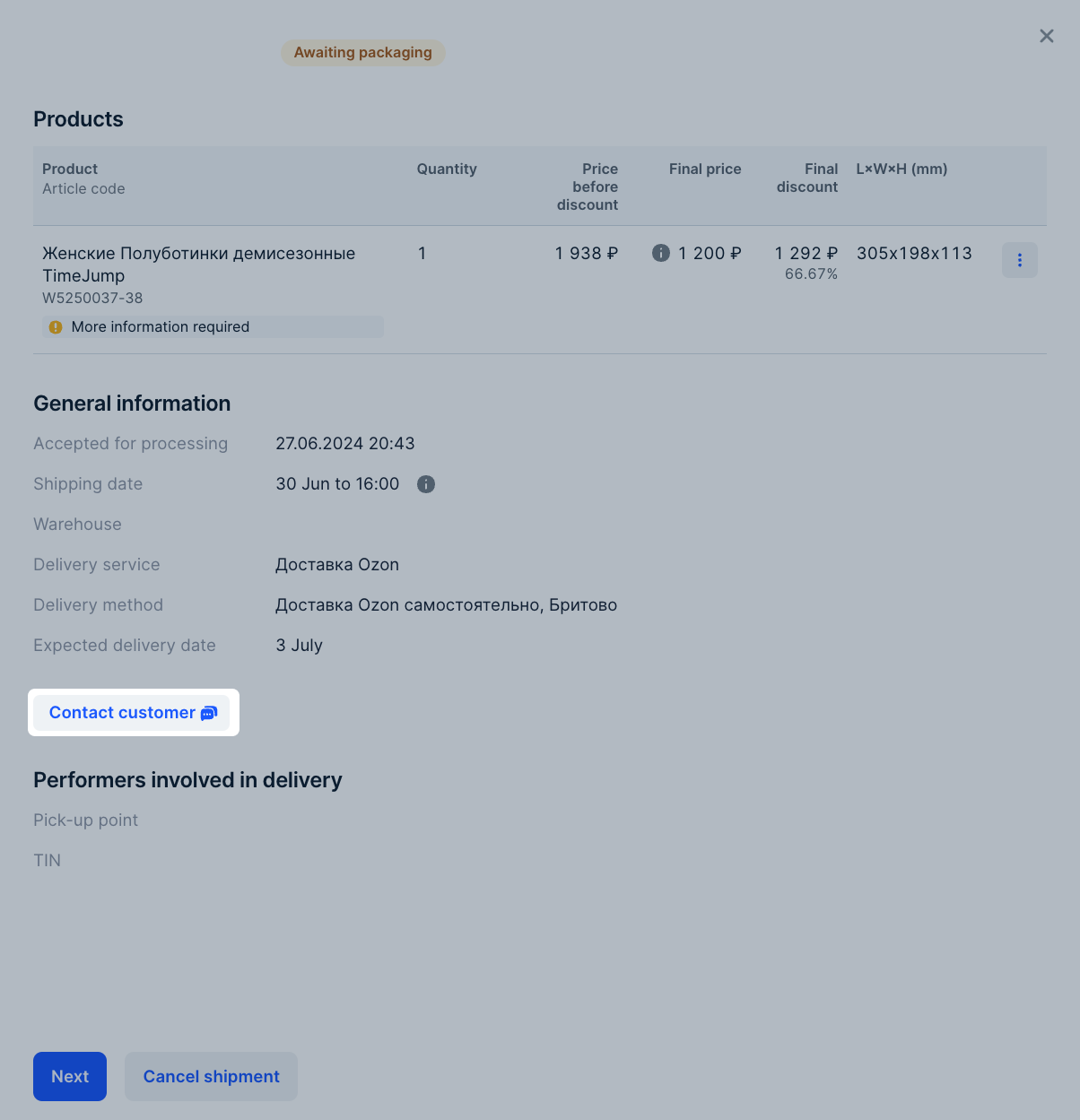
You can open a chat with the customer for all orders that have not been delivered or canceled yet. To do this, go to Logistics → Orders from My Warehouses select the desired shipment and click Contact Customer. When sending the message, it will be translated into the customer’s language.
For convenient navigation through chats with customers, use filters:
To sort chats, go to Messages → Customers and select filters.

You can use multiple filters at once. For example, when selecting filters By order and Chats without customer’s reply, chats related to orders where you have responded, but the customer has not, will be displayed.
You cannot simultaneously use the following filters:
You can:
Hide menu
Show menu
Выберите договор

Это база знаний для продавцов из стран СНГ и дальнего зарубежья.
Если ваша компания зарегистрирована в России, перейдите в базу знаний для продавцов из России.
Когда вы зарегистрировались на Ozon?
Условия работы и инструкции зависят от даты заключения договора — её можно посмотреть в разделе Договоры
Определили ваш договор
Он заключён с ООО «Интернет Решения». Если есть другой договор, сможете переключиться на него в боковом меню