Определили ваш договор
Он заключён с ООО «Интернет Решения». Если есть другой договор, сможете переключиться на него в боковом меню
In your account in the Products → Product list section, you can monitor the product statuses and archive products. Your products are displayed on tabs depending on their moderation status.
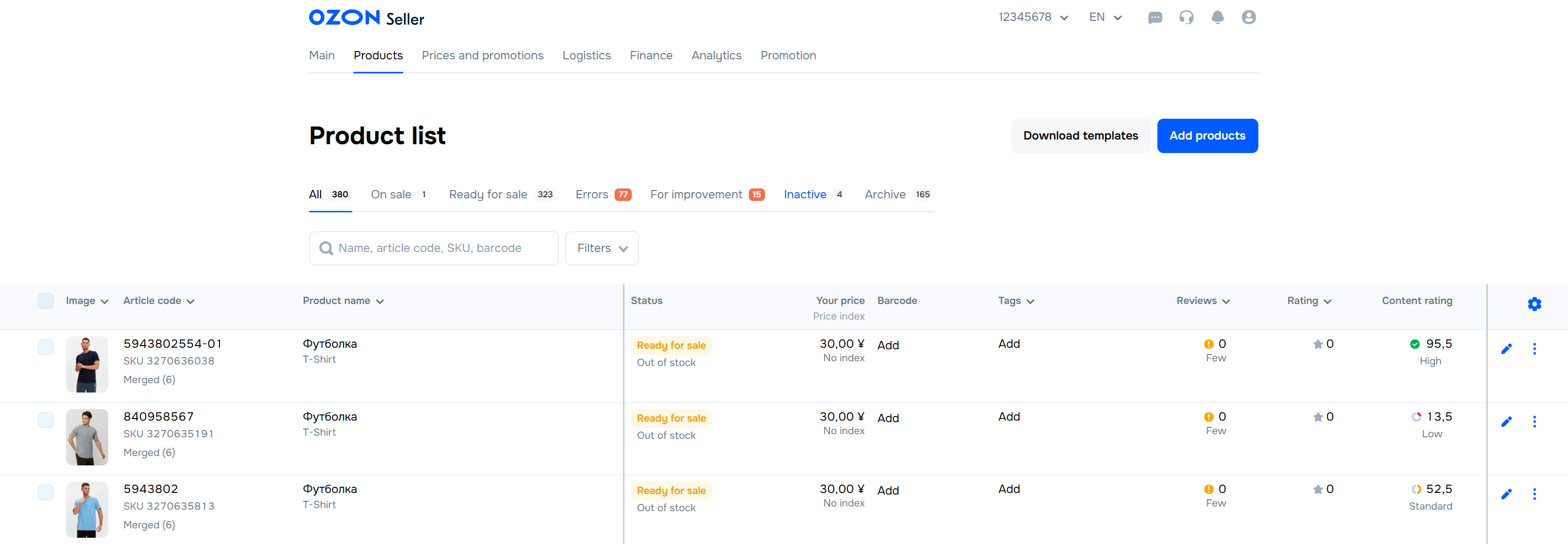
In the Product list section, you can:
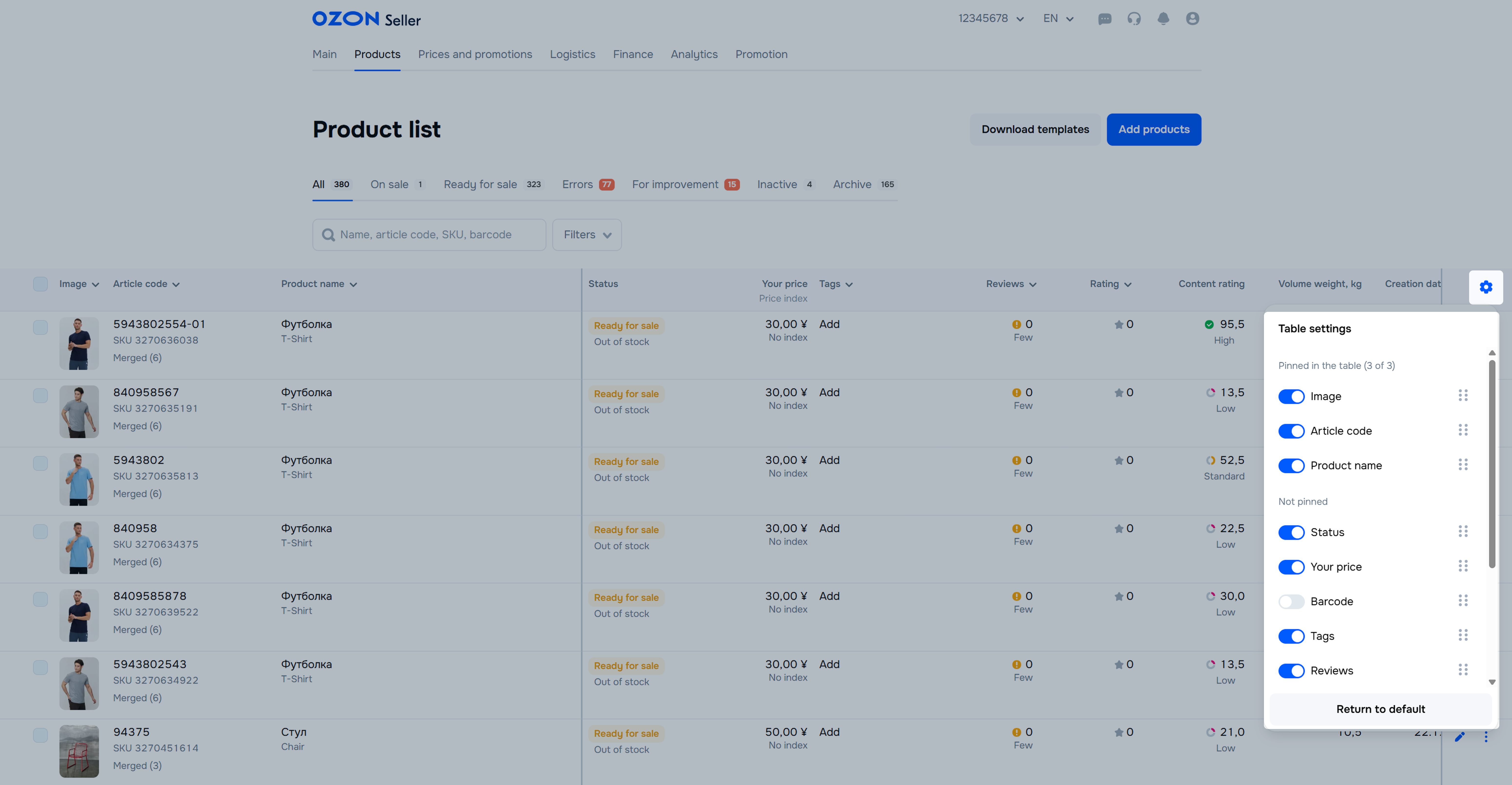
In the Product list section, you can view all your products. To customize the list:
 .
.
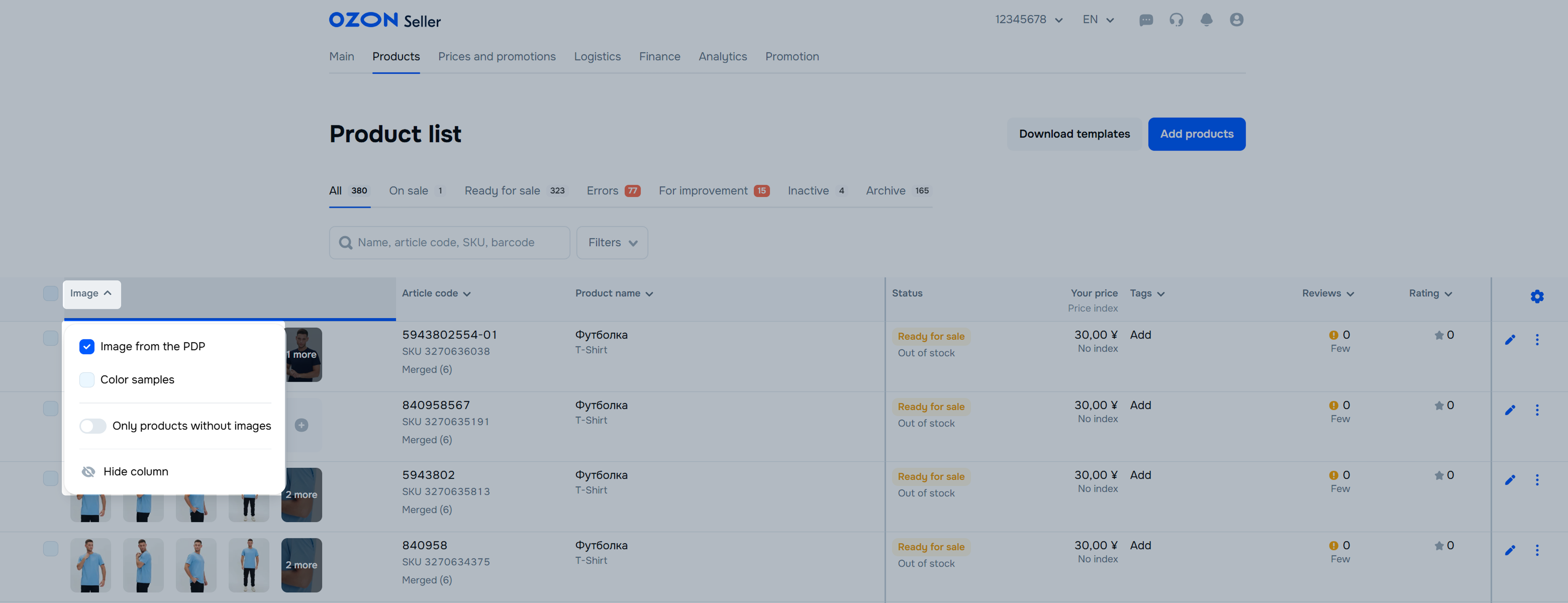
You can check which images are included in the PDPs. To do this, click on the heading of the “Images” column. Select:
Click on the image thumbnail to open the media editing page.
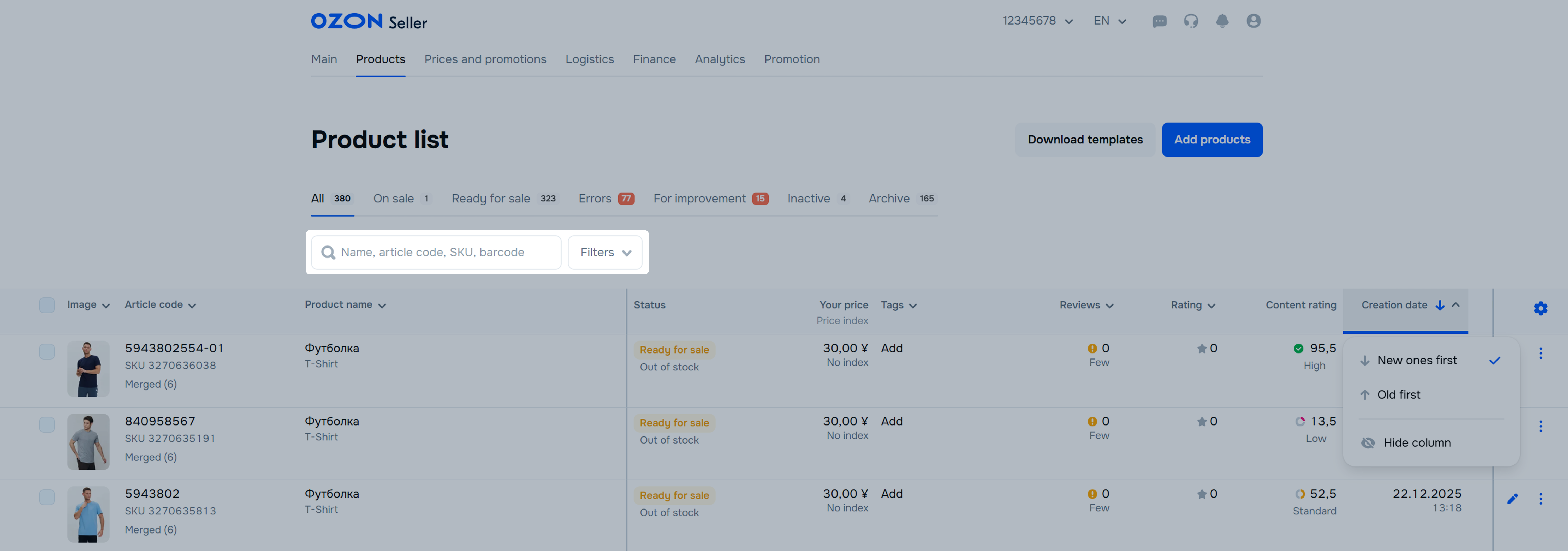
You can find for products using search, filters, and sorting.
 to save the report to your computer.
Click Download template and select the report:
Click Download → Reports:
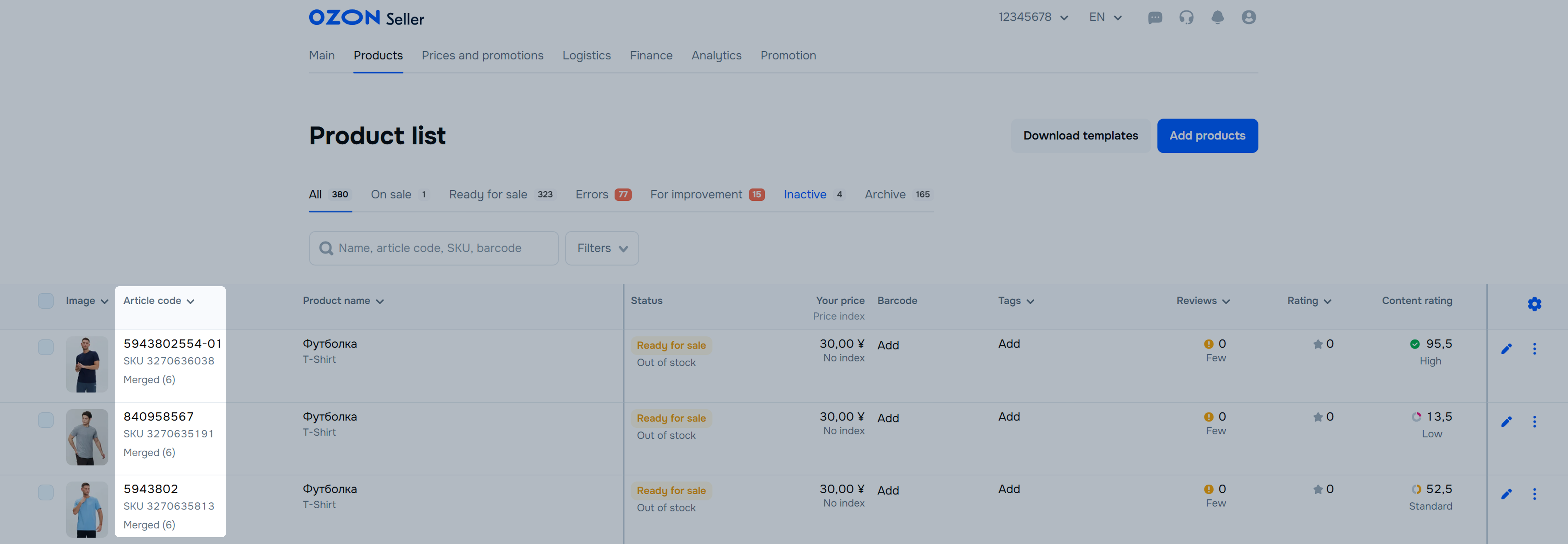
.Each product has an Ozon SKU ID. They are displayed in the “Article” column.
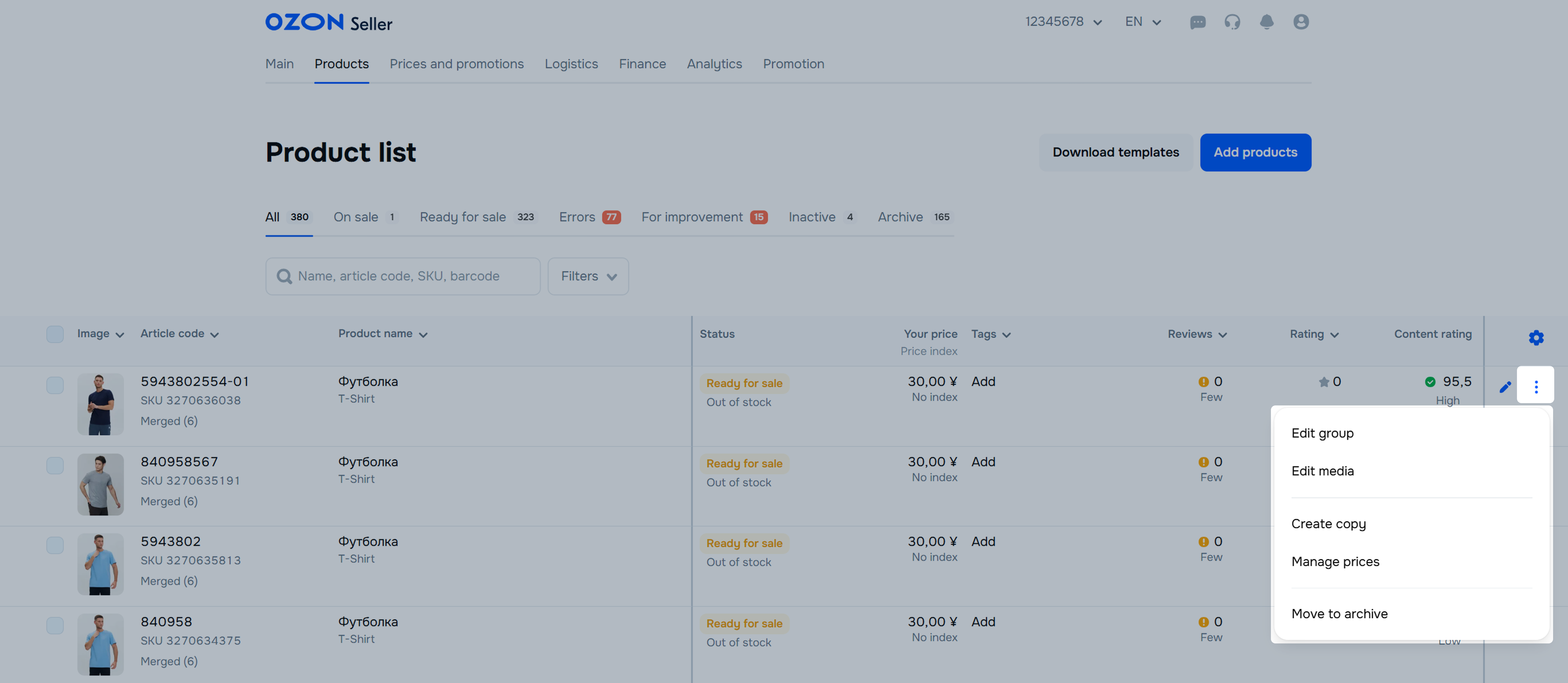
In the product row, click  and select:
Edit the product to edit one PDP.
Edit group to edit all products of the same model with different characteristics. For example, cases of different colors for a specific phone model, if they are merged into one PDP.
Edit media to edit product images.
Create copy to create a copy of the selected product.
Download barcode as PDF to select the printer type and barcode size.
Price management to work with prices.
Move to archive to archive the product if you can’t replenish stocks or don’t want to sell the product.
Content rating is a recommendation for working with product information. It helps to make products more attractive to customers. To view the parameters that you need to fill out for maximum rating, click the content rating value in the field with the desired product. We show the current rating and the fields for entering the missing product information.
Learn more about content rating
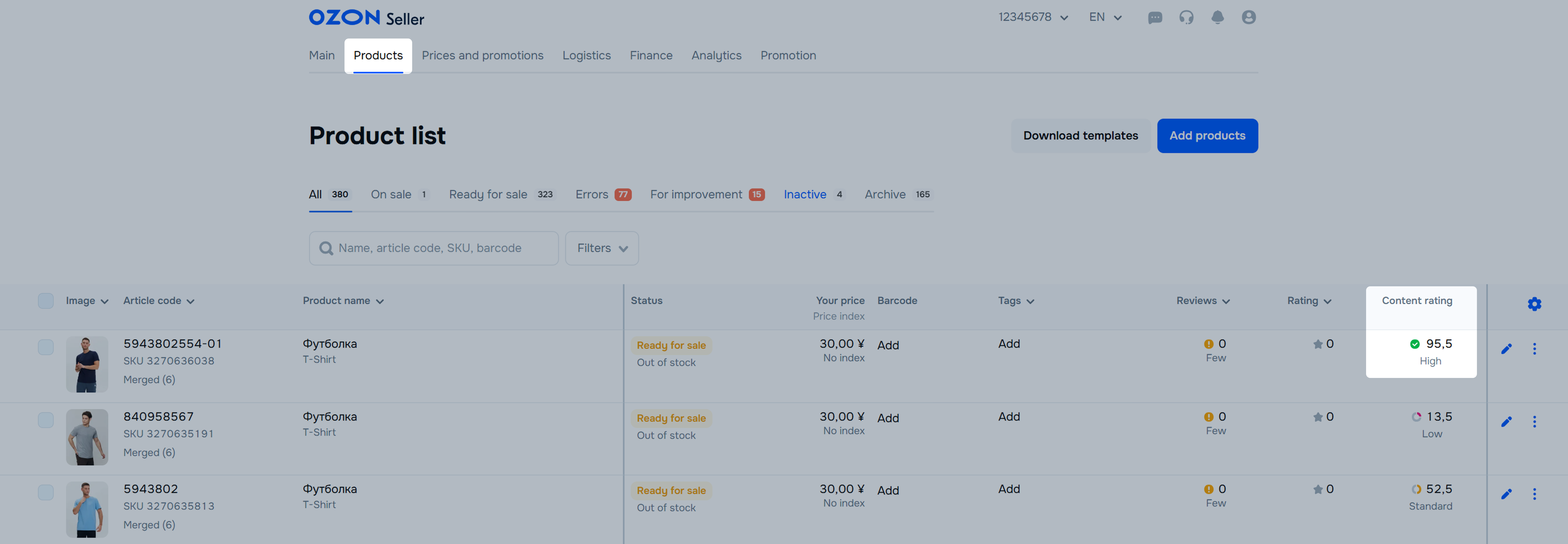
If a product has enough reviews, we analyze them and make an overview with the most frequent comments from customers. We take into account only reviews for purchased and canceled orders for the last year. If a customer edits the review, we take into account its latest version. The data for overviews is updated once a week. Customers don’t see review overviews.
Learn more about review overview
In the “Reviews” column, click the number in the product row for which you want to see a review overview.
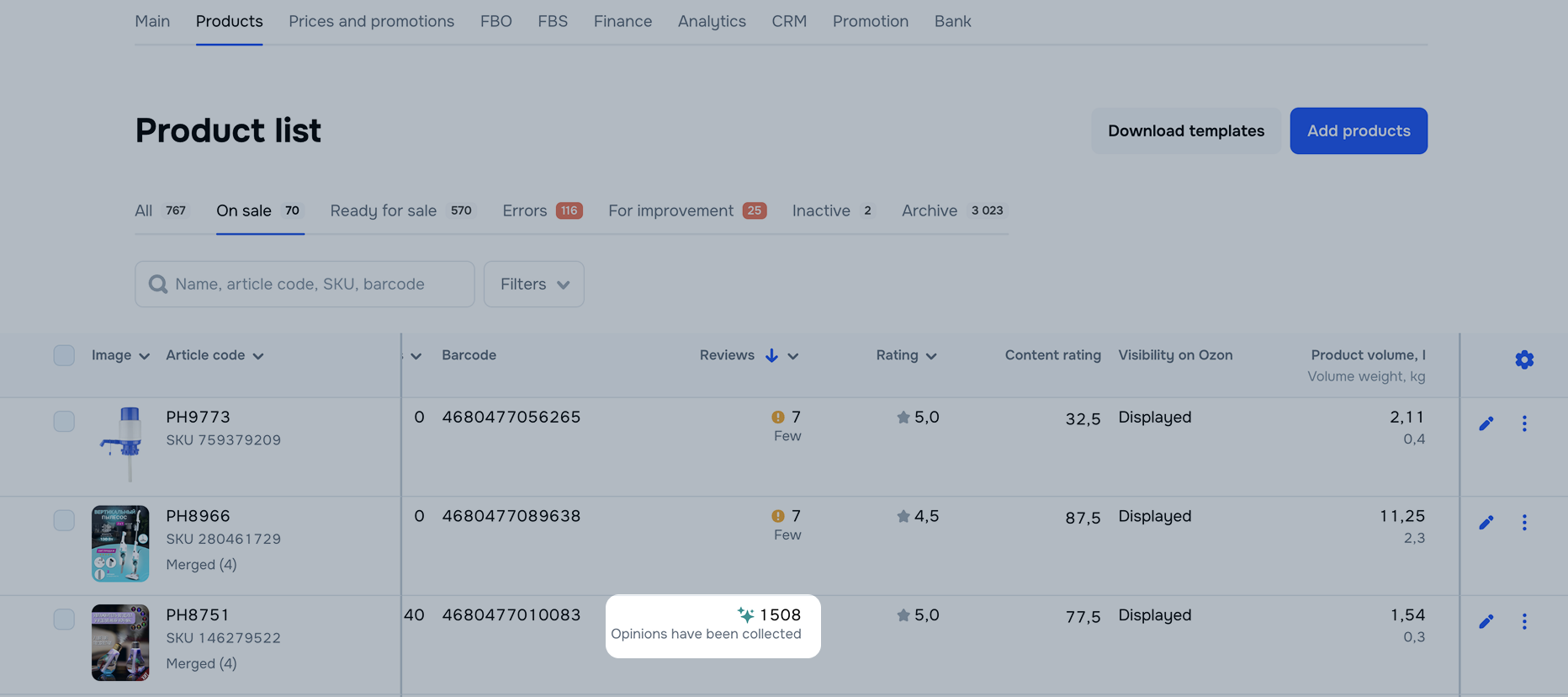
Select for which period to show the overview: 3, 6, or 12 months.
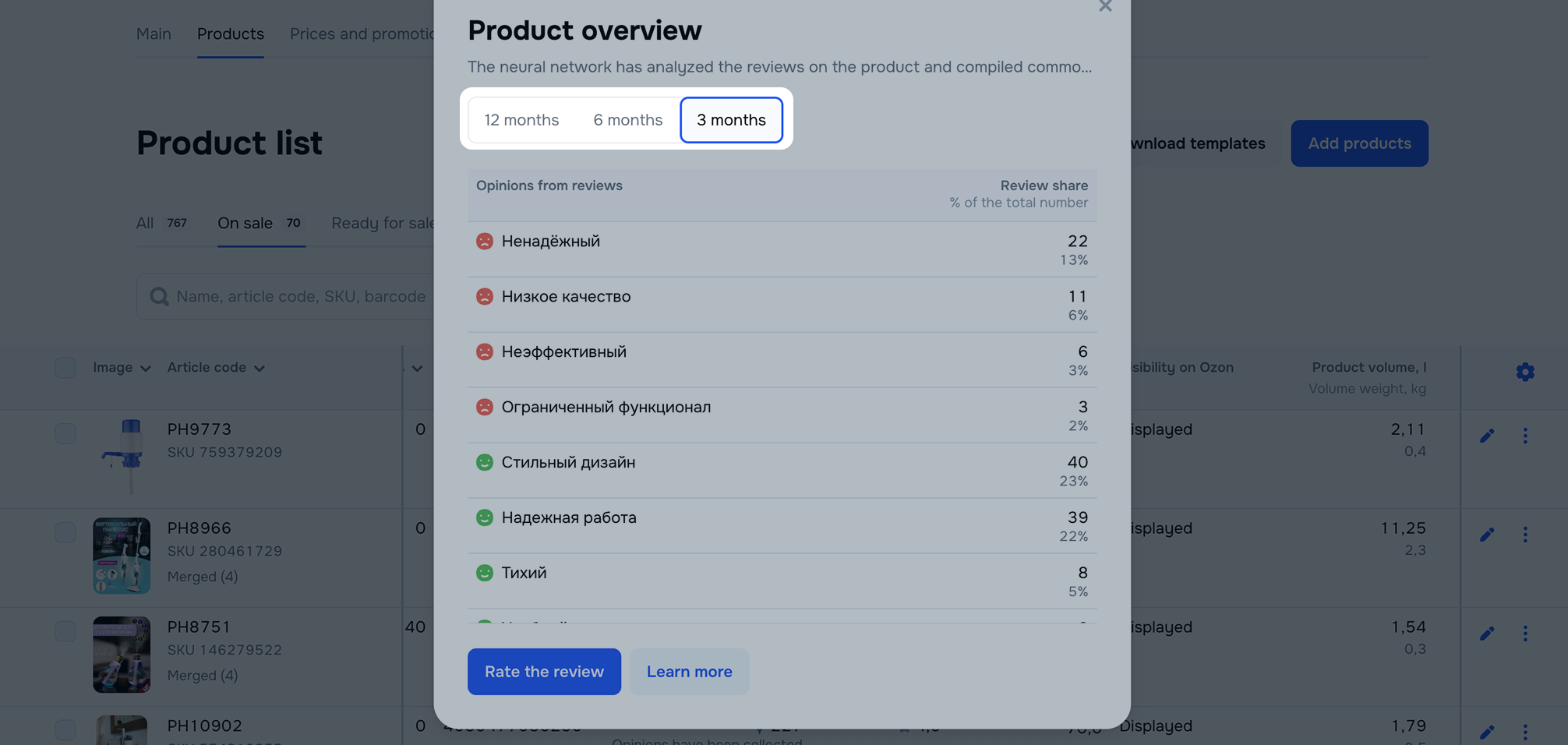
In your account, you can add short comments to products. These are called tags. You and other employees who have access to your account can see them. Customers don’t see tags on PDPs, so tags don’t affect your sales.
You can choose one tag:
If you want to create your own tag, sign up for the Premium Plus subscription. The next day after subscribing, you can create tags in your account.
Use tags:
You can add up to 1,000 tags.
To add a tag:
In the Products → Product list section, in the Tags column, click:
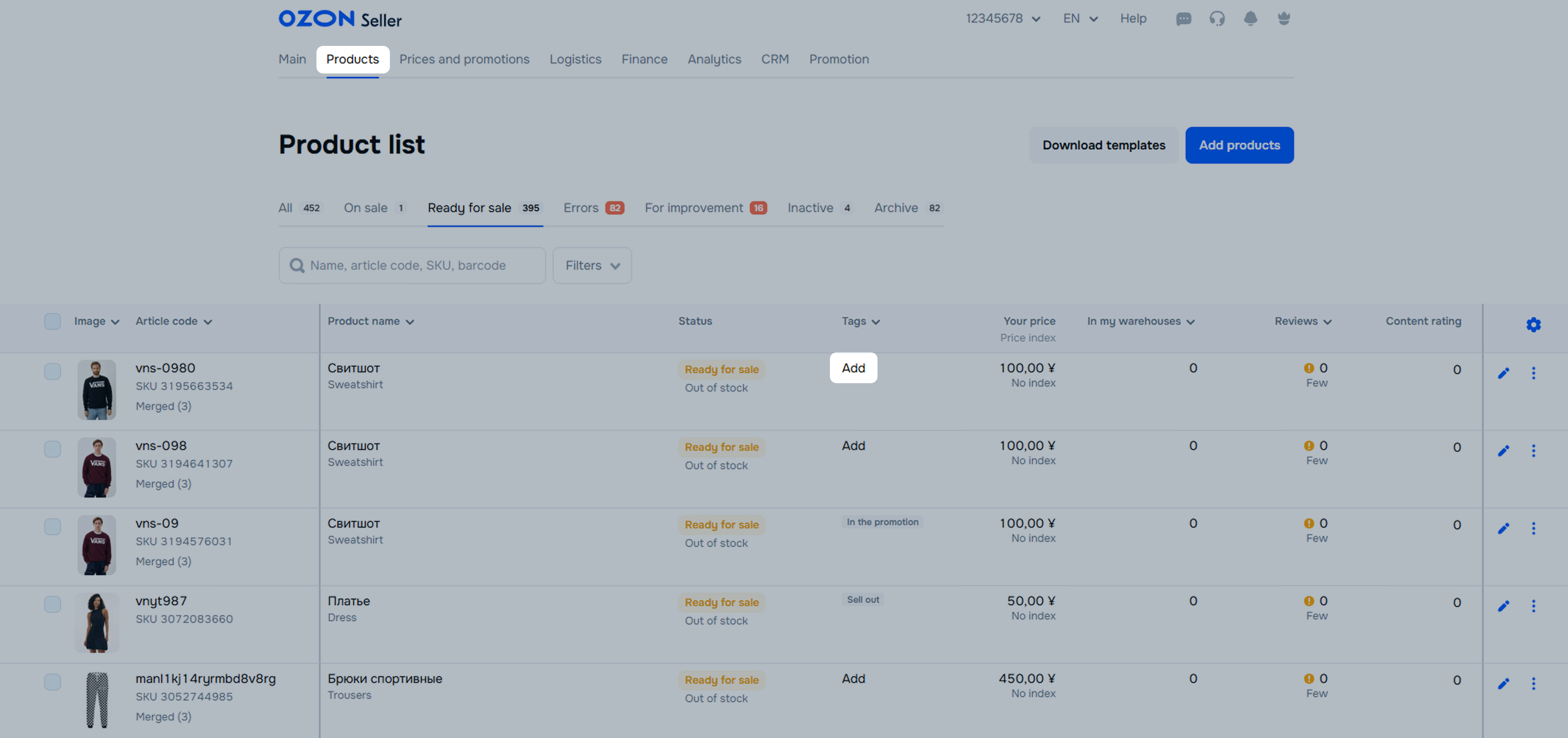
Select a tag from the list or create your own one if you have the Premium Plus subscription. To do this, start typing the text. A tag should have no more than 20 characters with spaces.
You can add up to 10 tags per product.
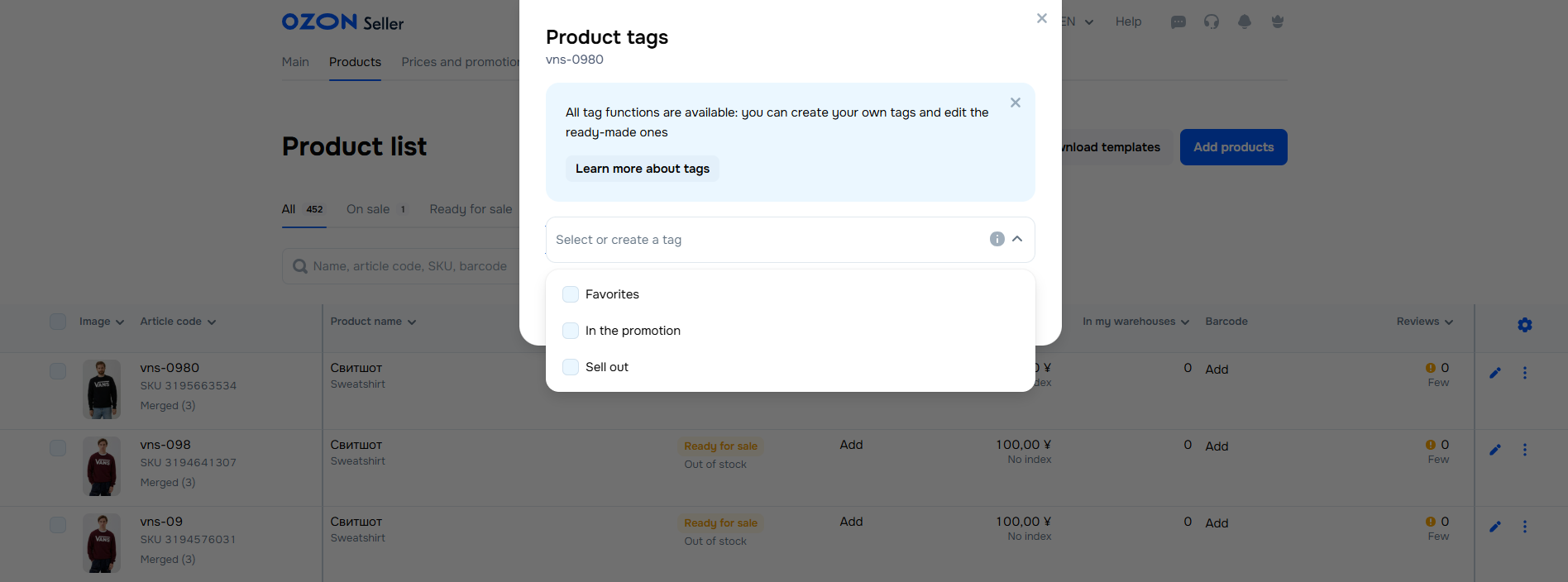
Click Save. When adding a tag, we don’t send the product for moderation again.
You can edit or delete your own tags, but only delete ready-made ones.
To delete or change a tag:
In the Products → Product list section, click the tag.
You can:
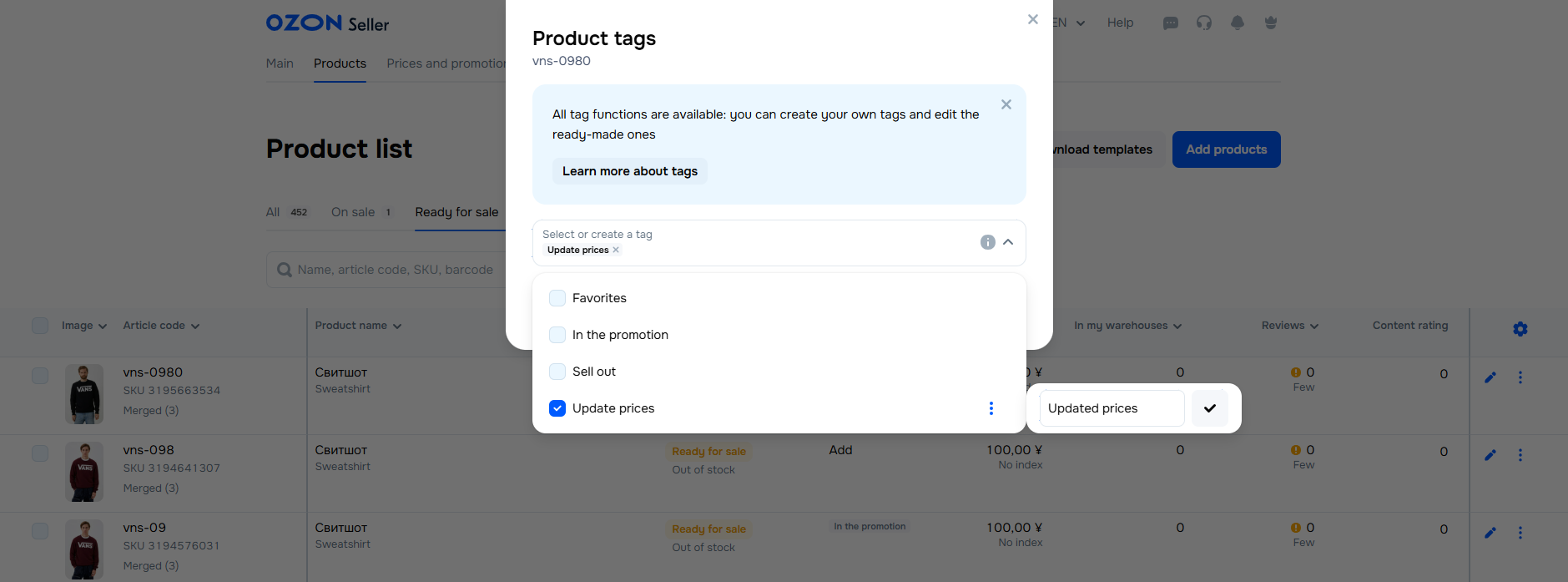
Remove the tag from the product: click  next to its name.
Change the tag name: in the Select or create a tag field next to the desired tag, click  . Change the name and click
  .
.
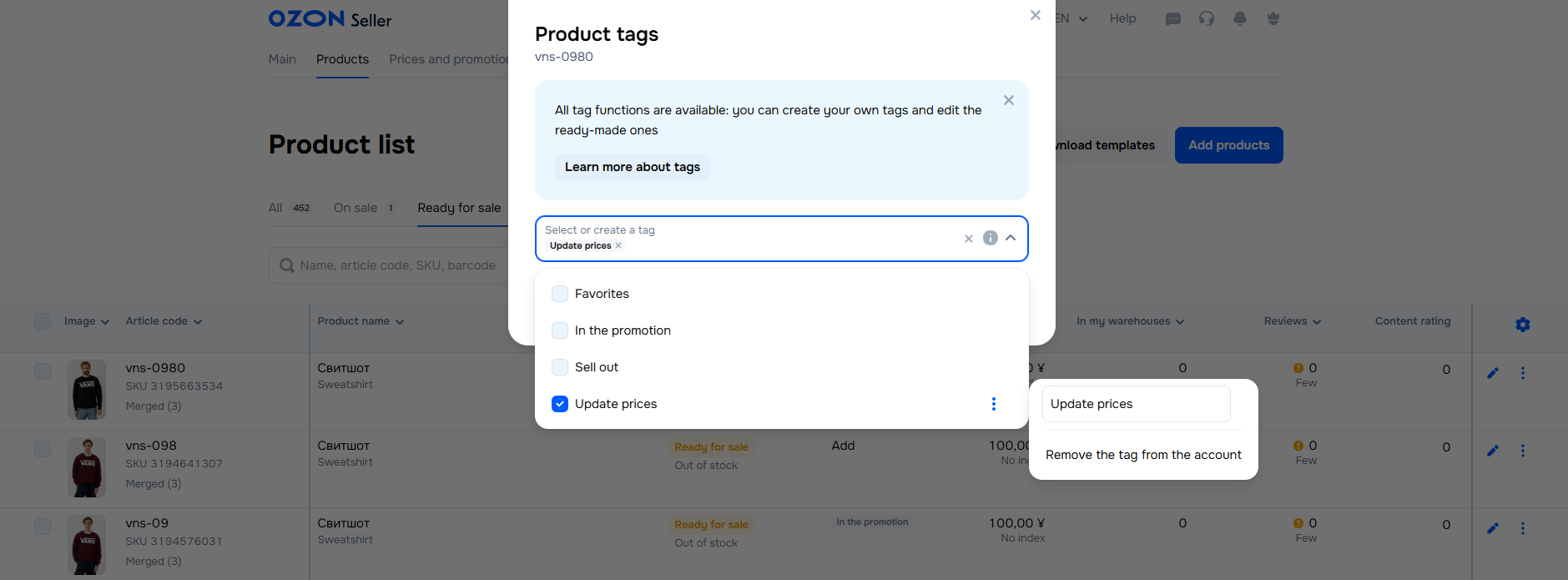
Remove the tag from all products: in the Select or create a tag field next to the desired tag, click → Remove the tag from the account.
To remove tags in bulk:
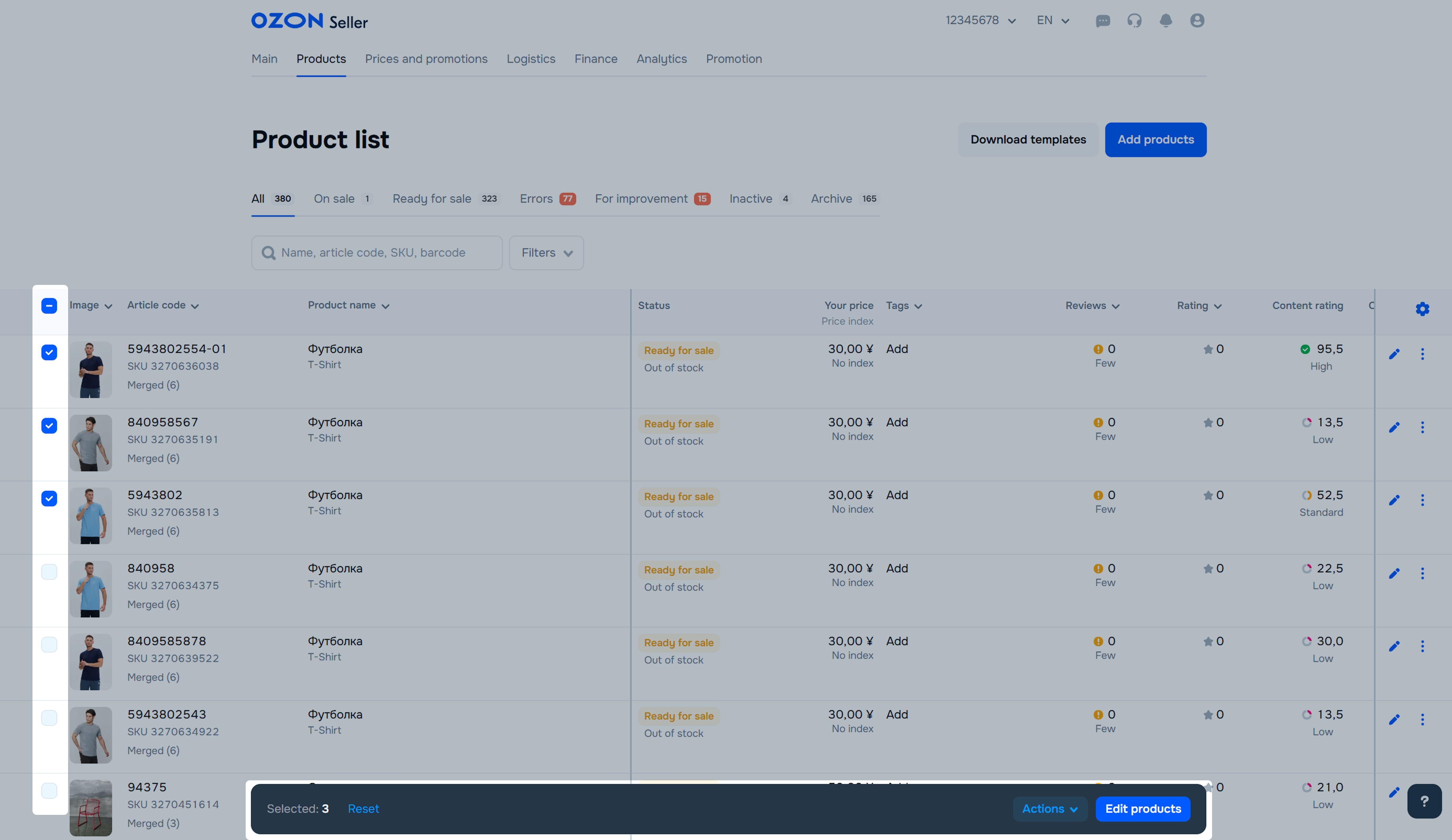
In the Products → Product list section, select the desired products from the list and click Actions → Add tags.
Leave the field empty.
Click Save → Remove.
Hide menu
Show menu
Выберите договор

Это база знаний для продавцов из стран СНГ и дальнего зарубежья.
Если ваша компания зарегистрирована в России, перейдите в базу знаний для продавцов из России.
Когда вы зарегистрировались на Ozon?
Условия работы и инструкции зависят от даты заключения договора — её можно посмотреть в разделе Договоры
Определили ваш договор
Он заключён с ООО «Интернет Решения». Если есть другой договор, сможете переключиться на него в боковом меню