Определили ваш договор
Он заключён с ООО «Интернет Решения». Если есть другой договор, сможете переключиться на него в боковом меню
You can increase sales and get more orders by promoting your products.
Learn more about promotions
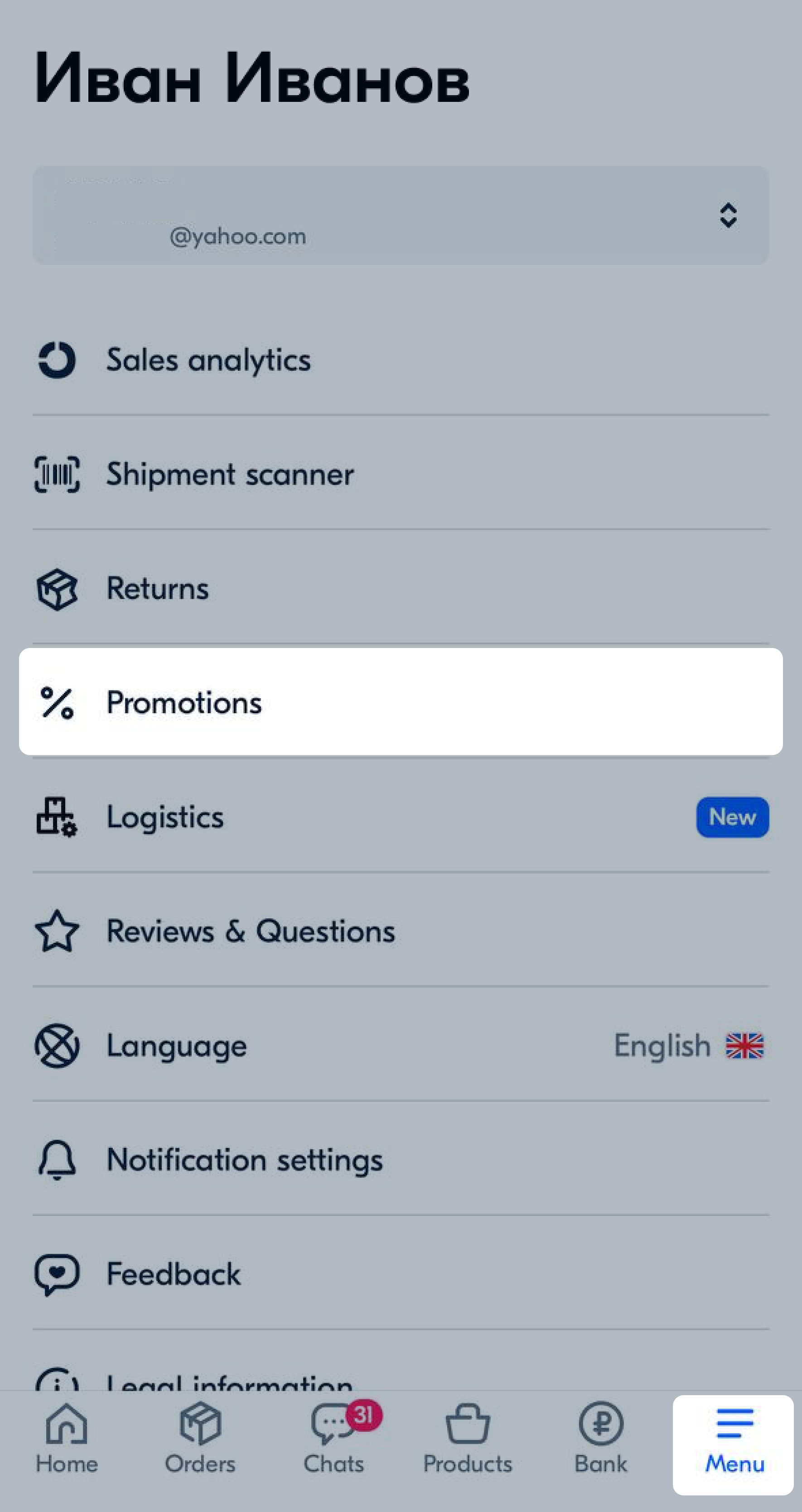
Go to the Menu → Promotions section.
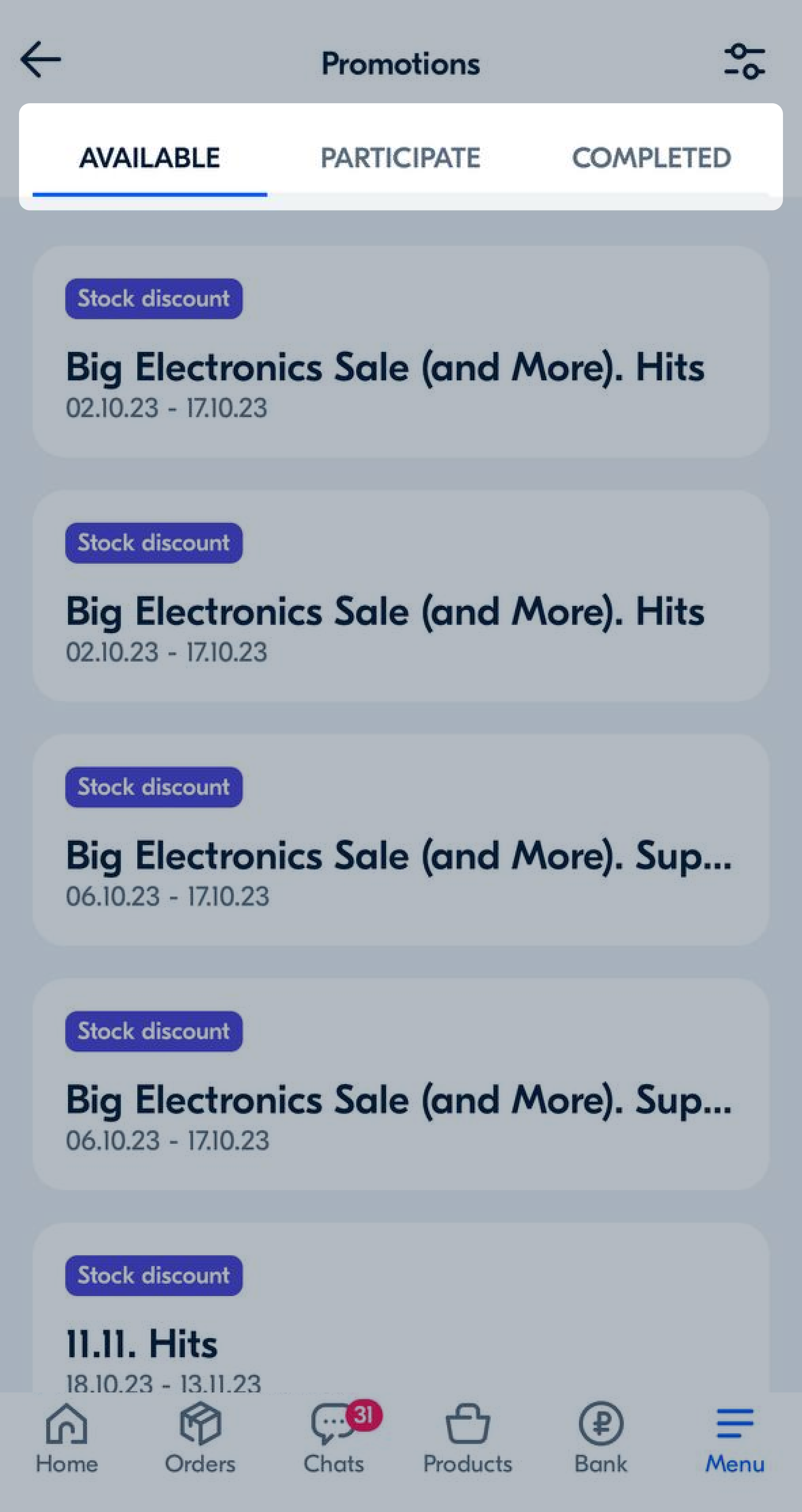
Open the tab:
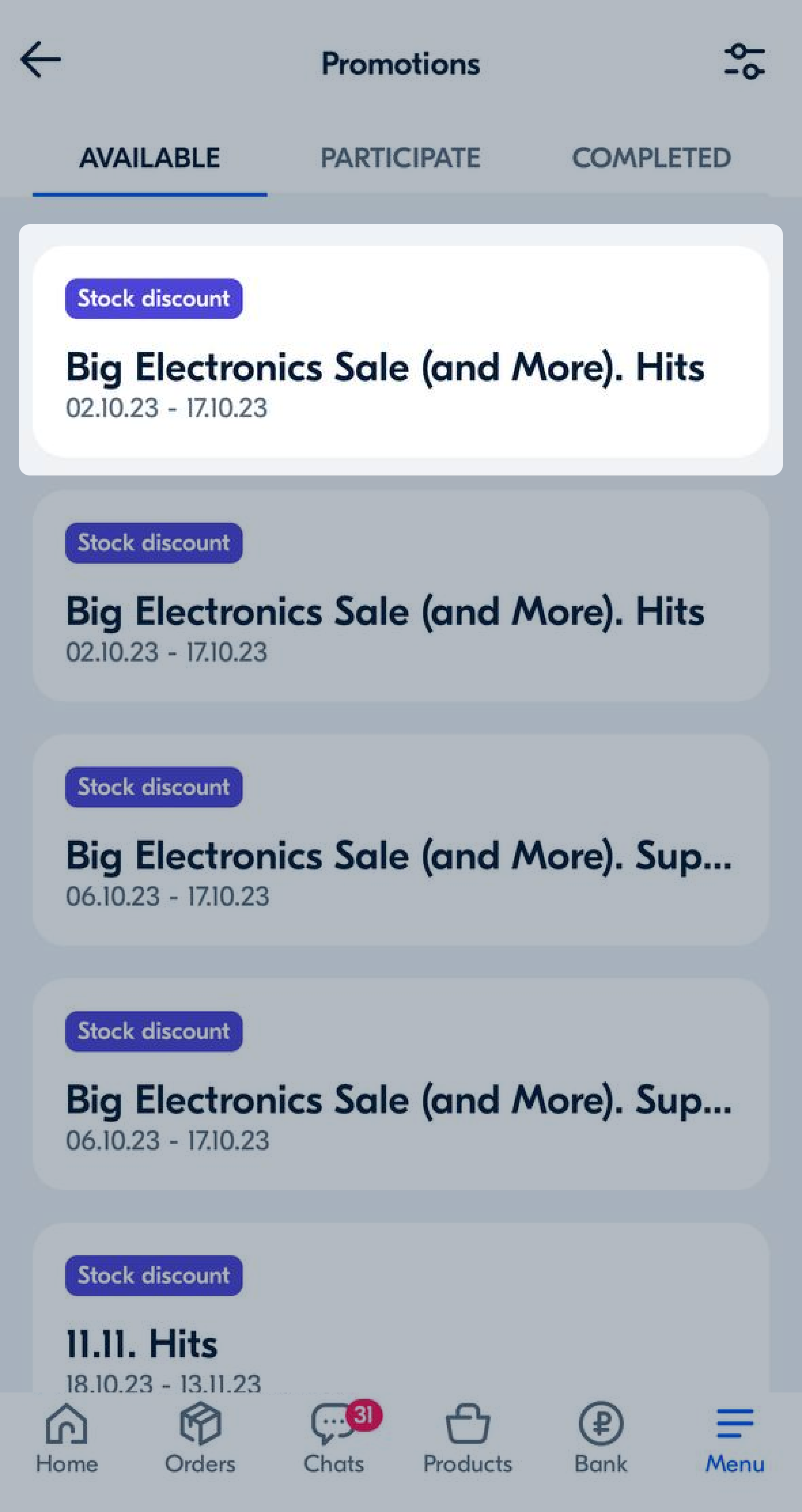
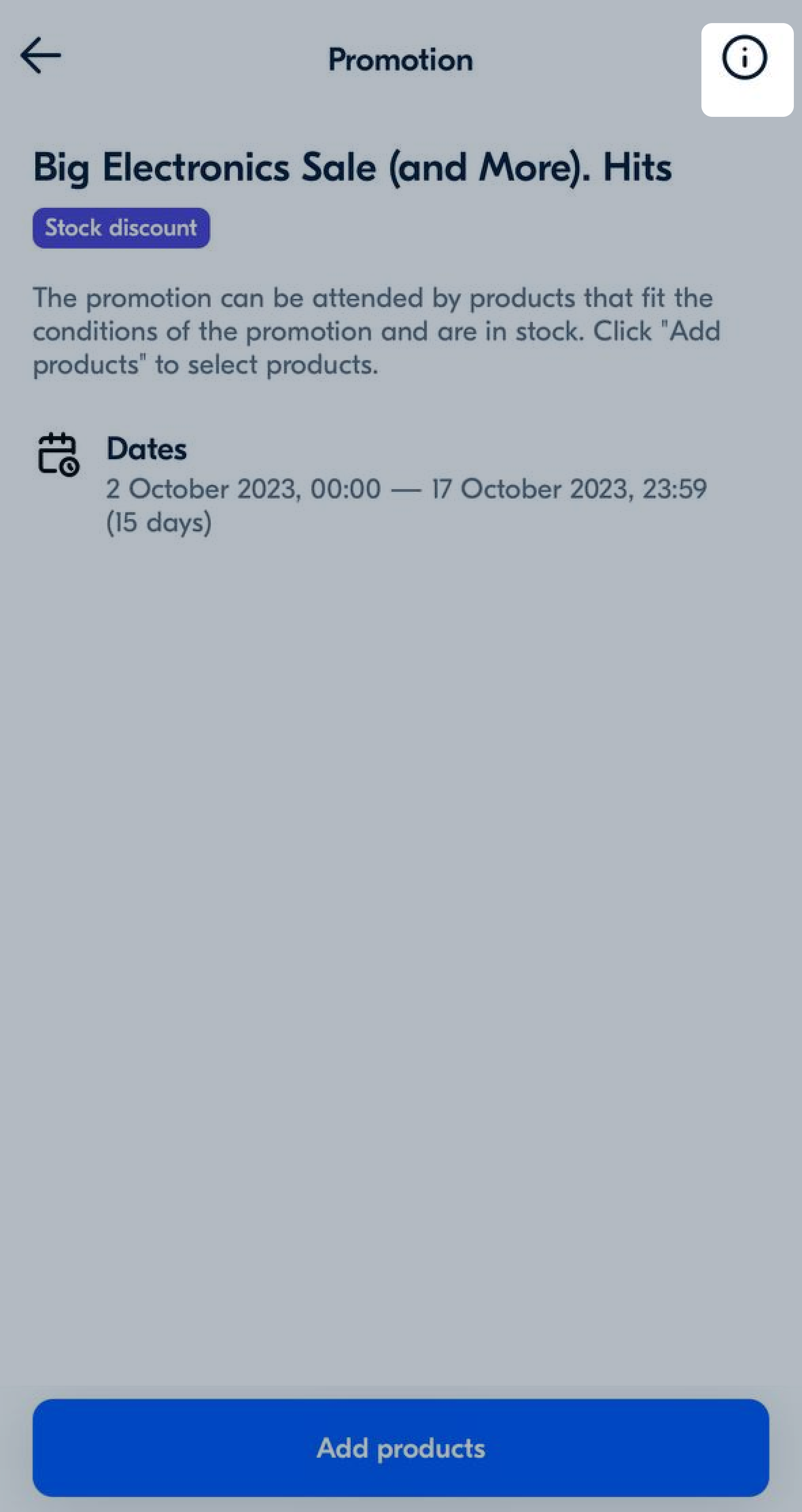
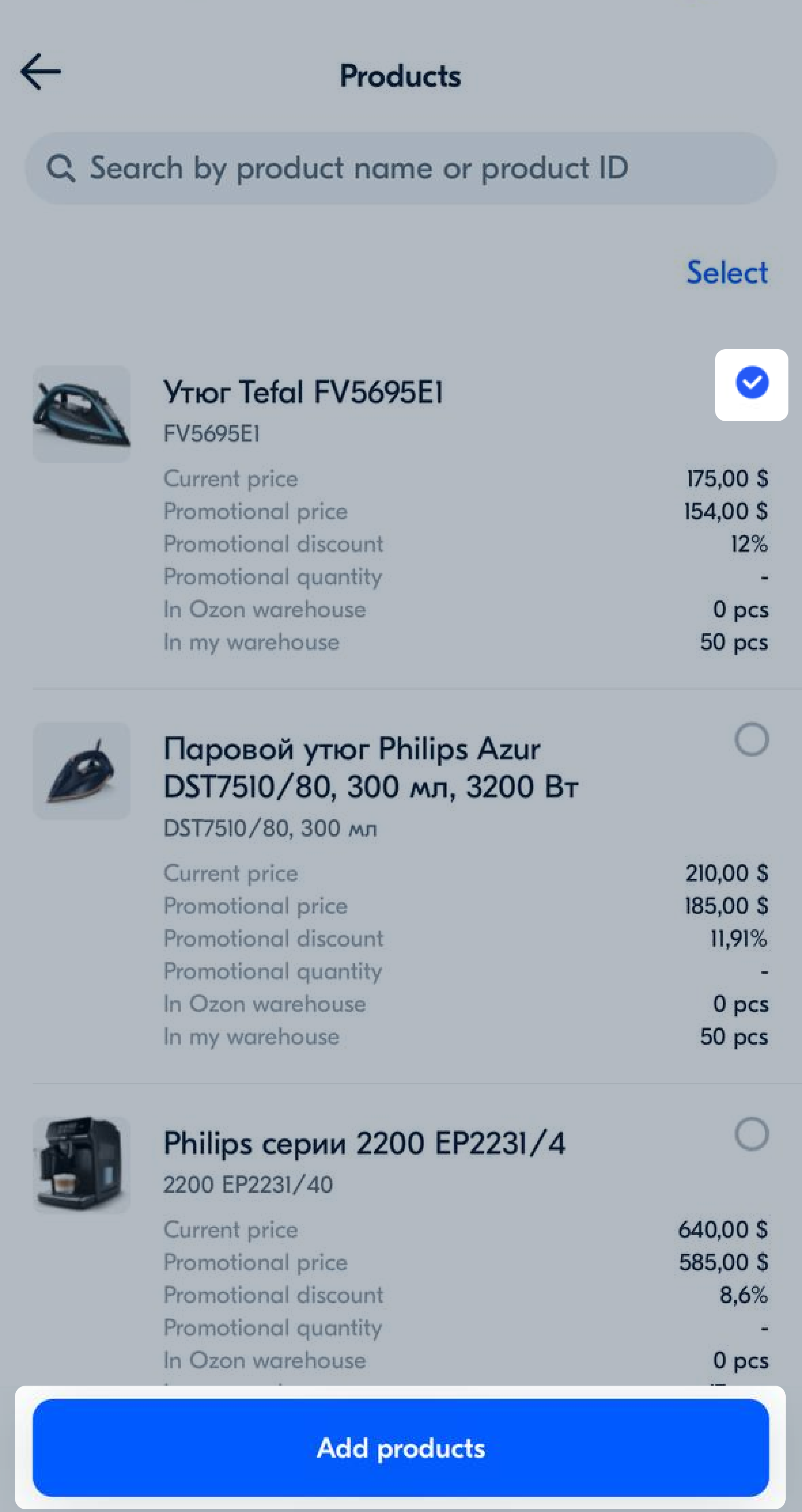
To view information about the promotion and the list of added products, tap the promotion card.
To open the detailed terms of the promotion, tap
 .
.
 .
.
 in the upper right corner.
Hide menu
Show menu
Выберите договор

Это база знаний для продавцов из стран СНГ и дальнего зарубежья.
Если ваша компания зарегистрирована в России, перейдите в базу знаний для продавцов из России.
Когда вы зарегистрировались на Ozon?
Условия работы и инструкции зависят от даты заключения договора — её можно посмотреть в разделе Договоры
Определили ваш договор
Он заключён с ООО «Интернет Решения». Если есть другой договор, сможете переключиться на него в боковом меню